
Calendar
You can incorporate your calendar into your page. If you haven’t created one yet, click on the “Click here” link and you will be directed to the Calendar page to create one.
If you already added your calendar link but you updated the calendar from the calendar page, you will have to delete the element and add it again for the update to reflect.
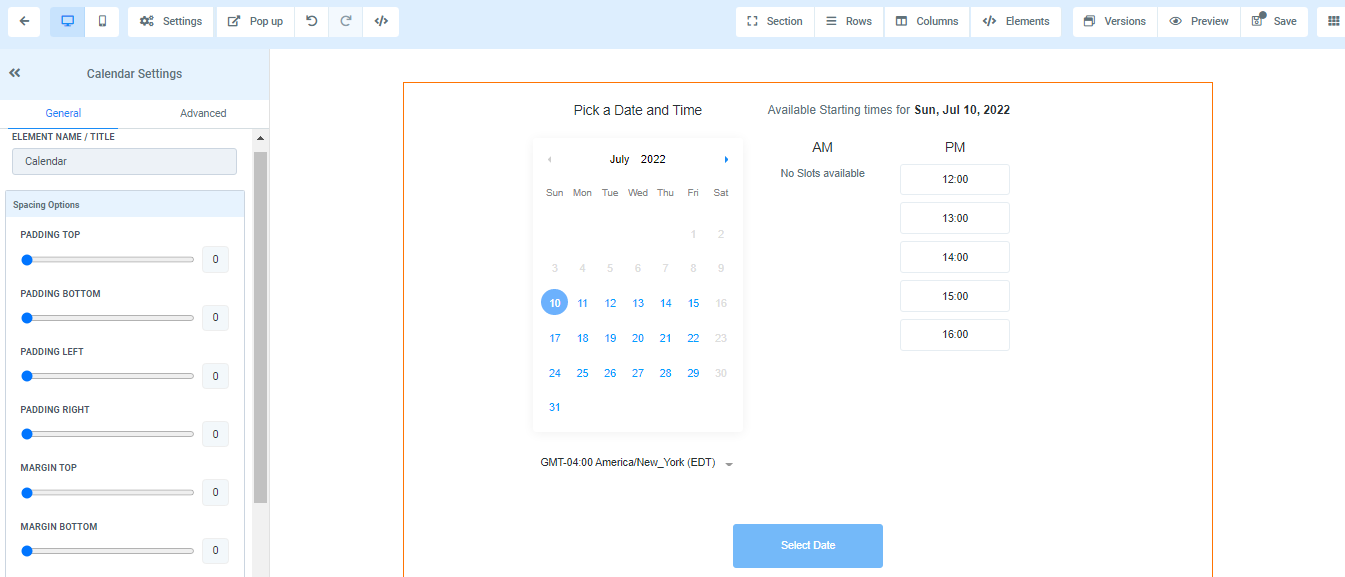
General Setting
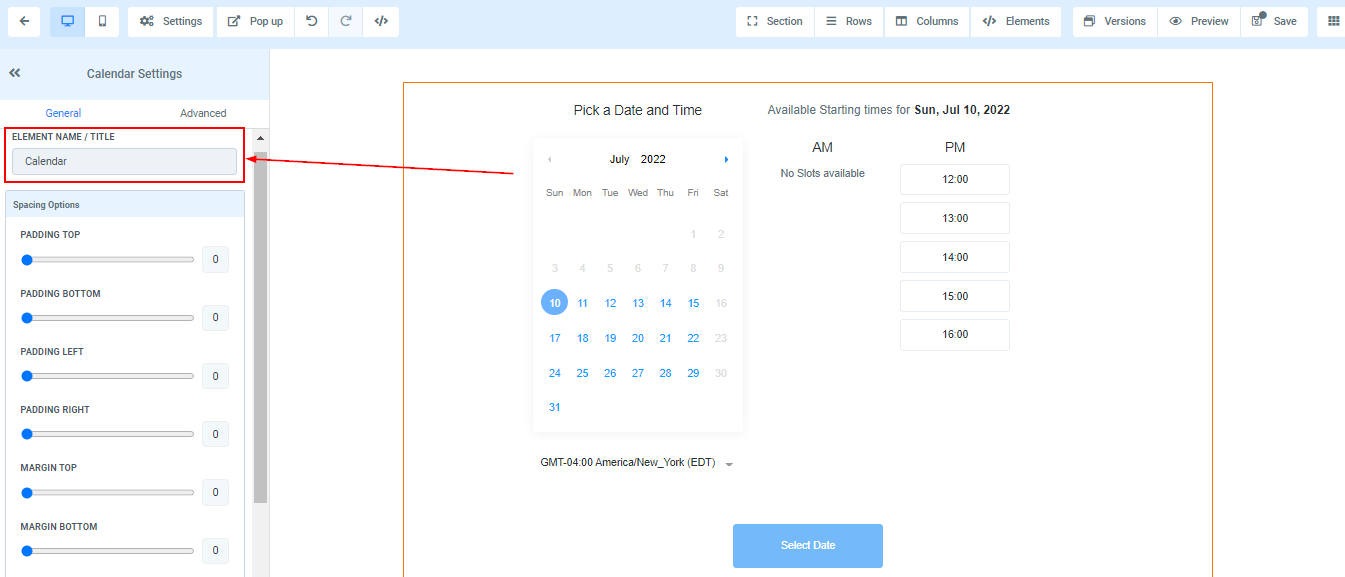
Element Name/Title
Here you will see the default name/title of the Edit option you are working on. You can decide to leave at that or rename it.
Spacing Option:
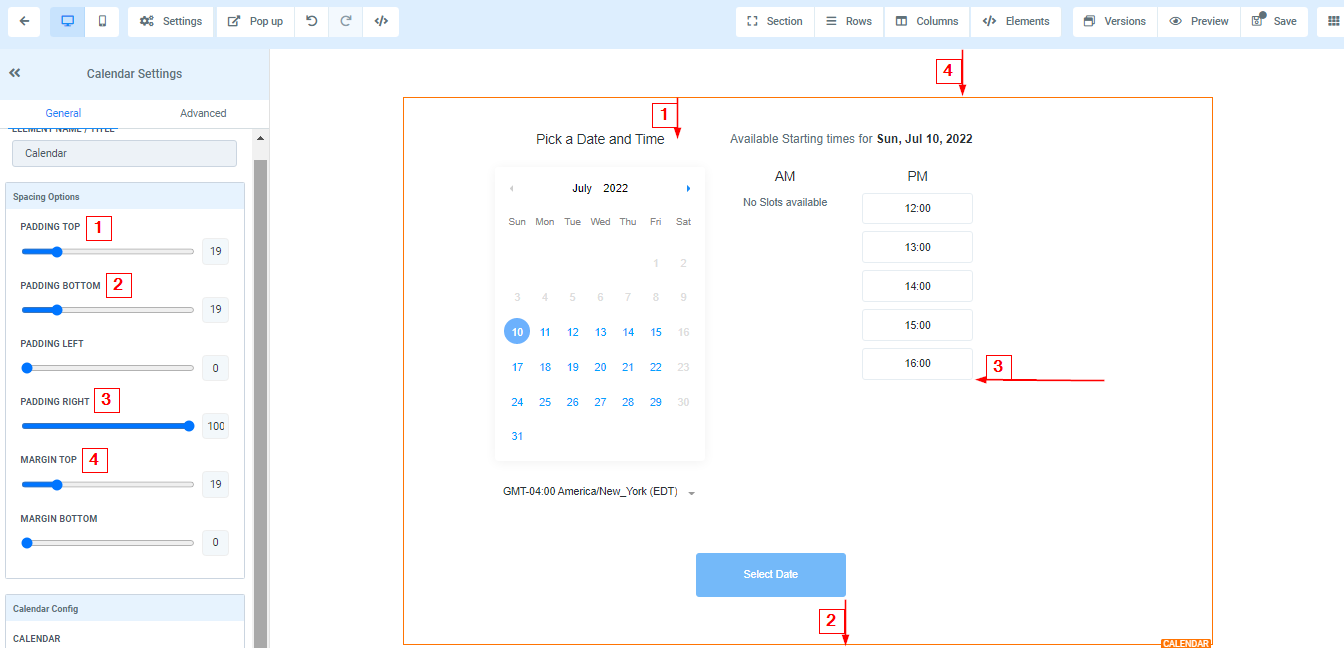
There are different spacing options available for adjusting your content. Depending on the Edit option you are working on, the settings will only be applicable to that option. For example, if you are editing a particular Row (the BLUE box), only every content in that Row will follow the command of what settings you make.
-
Padding Left, Right, Top, and BottomThis Four (4) different toggle bar moves the content to either the left, right, top, or bottom depending on the toggle bar you click on.
-
Margin Top and BottomYou can adjust the top or bottom margin of your content by toggling its bars.
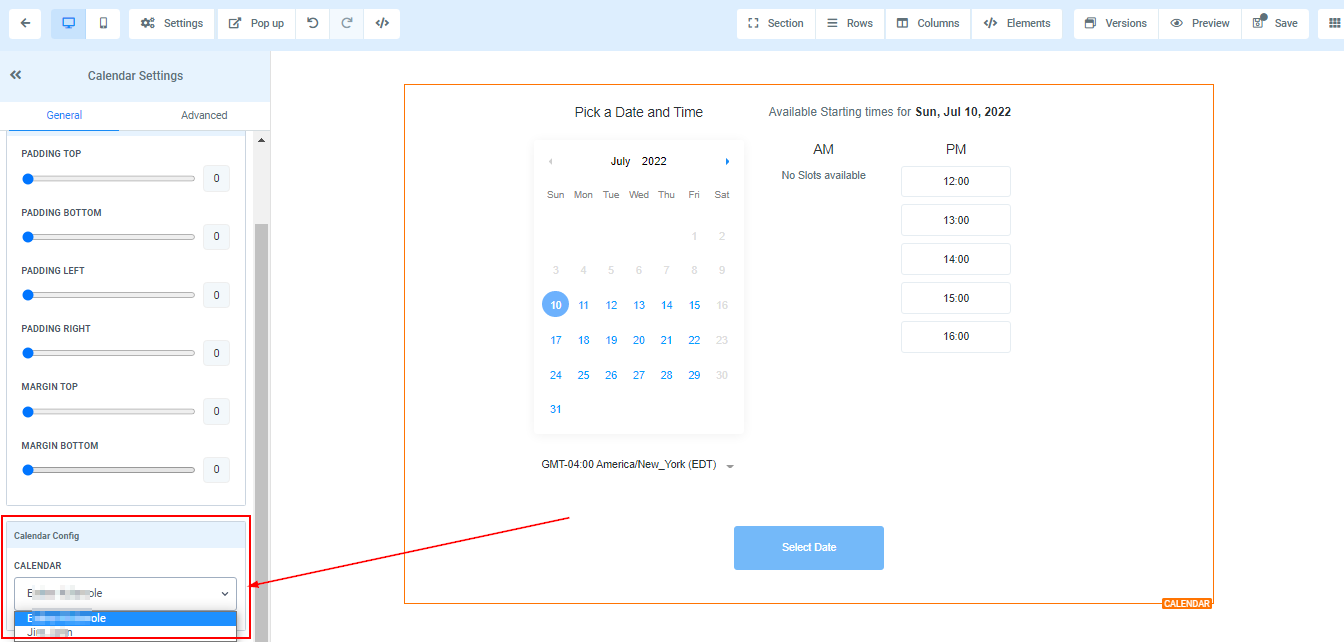
Calendar Configure
Calendar
If you want to replace your Calendar, you can simply select the new form here.
Redirect Action