
Here you can manage all of the calendars and their settings.
Calendar List
-
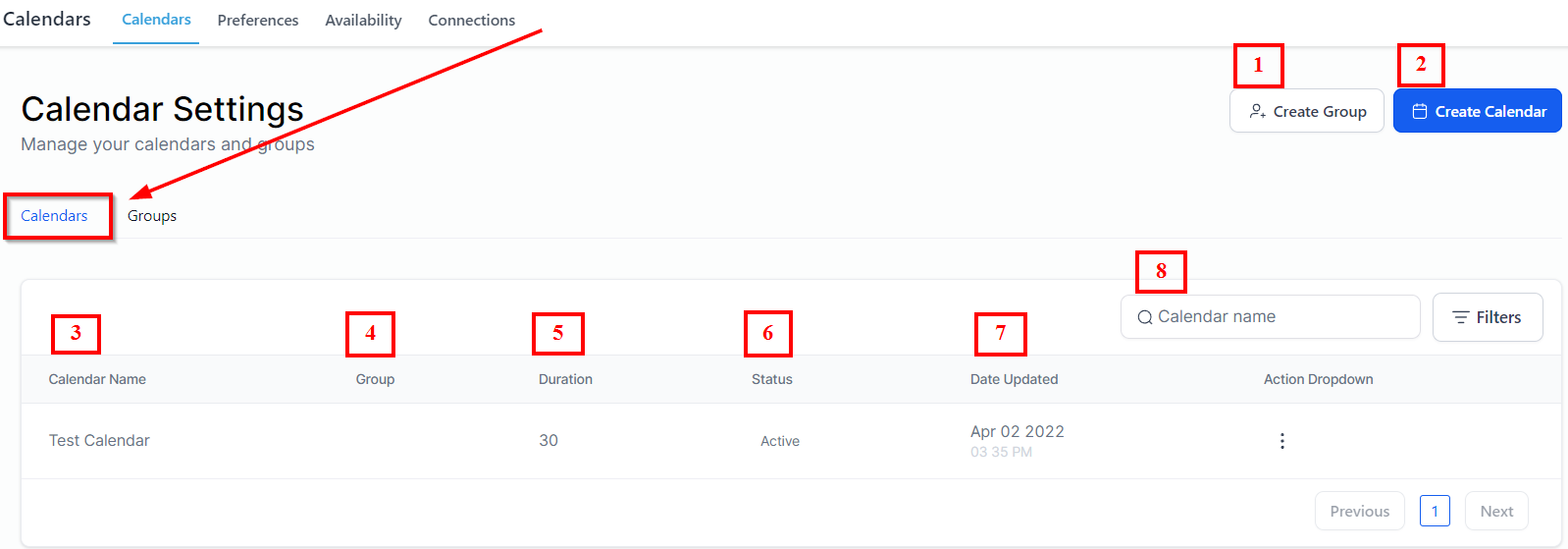
1.Create Group ****This allows you to create a group with which you can set up a group calendar. If you have more than one user who would use one single calendar, it would be helpful to create a group of users for a similar kind of purpose.
-
2.Create Calendar This column lets you create a new calendar with some additional options.
-
3.Calendar Name ****Here you can see the name you have given to each calendar you have created in the system.
-
4.Group ****Here you can learn which group each calendar in the list belongs to.
-
5.Duration ****Here you can learn the meeting duration you have set for each calendar on the list.
-
6.Status This column lets you know whether the calendar is active or not.
-
7.Date Updated ****This gives you information about the date when the calendar was updated.
-
8.Search Bar ****Here you can quickly find out any of the calendars from the list just by entering the calendar name in the search bar.
 The action menu allows you to perform several actions for the groups. Let’s cover them one by one.
-
Edit ****Allows you to edit the calendar settings such as your availability and everything with respect to the calendar.
-
Duplicate ****You can duplicate the calendar with this option. All of the existing settings from the original calendar will be applied to the newly created calendar.
-
Copy Embed Code ****Click on this option if you need to paste the calendar code on your webpage. Once you paste the code on your website, your customer would be able to book an appointment right from your website.
-
Copy Scheduling Link ****Use this to share the scheduling link with anyone who wishes to book an appointment with you.
-