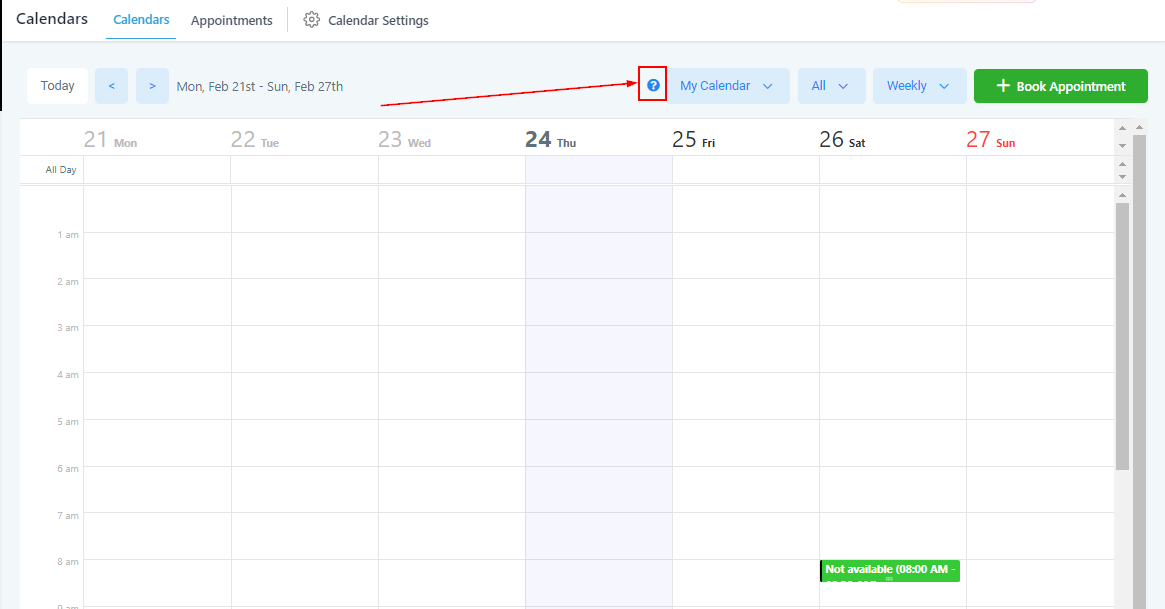
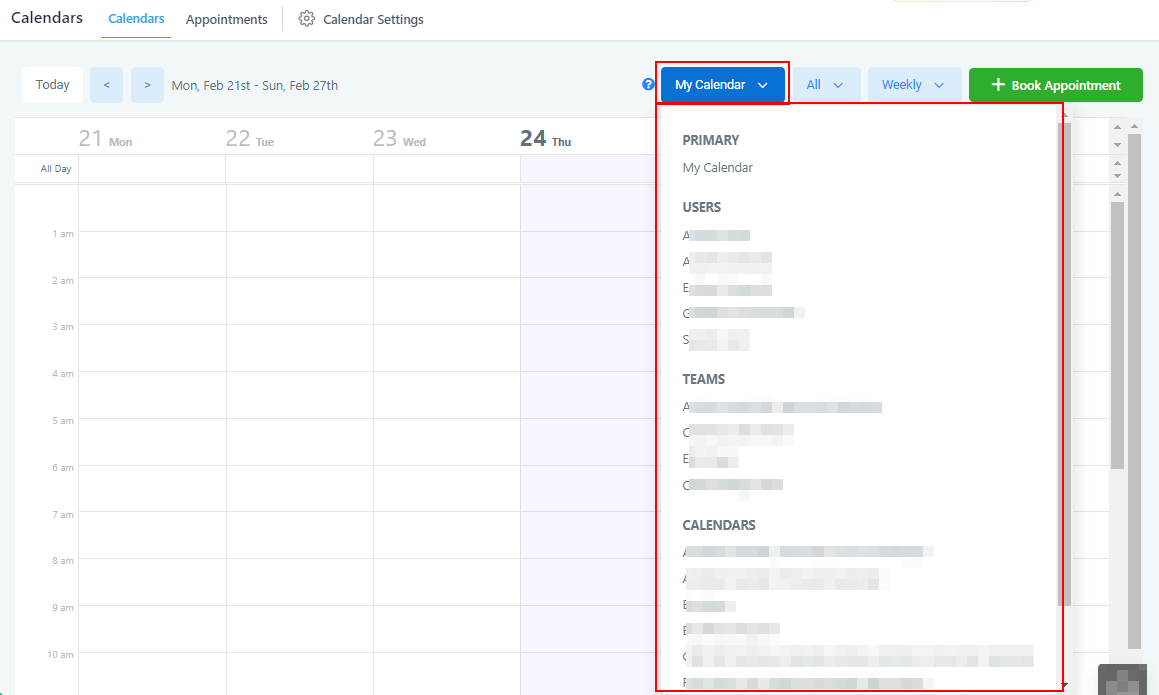
If you have multiple calendars connected to your CRM, or if you’ve created multiple calendars, you can filter which calendar you want to look at by using this drop-down tab.
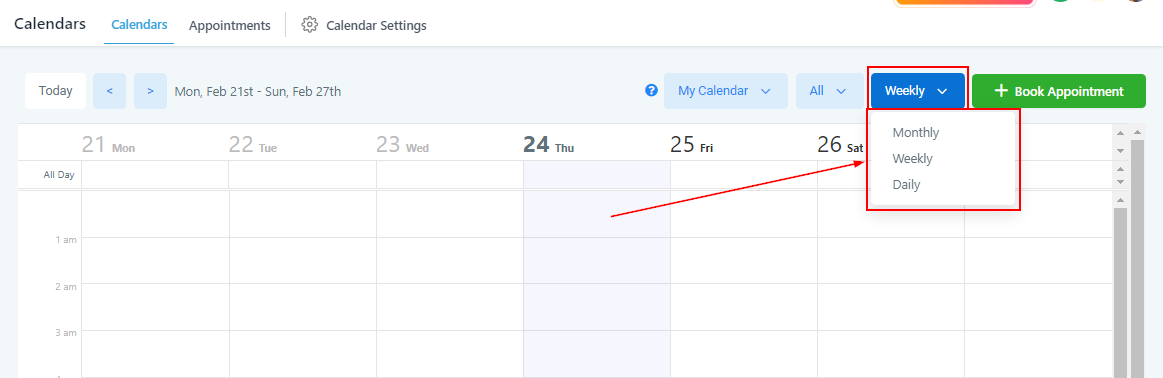
Change Date Range
You can change the date range of your calendar in order to see scheduled appointments for the month, week, or day.
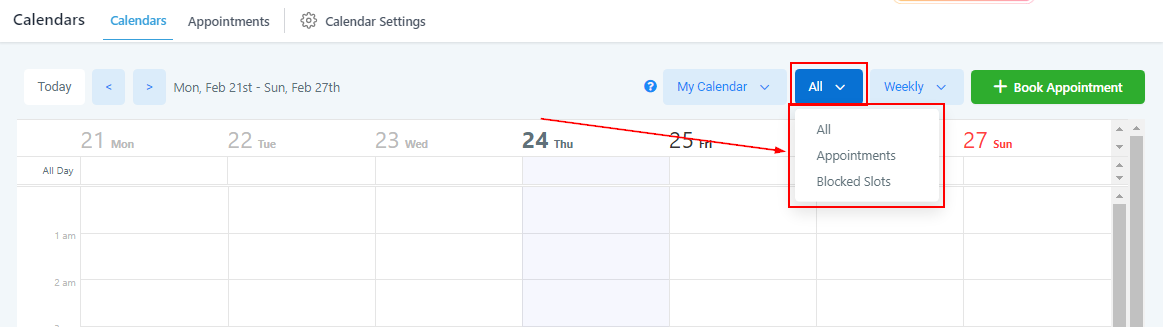
Availability
Filter the view based on availability. You can choose to show either only confirmed appointments, or the times you are unavailable
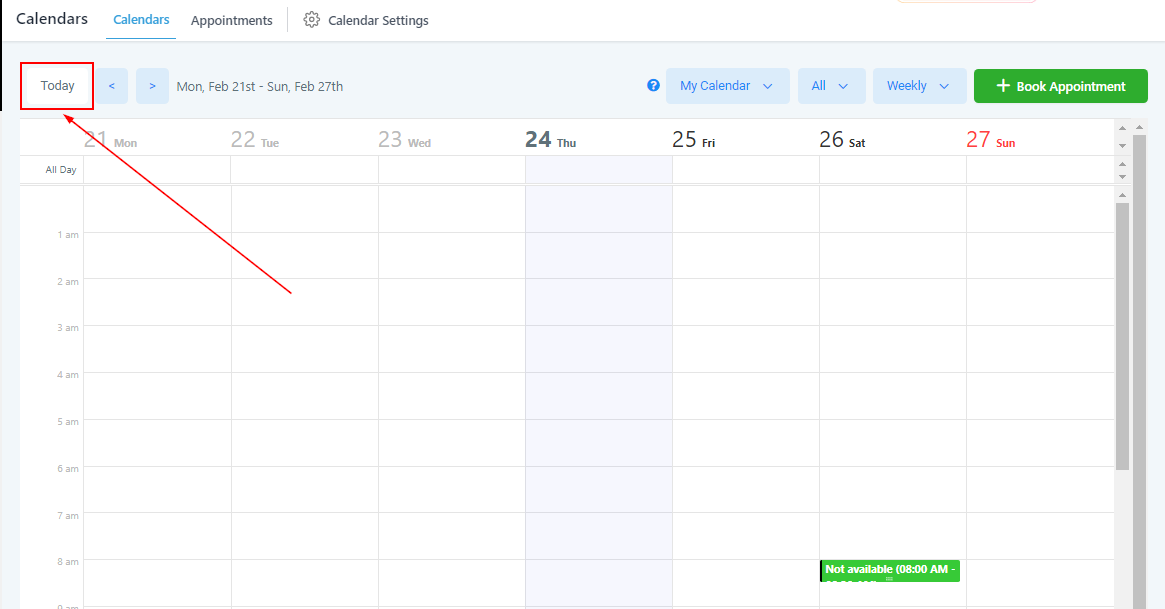
Quick Action – Today
If you ever want to quickly switch back to a daily view to see what your daily schedule looks like, simply click this button!
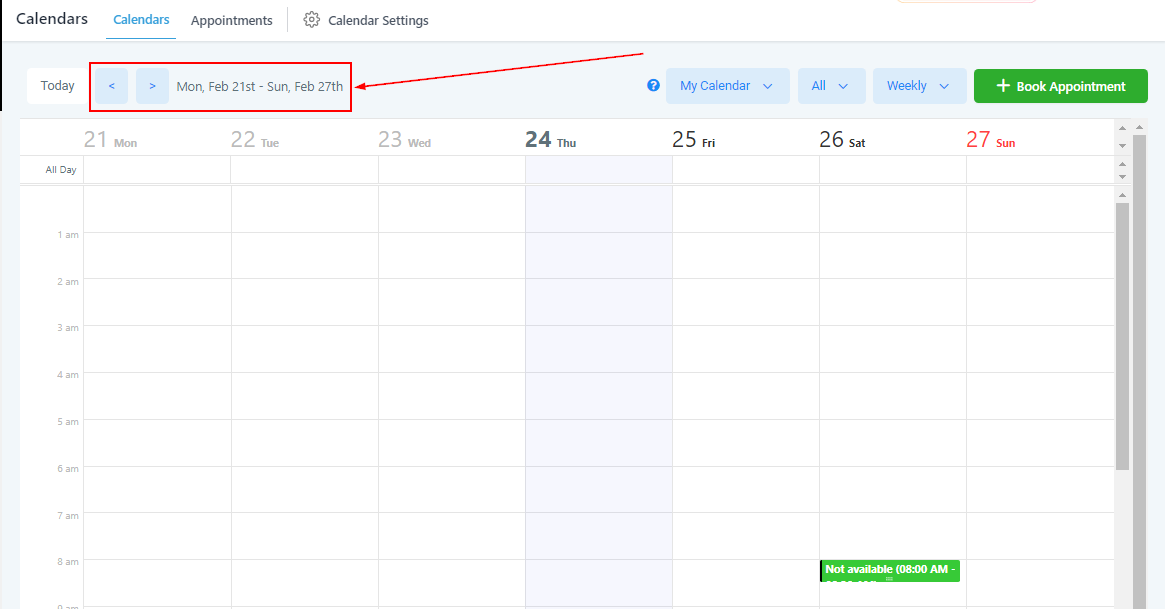
Cycle Date Range
You can use the left and right arrows here to change between date ranges to look at current, future, or previous engagement on your calendar
Tool Tip
In order to fully understand the way your CRM calendar works and how to interpret the data, understand the way it is color-coded.
You will find all the different color codes that your CRM calendar uses. These are meant to give you a quick and easy analysis of your calendar so you do not need to click into each event and look for specific data.