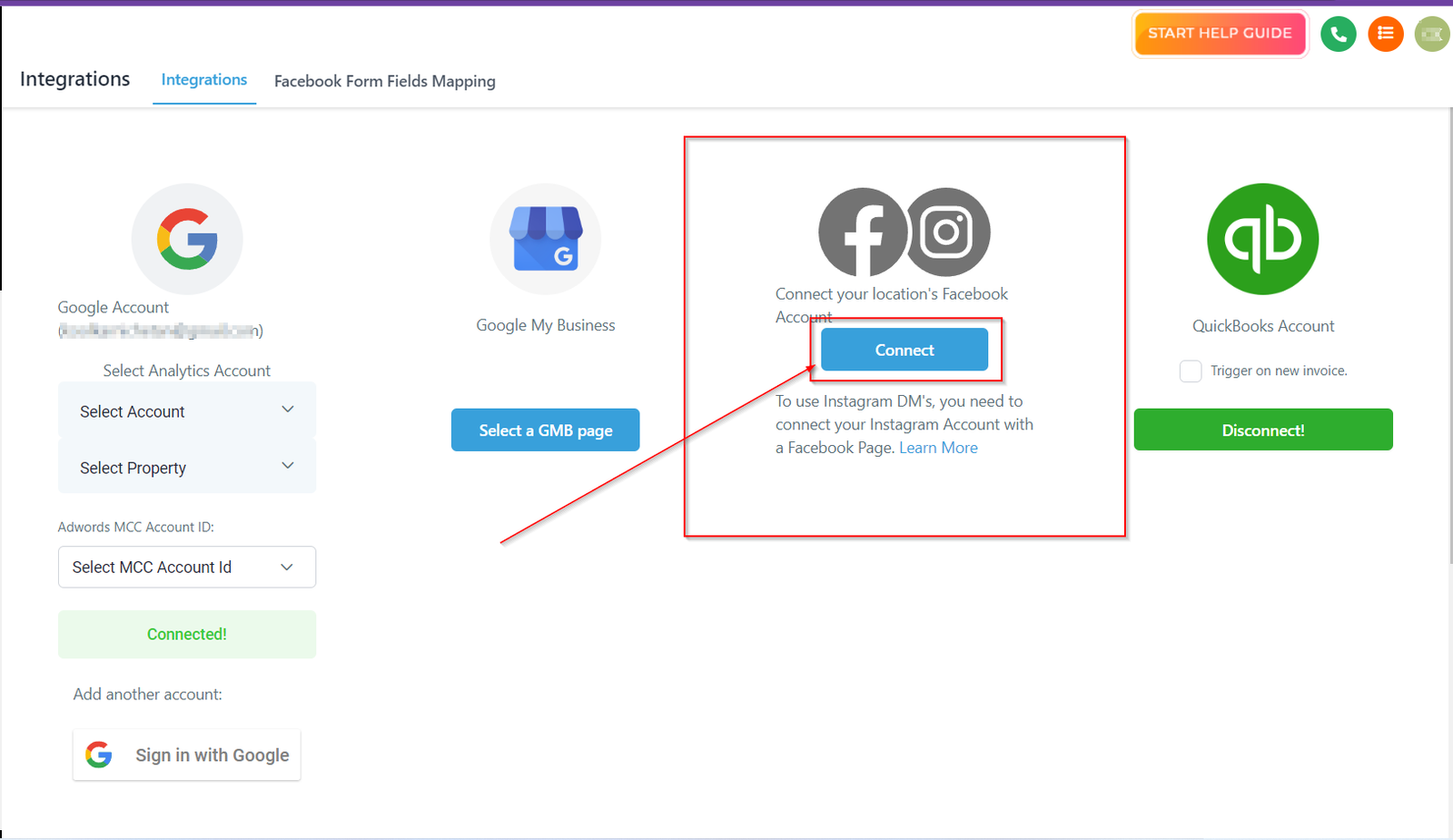
Connecting Facebook & Instagram
Connect tab lets you connect your Facebook and Instagram to your CRM. When you have already connected your social account, this tab will let you deselect that social account from your CRM. If you see either FB or IG or both icons in a gray color that means it is not connected to your CRM as yet. Once you click on connect tab, it will guide you with further steps.
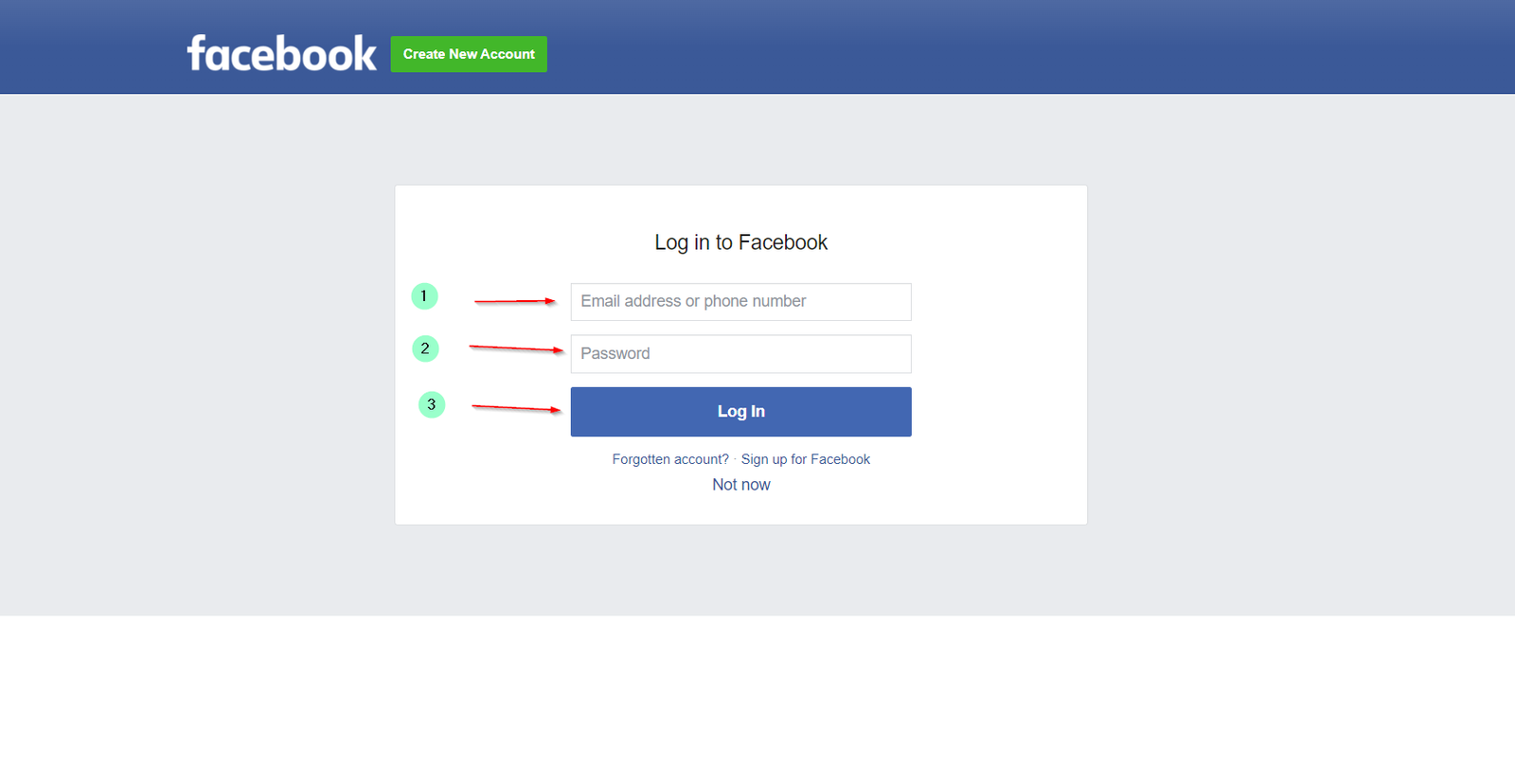
Facebook login page
-
1.enter your Facebook username.
-
2.enter your Facebook password.
-
3.Click on the login option for the next steps.
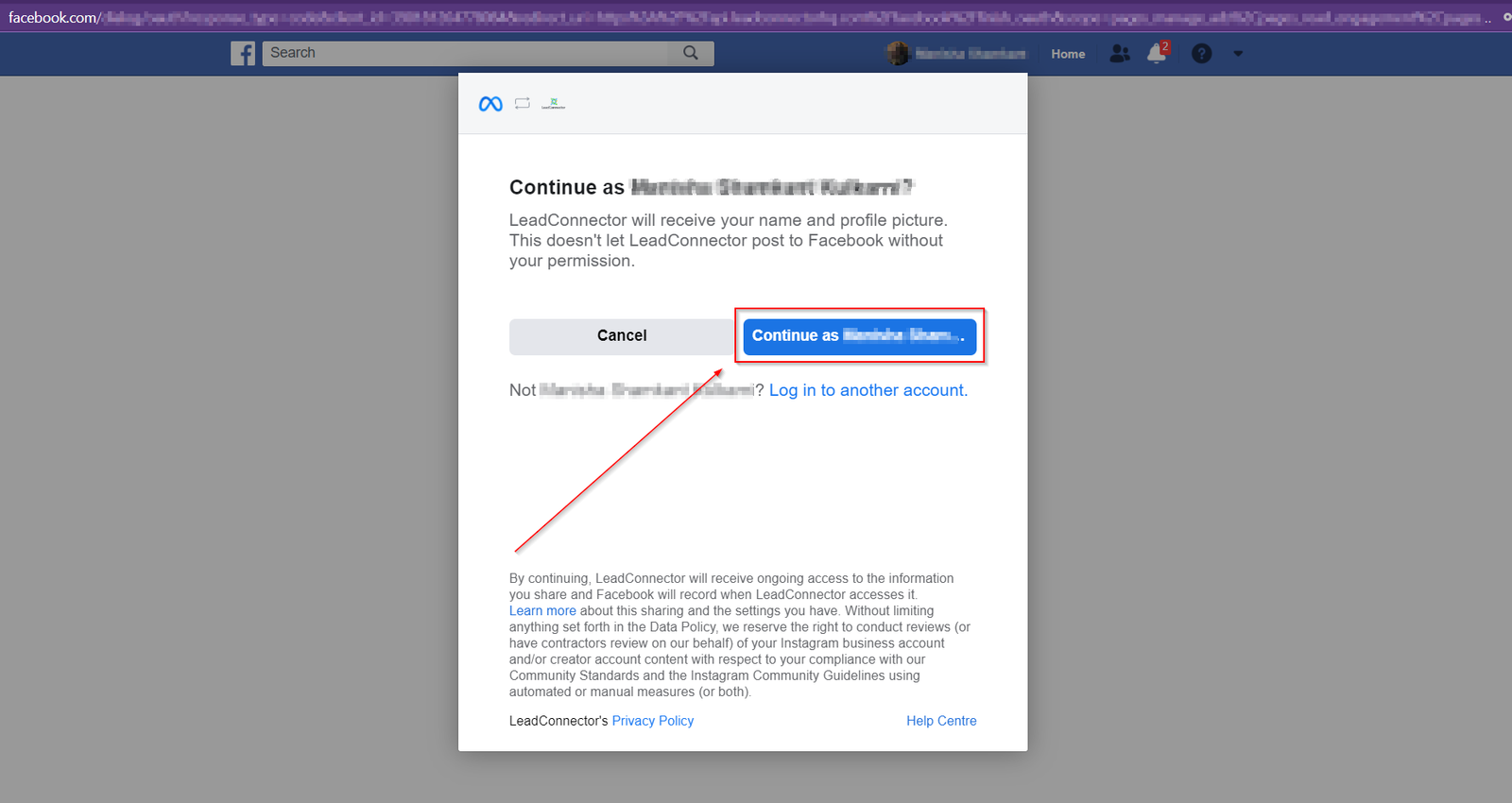
Confirm your Facebook account
This page will help you ensure you are logging in to the same Facebook account that you are trying to access from your CRM. This helps when you are automatically landed on this page because you were already logged in to some other Facebook account on your browser. Once you continue with the account, you will be shown an Instagram account linked to that particular Facebook account.
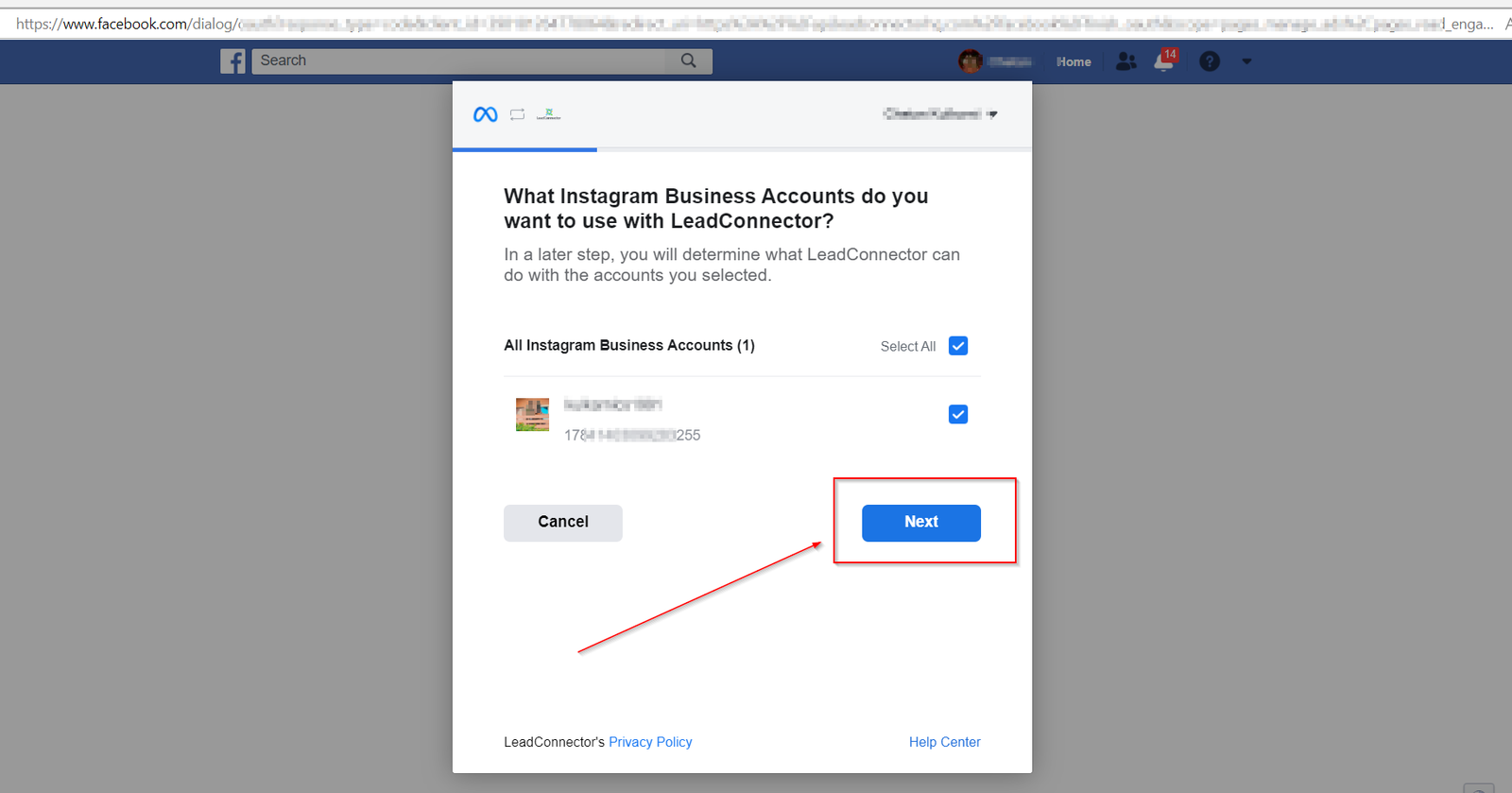
Choosing Instagram Business Account
On this page, you will be shown a list of Instagram business accounts that are connected to the Facebook pages you manage. You can select or deselect the page or pages from this list. Once you have made the selection, click on the “Next” tab.
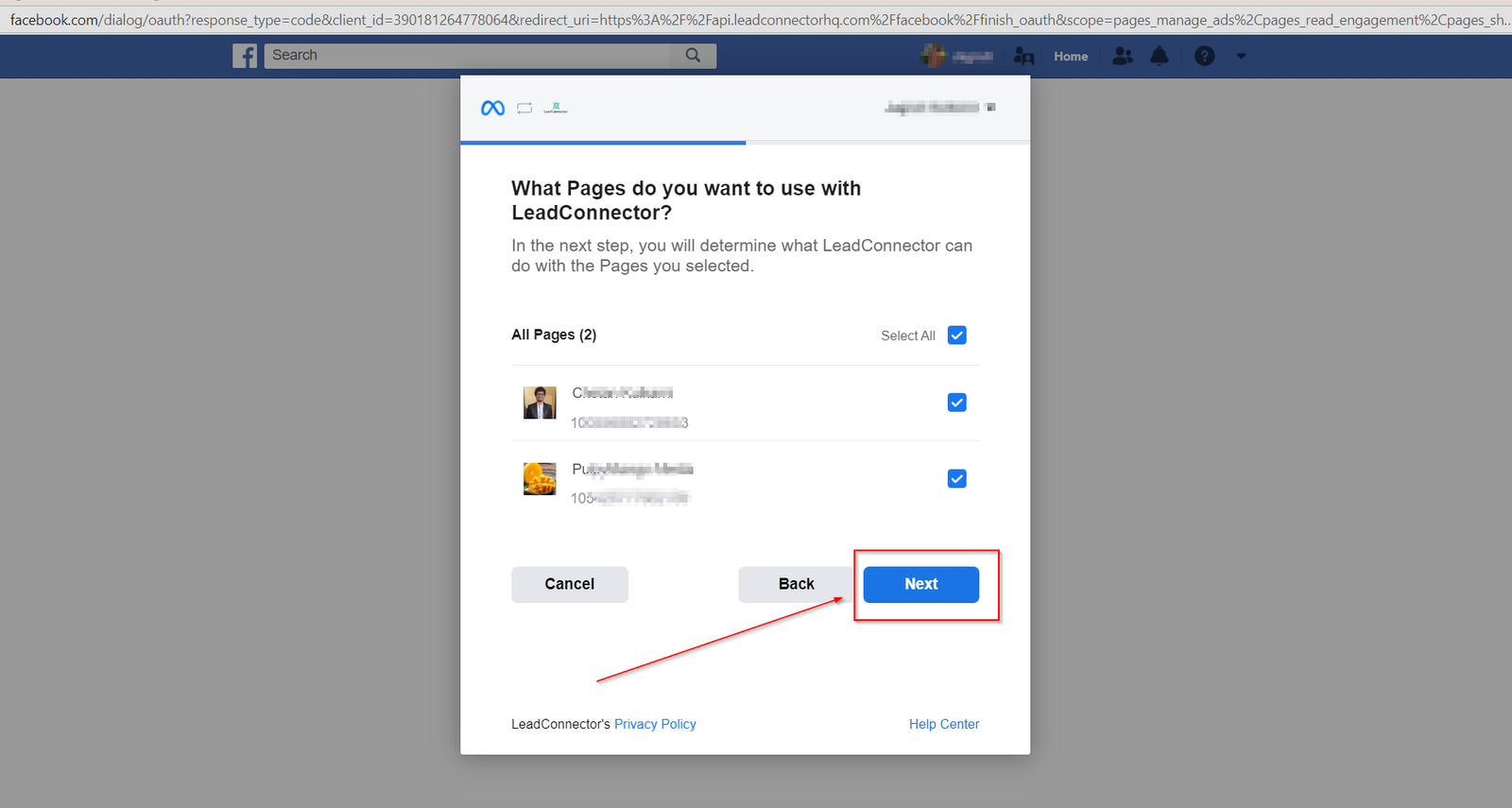
Choosing Facebook page/pages
On this page, you will see the list of Facebook pages that you have access to, you can select and deselect the page depending on which page you would like to lin to the particular CRM location. Once you have made the selection, simply click on “Next” tab to move to the next page.
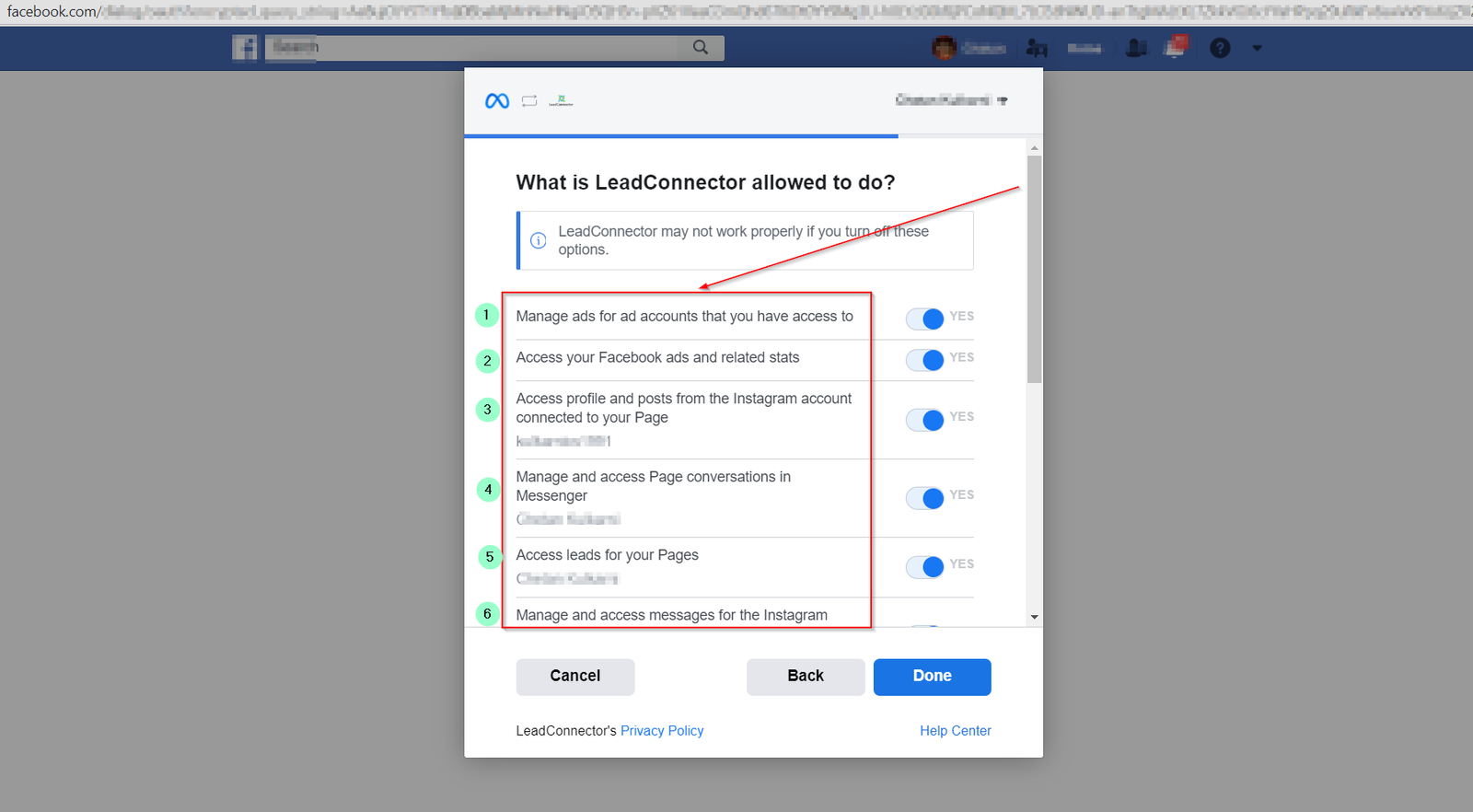
Permissions for Leadconnector
1. Manage your ad accounts.
2. Access to you your Facebook ad stats.
3. Accessing Instagram posts
4. Accessing message conversations.
5. Managing leads for the pages