Connecting Google Email Services
In this article, we will cover the step by step process for setting up gmail email account to be able to manage your email inbox from inside of your CRM.
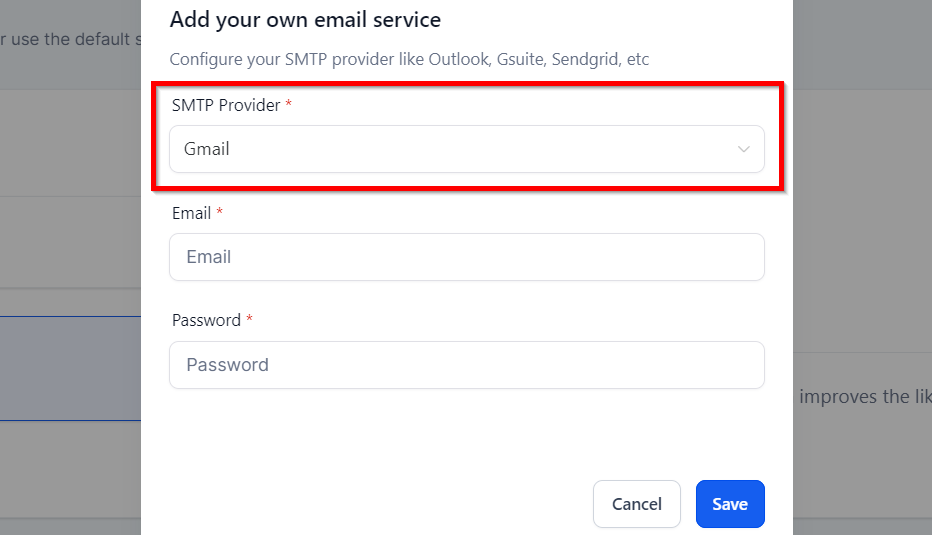
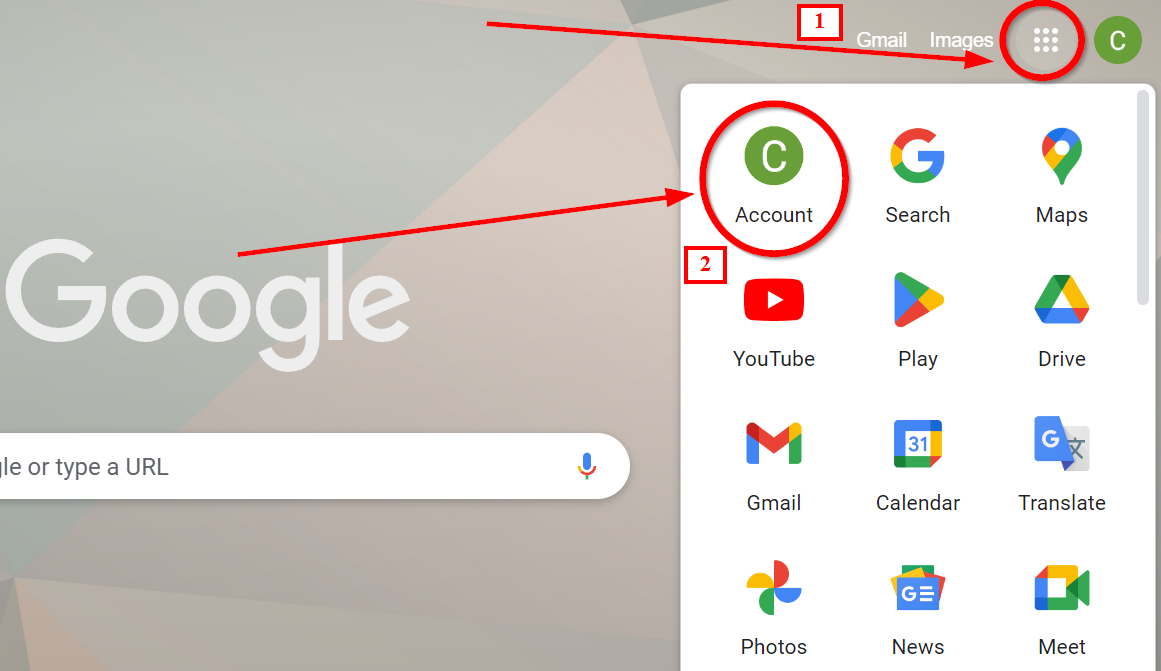
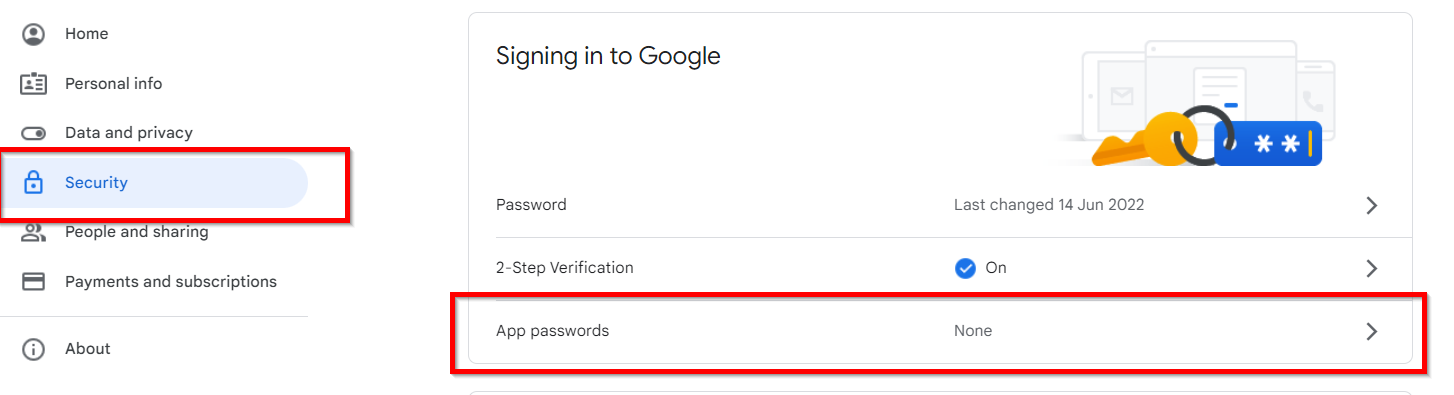
To connect your gmail account with your CRM, you will first need to generate an “App Password” from your google account. To do so, you would need to go to the google account of the gmail email you are trying to connect with your CRM. Once you are on the google account, you can follow the steps provided below.
2. Click on the account tab
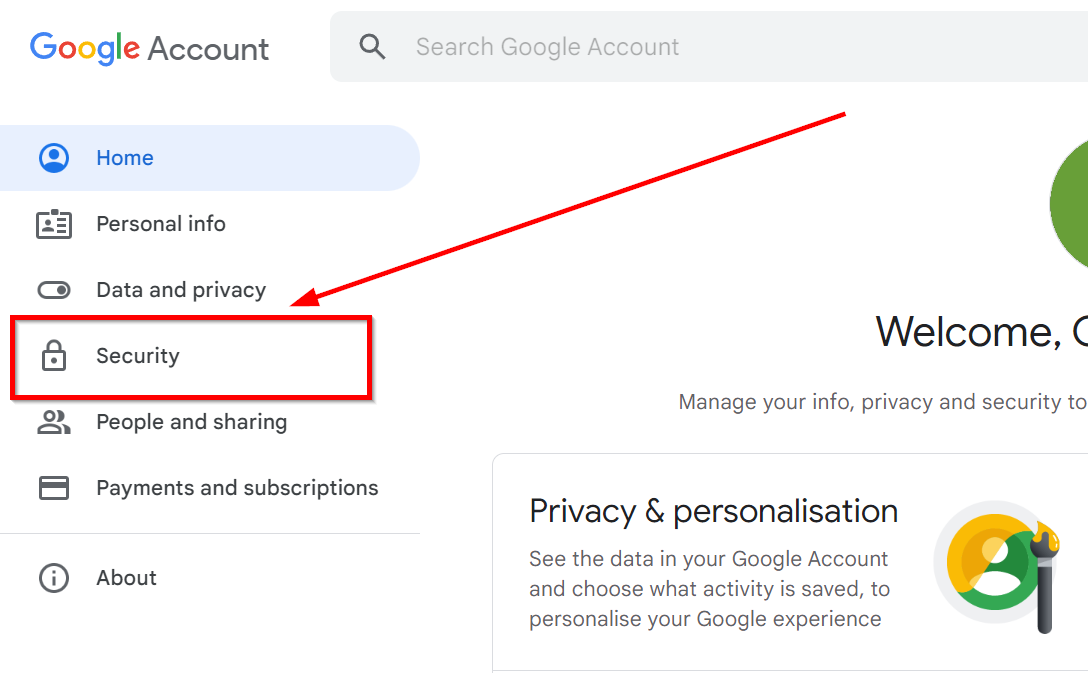
Go to Security Section of your Google Account
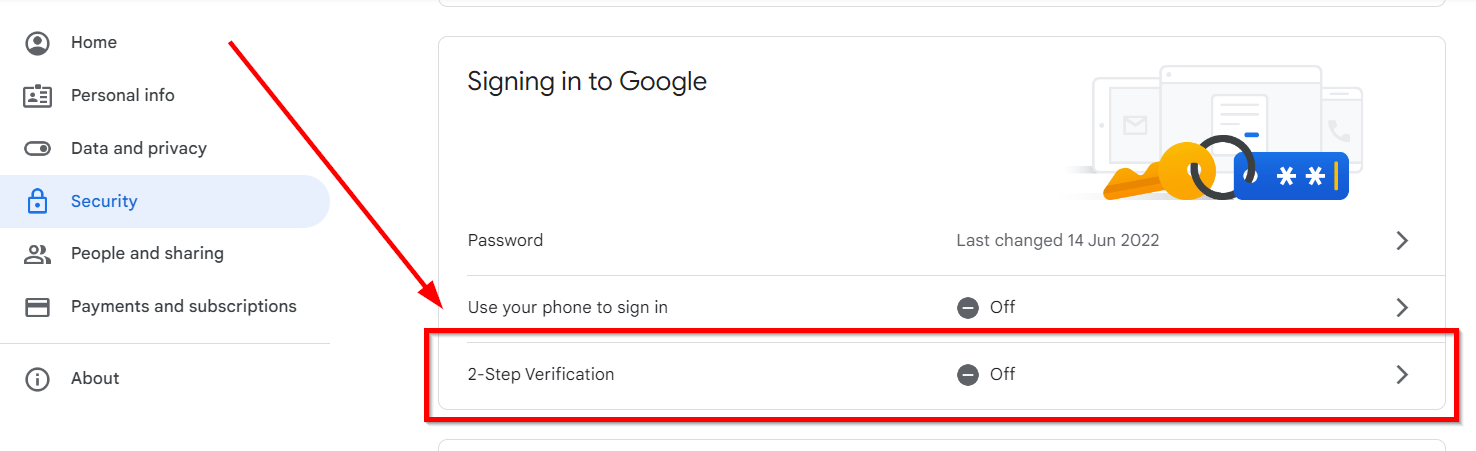
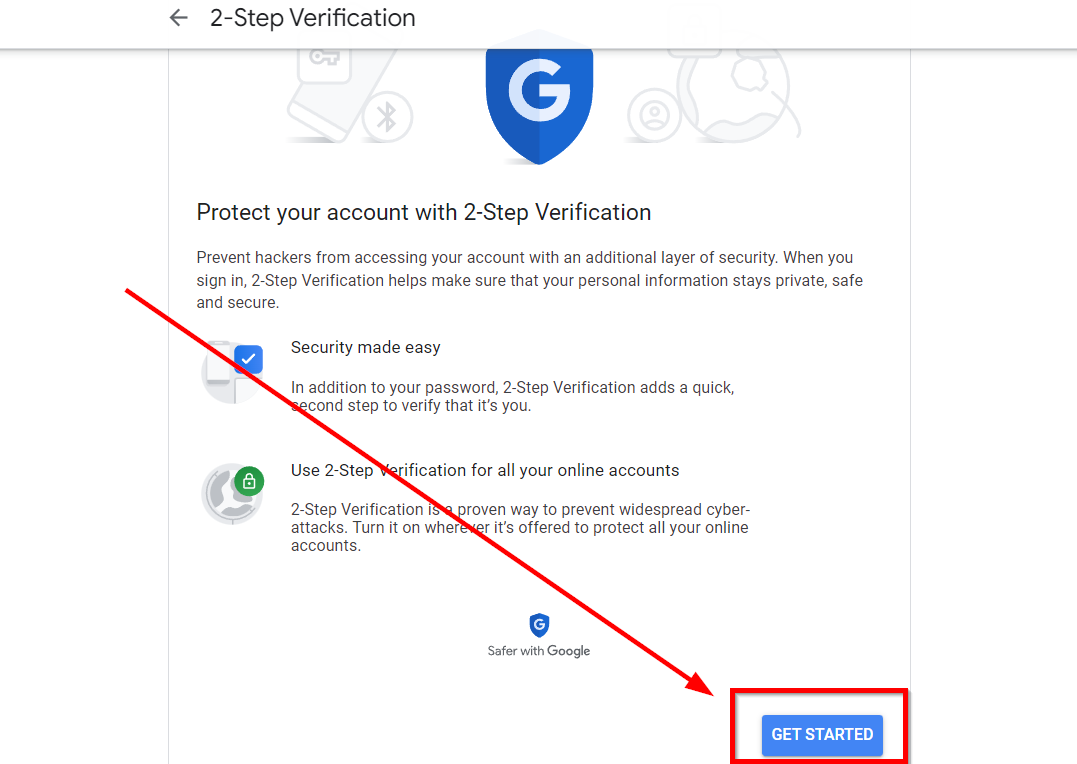
Select Get started
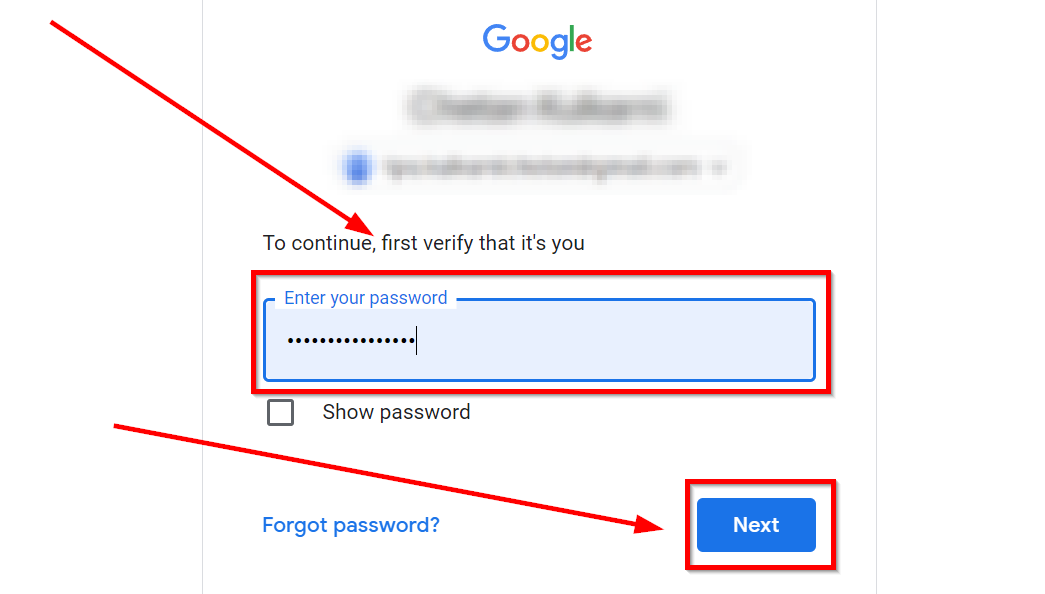
Enter your gmail password and click on “Next” to proceed ahead
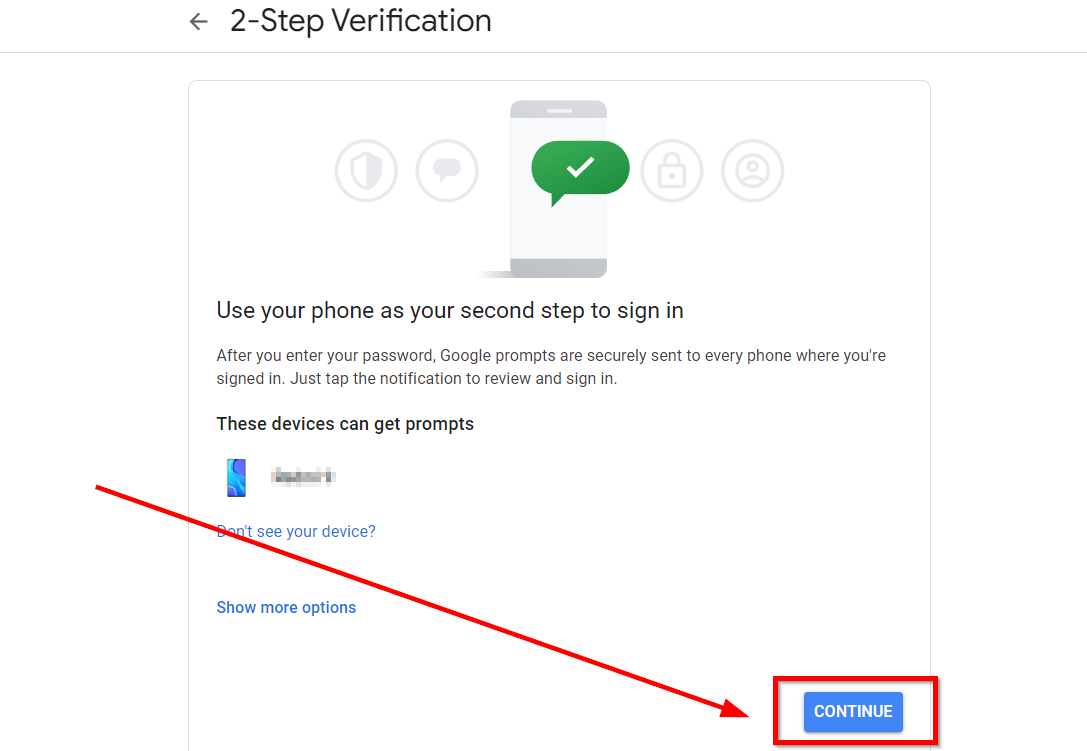
Click on “Continue”
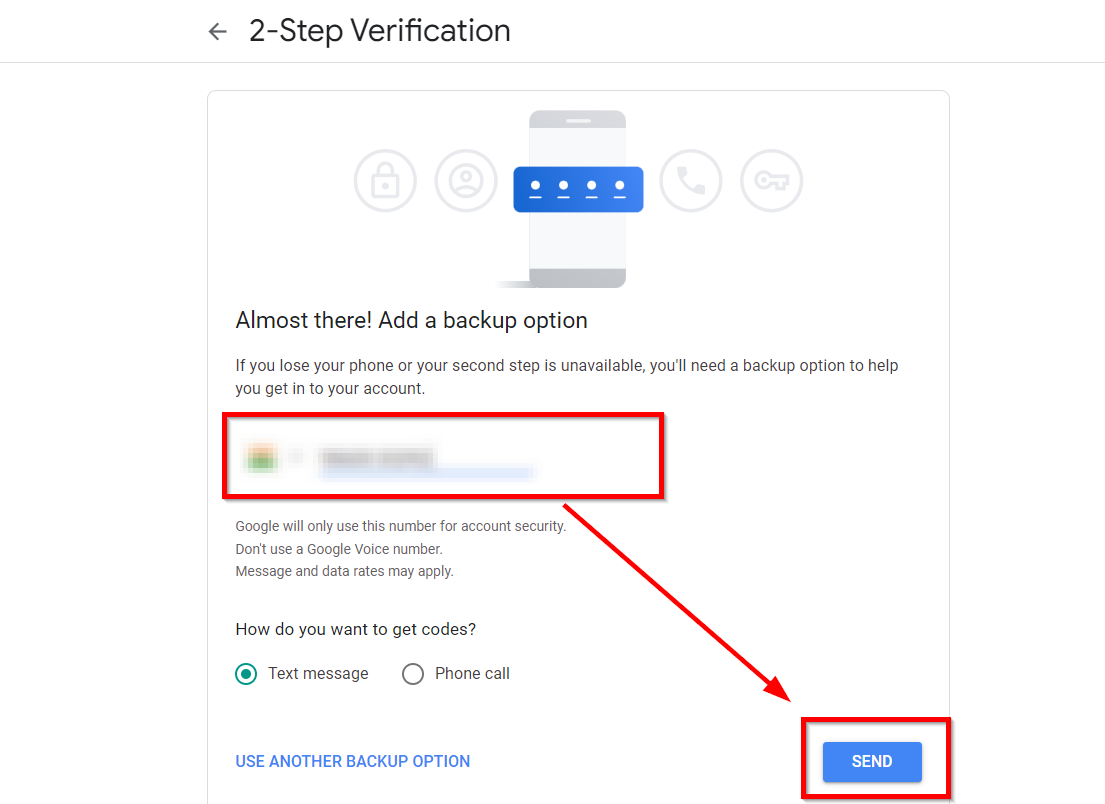
Add a Backup
Add a phone number as a backup option and click on send option for google to send the verification code to the backup phone number
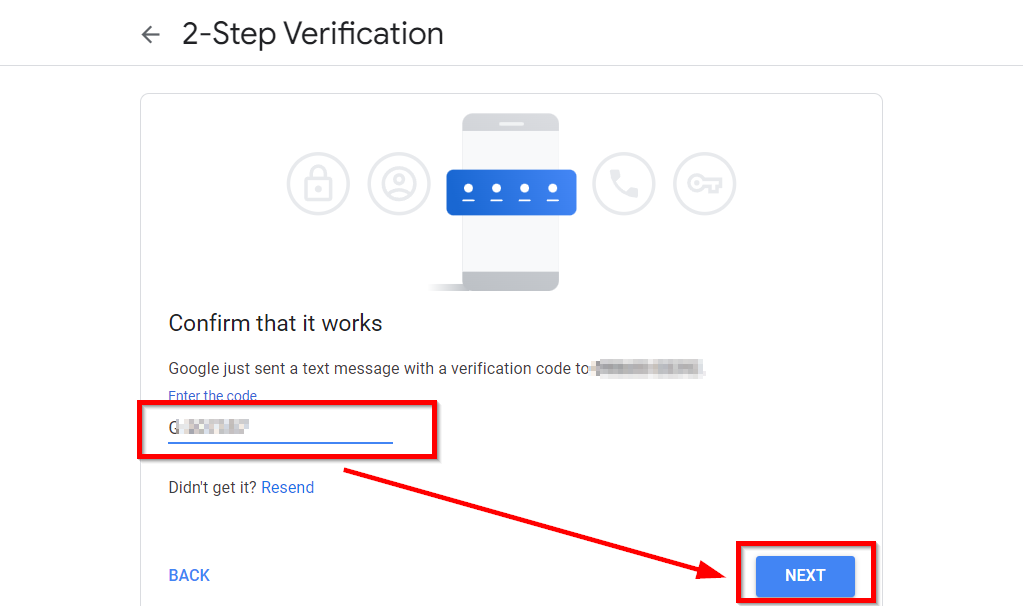
Verifying the Login
Enter the code you have received through text message. Once done, click on next option.
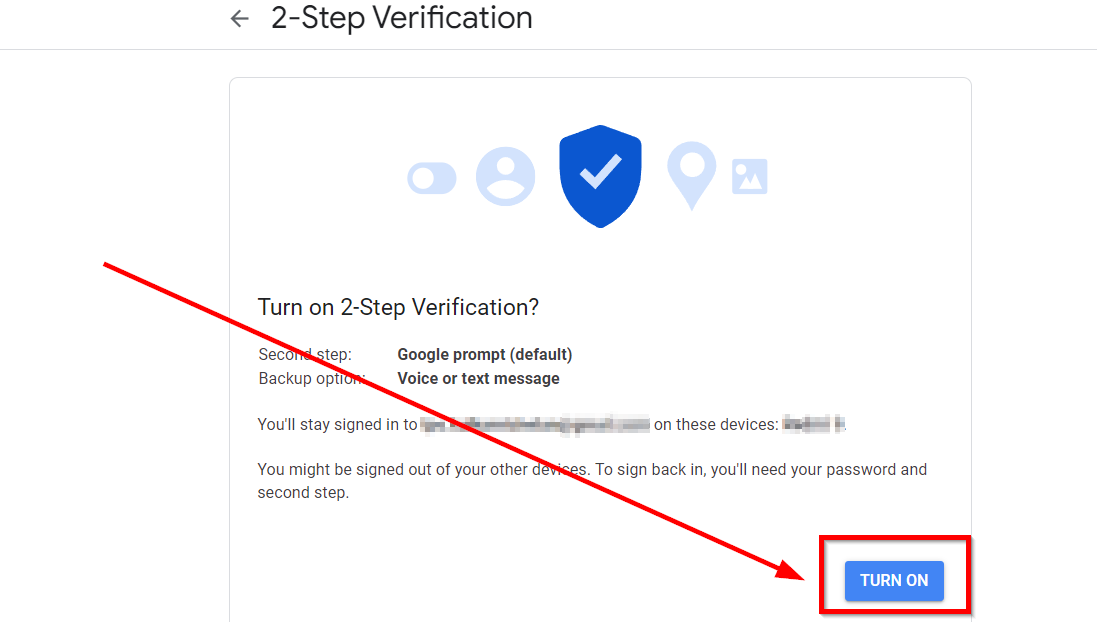
Enabling “Two Step Verification”
Click on “Turn On” option to enable the two step verification. This is required to use the gmail email on the external apps.
Setting up App Password
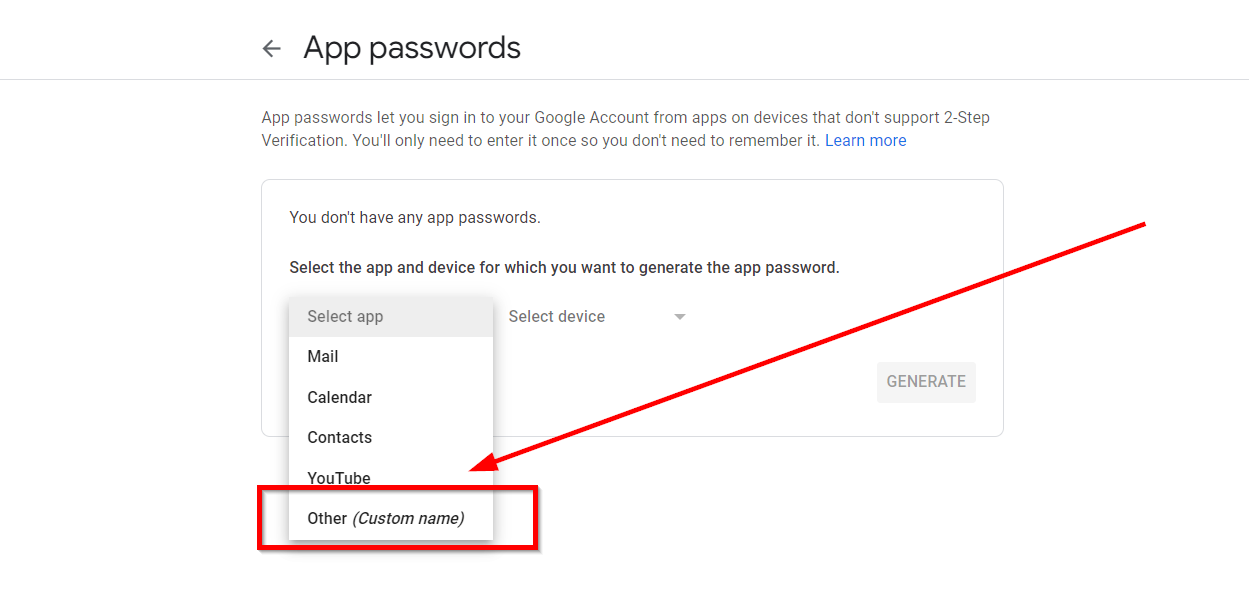
Selecting app
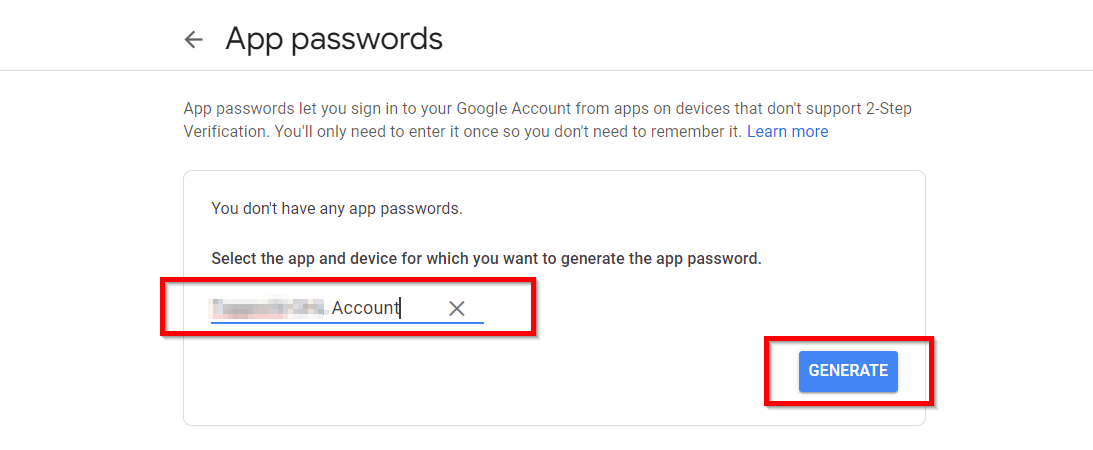
From the dropdown menu, select “other” option to be able to give a name to your CRM account for ease of your own understanding.
Naming the account for which you’re generating the password
Once you have entered a name, click on generate option for the system to generate a unique password to establish a connection between gmail and your CRM.