
Creating New Invoice
Allows you to create new Invoice.
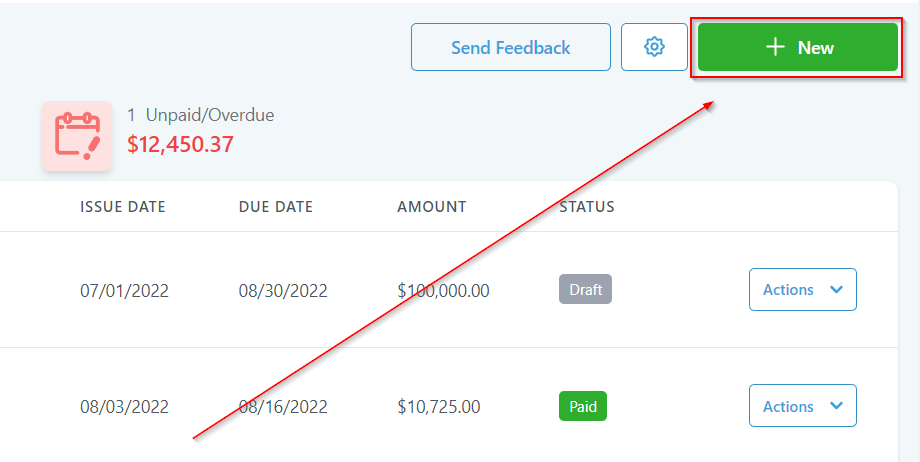
Invoice Options
New Invoice Page
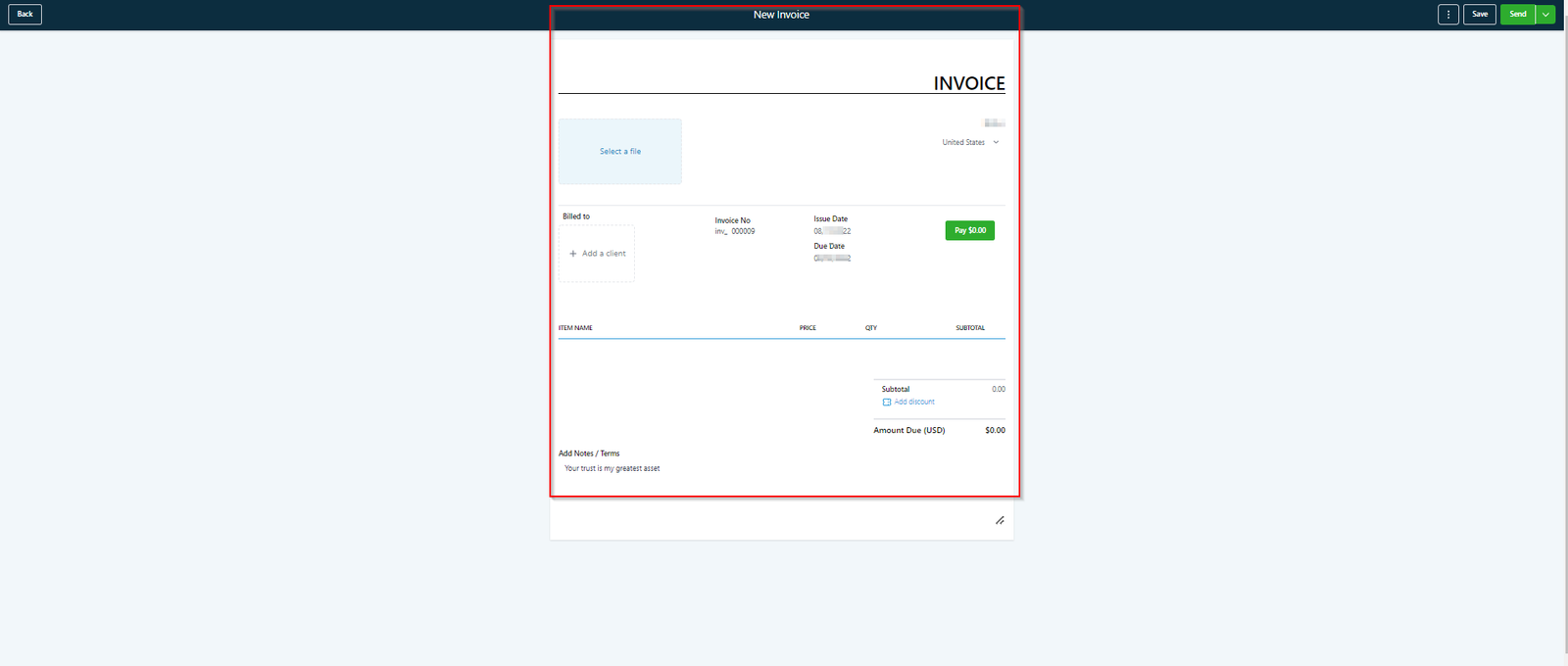
As shown in the image below, New invoice is completely customizable. In the next screenshot, we will cover each element one by one.
Naming an Invoice
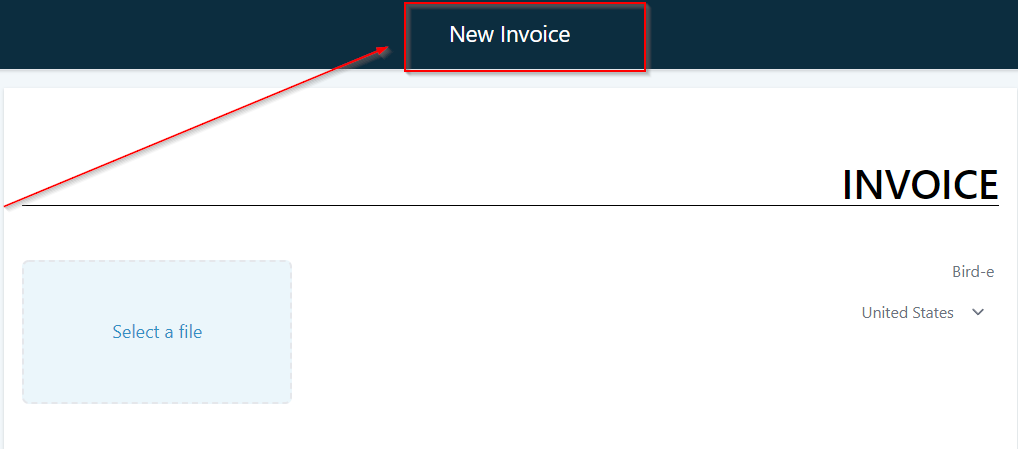
Here you can customize the name of your invoice. When you first go to Payments-> Invoices section, you will see the list of invoices you have created in your CRM. When you have long list of invoices in your system, it will be quite helpful to have a unique name given to each Invoice.
-
Preview – If you have made some changes to the invoice and you need to preview it before making some more changes or before sending it to the client you can use this options to get the idea of how your invoice will look to your client if sent in the existing condition.
-
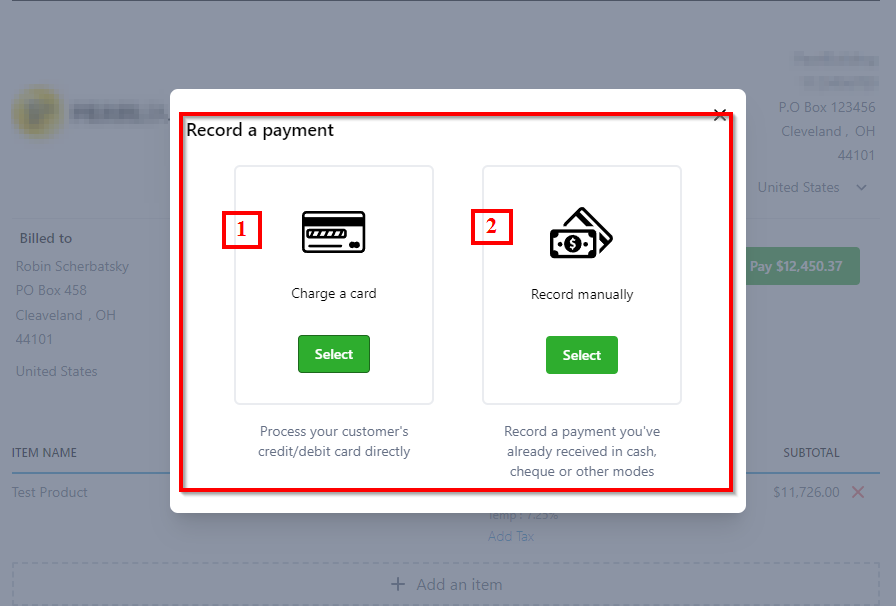
Record Payment – If you have created or sent the Invoice to the client and the client made the payment through different medium such as Cash or Cheque then you can use this option to add the record into your system for you to know that the respective payment is already being received. You can also use this to record a payment while you are on the call with the client. All you have to do is create an invoice and select the payment method to record the payment right on the call. In the next article, we will cover different payment methods you can use to record a payment.
Manual Payment Options
-
1.Charge a Card – Allows you to record the payment made through a card.
-
-
-
-
2.Record Manually – Allows you to record the payment made via cash cheque or bank transfer.
 New CardThis option allows you to setup a new card for the payment. When you’re using the card for the first time, you would need to add it to the system before you can charge the card.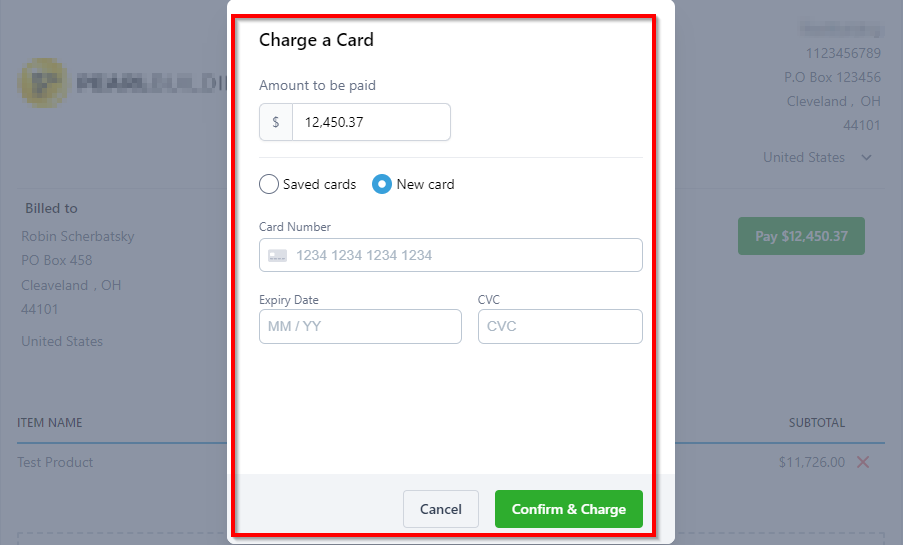
-
-
-