
“Team” calendars are now referred to as “Groups”. In this section, you will learn how to add a group calendar. Adding a Group calendar is now done within the calendars settings tab, Users are directly added to their respective Calendars within the Team & Event Step in the calendar modal.
Overview
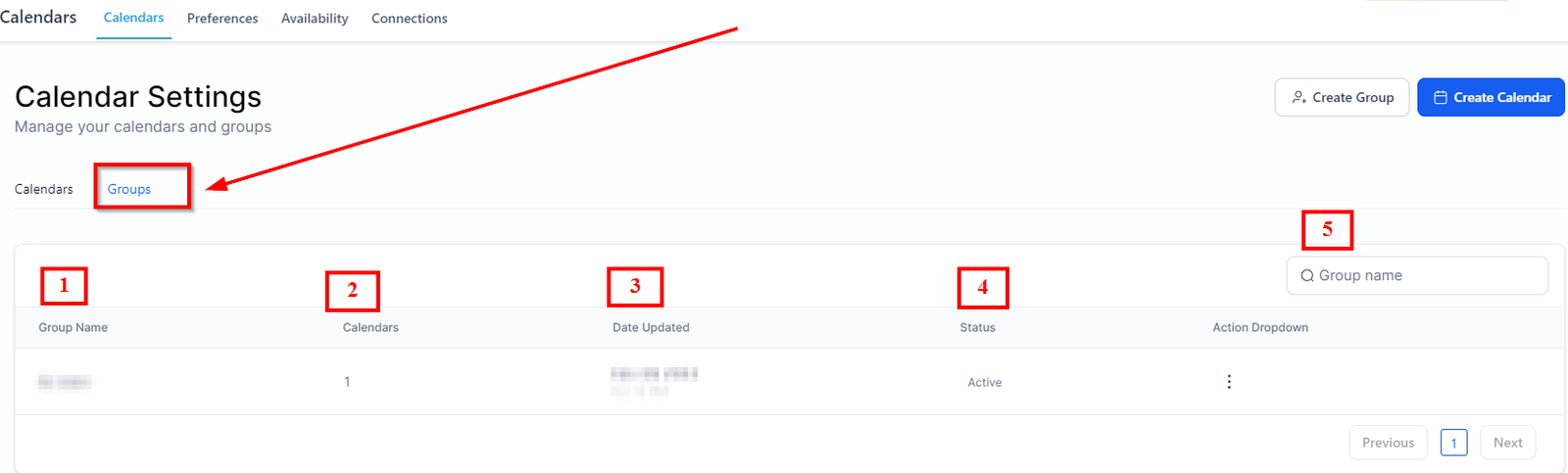
Groups have multiple users working on a common objective such as a sales team or support team. Here, you will be shown all of the groups you have created in the system.
-
Group Name- Here you can see the name of each group you have created in the system.
-
2.Calendars- Here you can view the calendar associated with each group on the list.
-
3.Date Updated- This column shows the date when the group was updated.
-
4.Status-This Lets you know the status of each group on the list.
-
5.Group Search Bar- Use this tab to find out any of the groups from the list of all groups.
Group Actions Dropdown
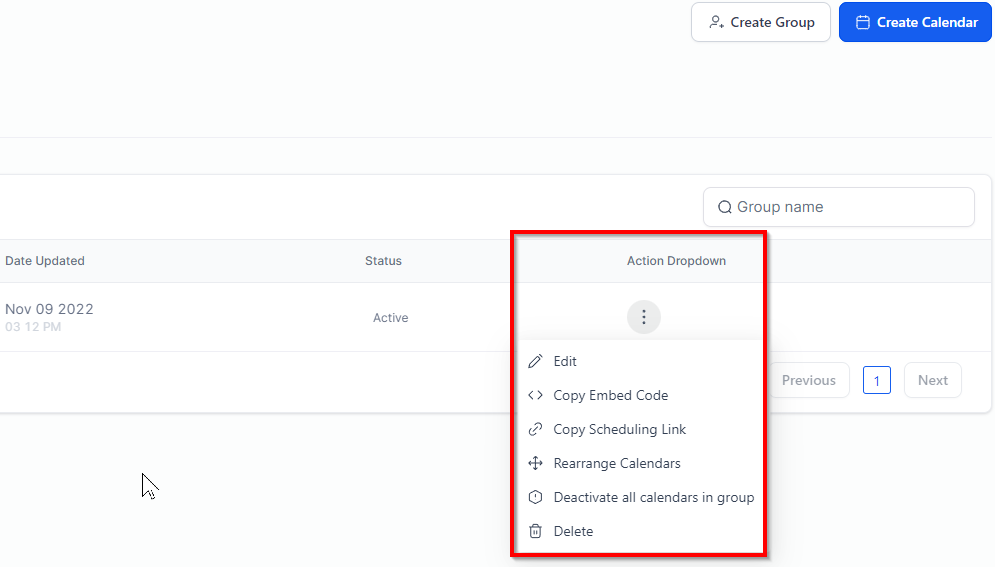
The three-dot menu gives you the ability to perform several actions. Let’s cover them one by one.
-
EditThis lets you edit the group details.
-
Copy Embed CodeUse this to copy the HTML code which you can paste on your webpage for the clients to book an appointment on the specific calendar
-
Copy Scheduling LinkIt allows you to copy the link that can be used to share with anyone for them to book an appointment.
-
Rearrange CalendarsThis gives you the ability to rearrange the calendars based on your preference.
-
Deactivate all calendars in Group