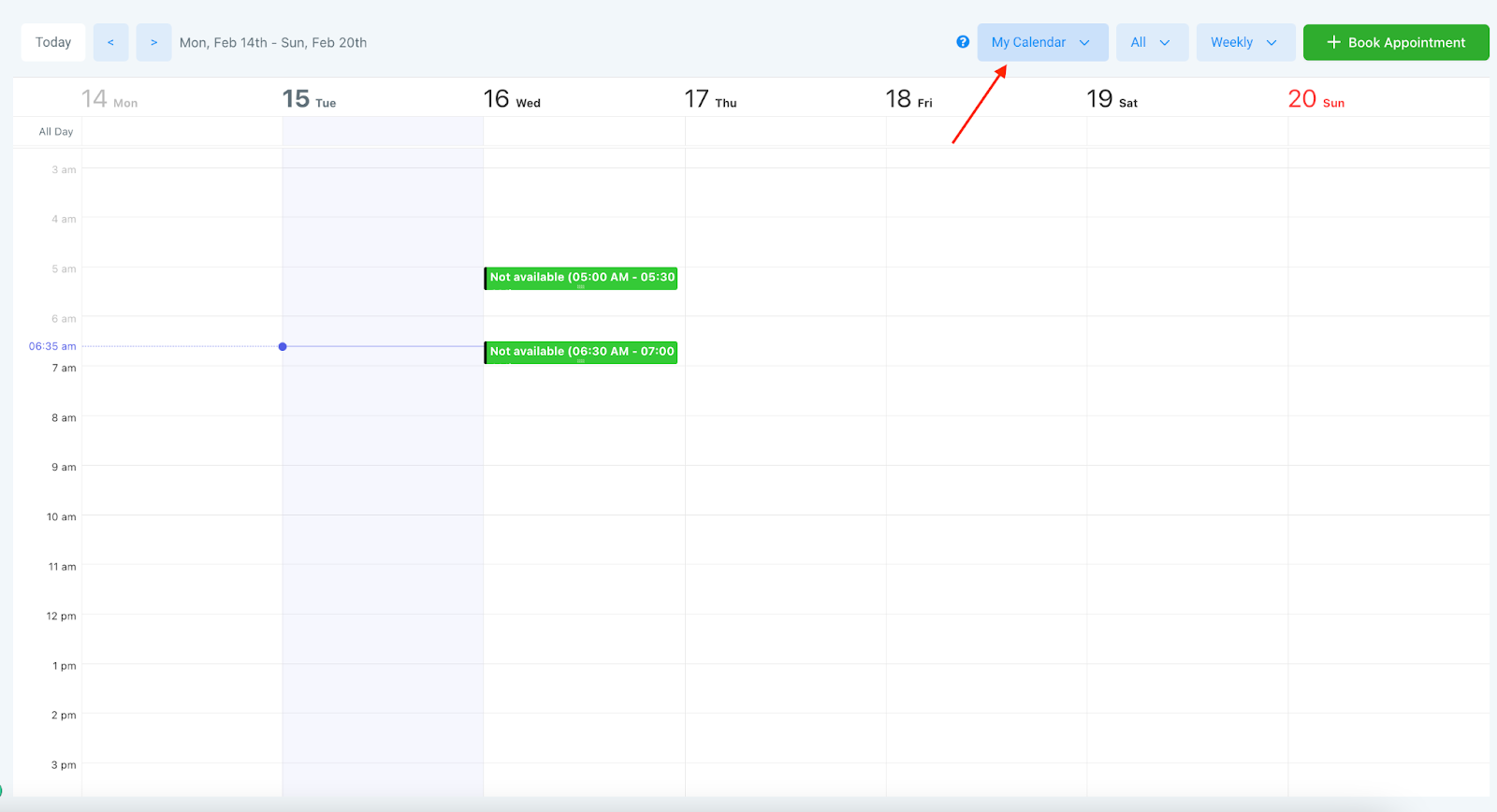
You may want to block time out of your standard availability in your calendar, for a variety of reasons, including being away/out of office, or having something outside of your system scheduled during that time. Follow these simple steps to block off time in your calendar.
Step 1: Creating Blocked Time
- Navigate to Calendars
- Click into the calendar you wish to block time off for.
- Click the date and time you wish to start blocking time as unavailable. A pop-up window will appear with 2 options:
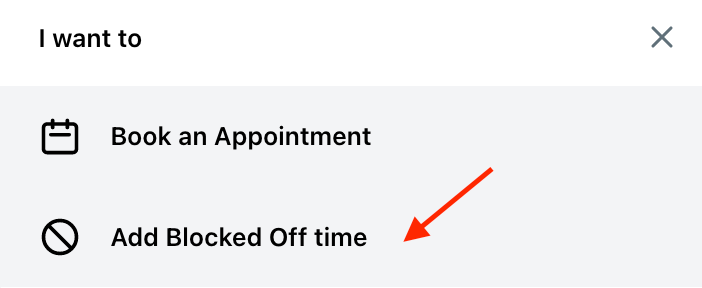
- Choose “Add Blocked Off Time”
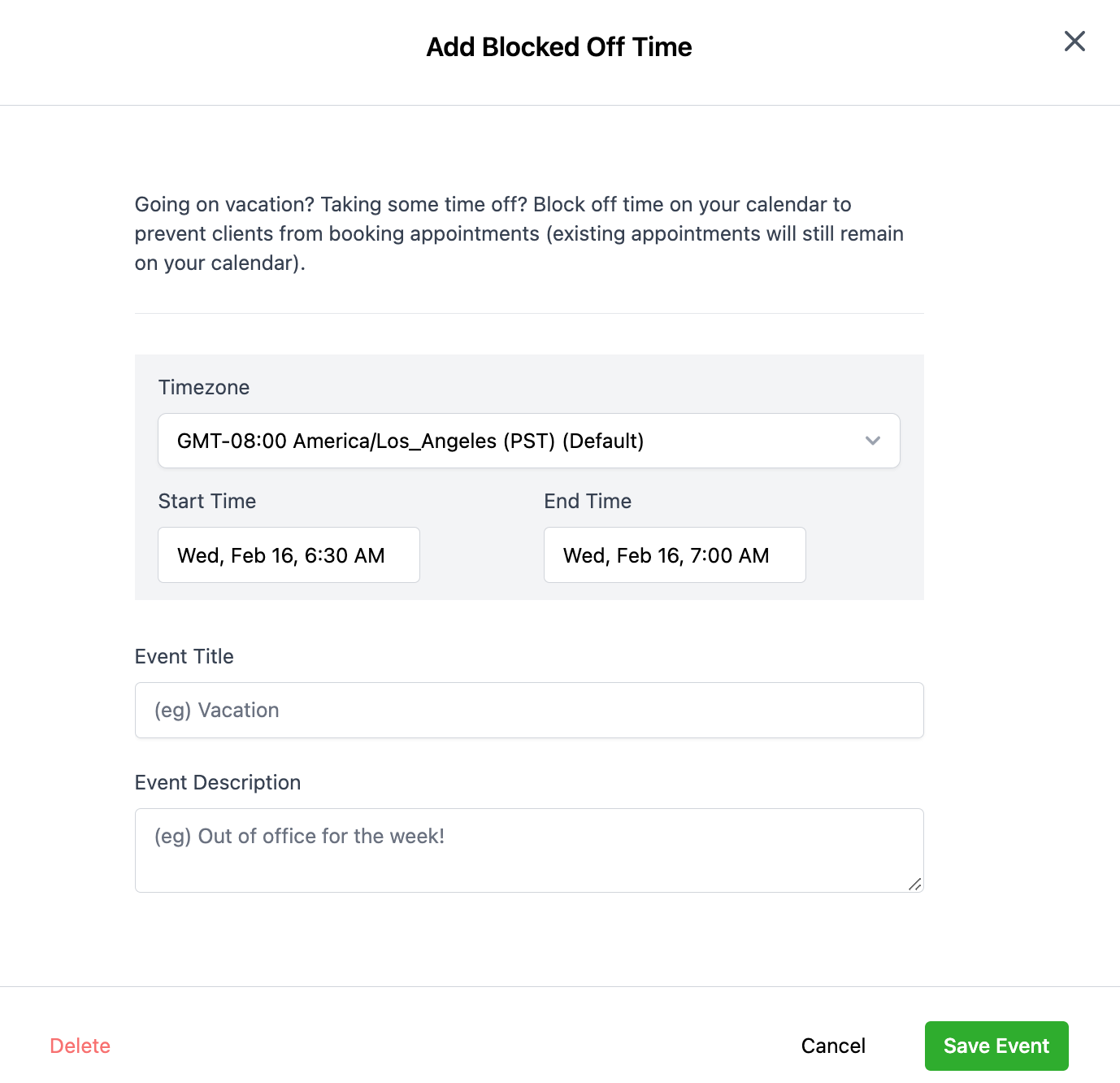
- Fill out the popup appropriately, including the timezone, start and end day/time, and a title/description too.
- Click “Save Event” to add the blocked off time into your calendar.
NOTE: Blocking time is done on a user basis. You can block time off in the User Calendar for your own User. (User A cannot block off time for User B.) For example, I can block time off in My Calendar and the Teams Calendars I’ve been assigned to. I can view any of the other calendars, but can’t block time off for someone else in another calendar.