
Import Contacts
If you need to import a single contact or a group of contacts from a different CRM or marketing campaign, you can upload your spreadsheet by selecting this button.
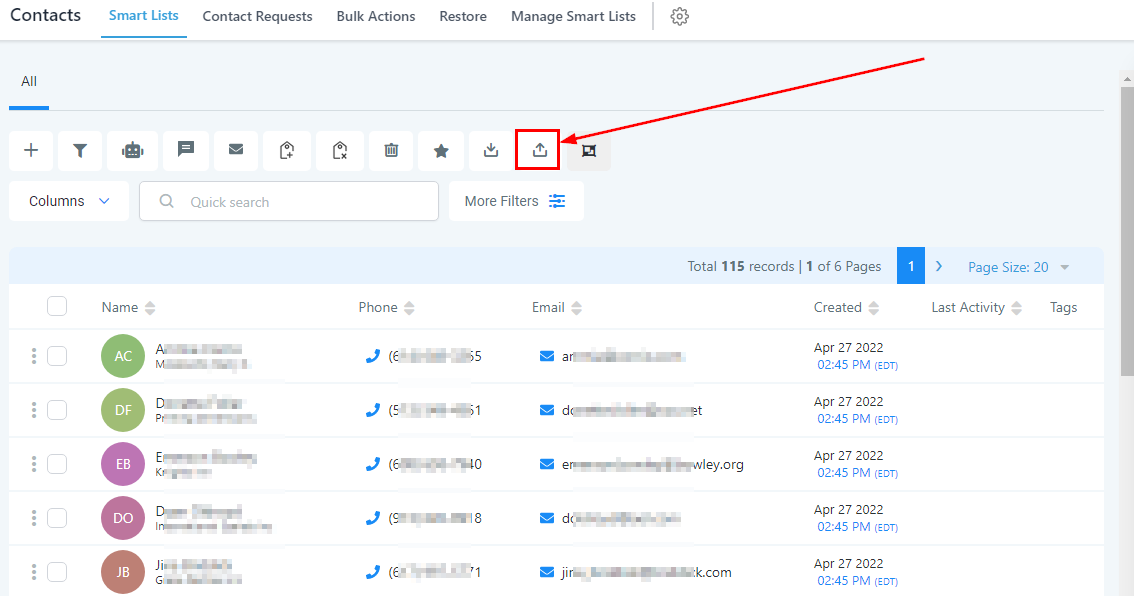
Importing Contacts
Your spreadsheet will need to have column headers that match the fields in this CRM.
Column Values Format
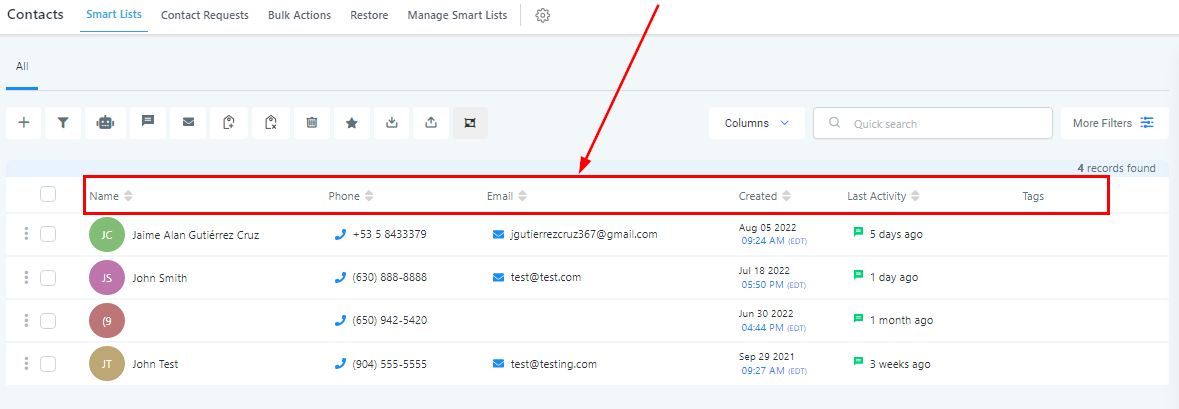
Depending on the records you are importing, your file could include the following columns:
Contact Owner
-
To assign an owner to your contacts during the import, include the name of the ‘User’
-
Acceptable formats:
-
FirstName LastName (e.g. Logan Paul or logan paul)
-
LastName FirstName (e.g. Paul Logan or paul logan)Note: Unless the user has both FirstName and Last Name, the system will not recognize it during upload.
Phone Number
-
For the vast majority of cases, as long as you format the phone numbers in E.164 (Ex: +1 1234567890) our system will recognize it as valid, irrespective of the default Country picked at the sub-account level
-
Additionally, if you have set the Country to the US, the following would work perfectly fine as well
-
123-456-7890
-
(123) 4567890
-
1234567890
Email Address
-
Note: While the default unique identifier is “Email”, the system allows you to choose fields other than Email for de-duplication purposes during the Bulk CSV Upload
Date Picker