
Membership Offers
Edit Membership Offers
In this section, you can create/edit a course product price offer.
Before you can add a price to any course product you have to connect to a payment processor like Stripe to collect payments from your customers. If you are not connected to any payment processor, you won’t be able to add a price (i.e your product will automatically be set as a Free offer.)
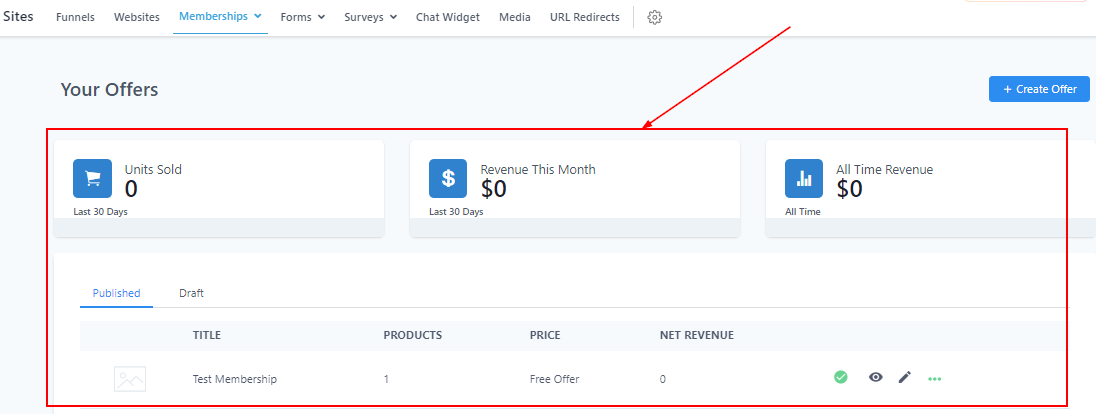
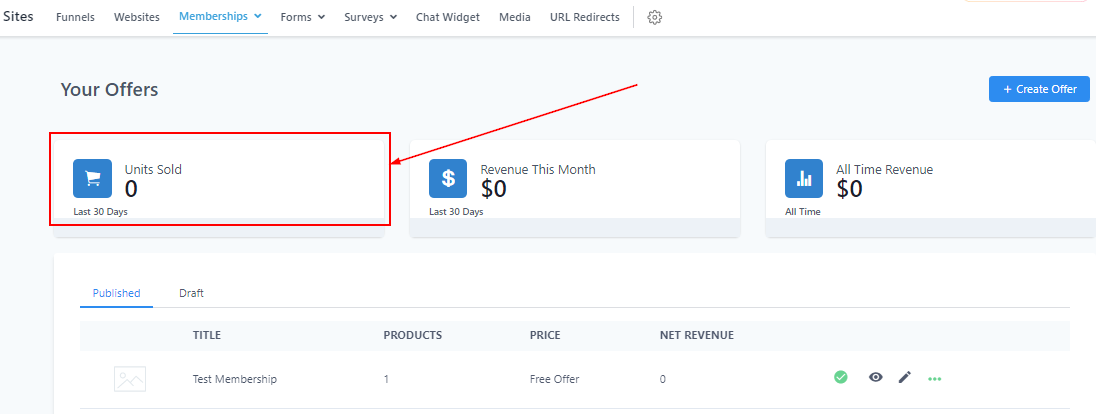
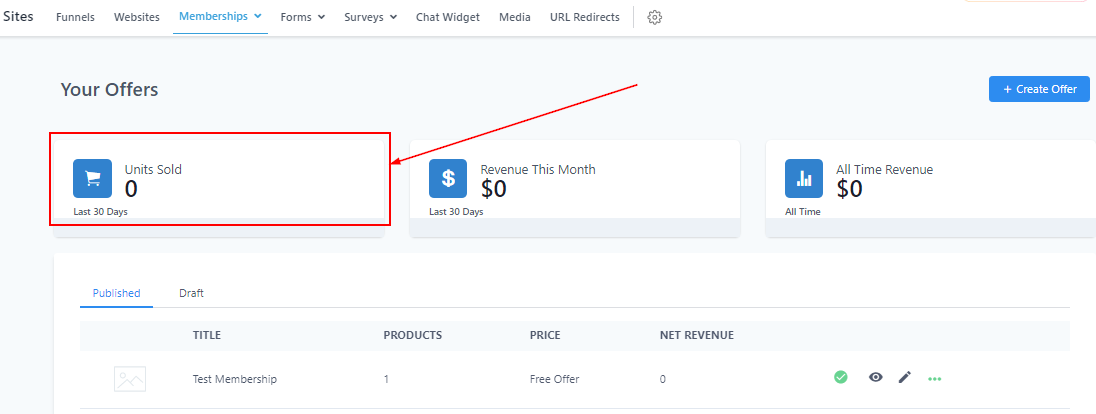
Unit Sold
Here you will see the total number of products you’ve sold within 30 days.
Revenue This month
You will see the total revenue for each month (every 30 days) here.
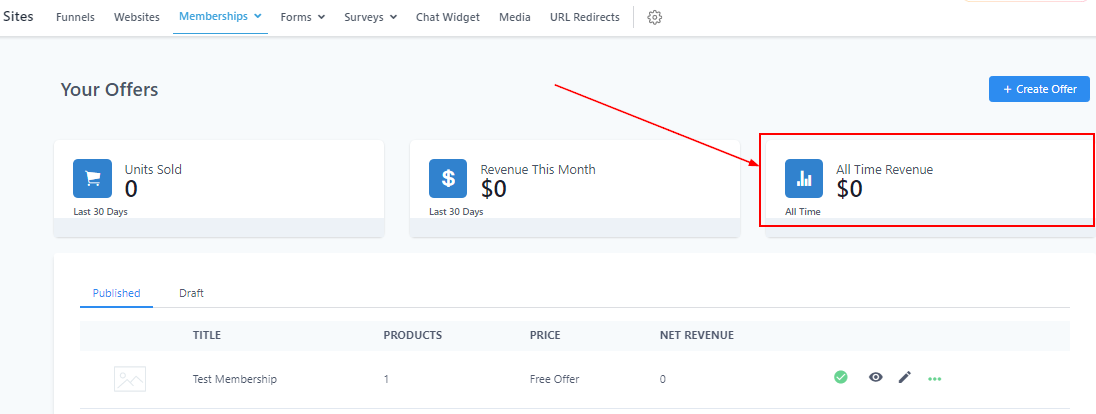
All-time Revenue
Here you will see the total revenue made from all products created (both old and new).
Filter by Published or Draft Mode
You can filter all product lists created by toggling between the Published list and Draft list. Below are the contents of the product list.
-
1.Display Image
-
2.TitleIn this column, you will see the title of each course product.
-
3.ProductThis column shows the number of products per course created.
-
4.PriceThis column shows the price of each course product and it.
-
5.Net RevenueHere you see the net revenue of each product displayed here
-
6.PreviewIf you want to check the outcome of a particular product course, simply click on the “eye” icon here which directs you to the preview page
-
7.