
Creating a Round Robin Booking
If you want this new calendar to fall under an existing Group calendar, it’s best you select the Round Robin Booking calendar type. The Round Robin booking (Round Robin scheduling) allows you to determine how you want leads to be distributed among your assigned team members.
Select Calendar Group
Once you select this type, it will require you to choose the calendar group you would like to work with, then click on the “Select” button to move to the next step.
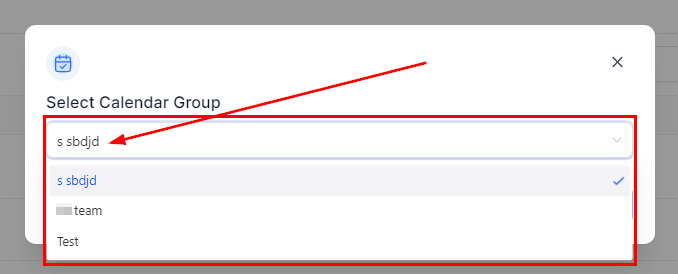
Creating Your Calendar
Once you select a Calendar group, you will be directed to the Calendar Setup which consists of three (3) steps;
Team & Event Setup
Availability
Confirmationn
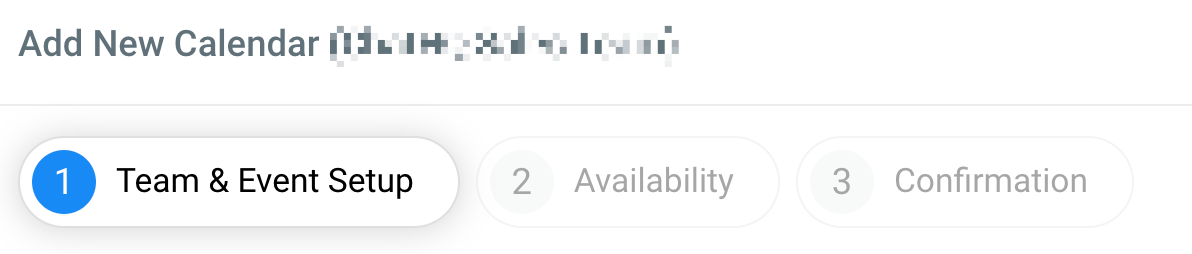
1. Team & Event Setup
Appointment Distribution
This allows you to determine how meetings from your calendar will be distributed amongst the team members.
-
1.Optimize for Availability You can decide to set up your calendar in such a way that it distributes meetings to users based on priority. The higher the priority a user has, the more meetings they get. For instance, If user A is tagged High priority the user will get all the meetings for all the available time slots but if two meetings are booked in the same time slot depending on the setting for the “Appointment per slot”, the other meeting goes to another user with either medium or low priority
-
2.Equal Distribution This will allow you to distribute meetings equally, and it ensures that every assigned team member gets an equal number of meetings.
-
3.Add User Once you click on the +Add User it shows a drop-down menu where you can select the user you want to add. You can add more than one user by clicking on the +Add User under the just-selected user. You will also add:
-
(For Optimize for Availability distribution) Select the priority level for each user; High, Medium, or Low Priority.
-
Choose and connect the meeting venue; Zoom Meeting or Google Meet.
-
Provide the meeting location URL.Calendar