
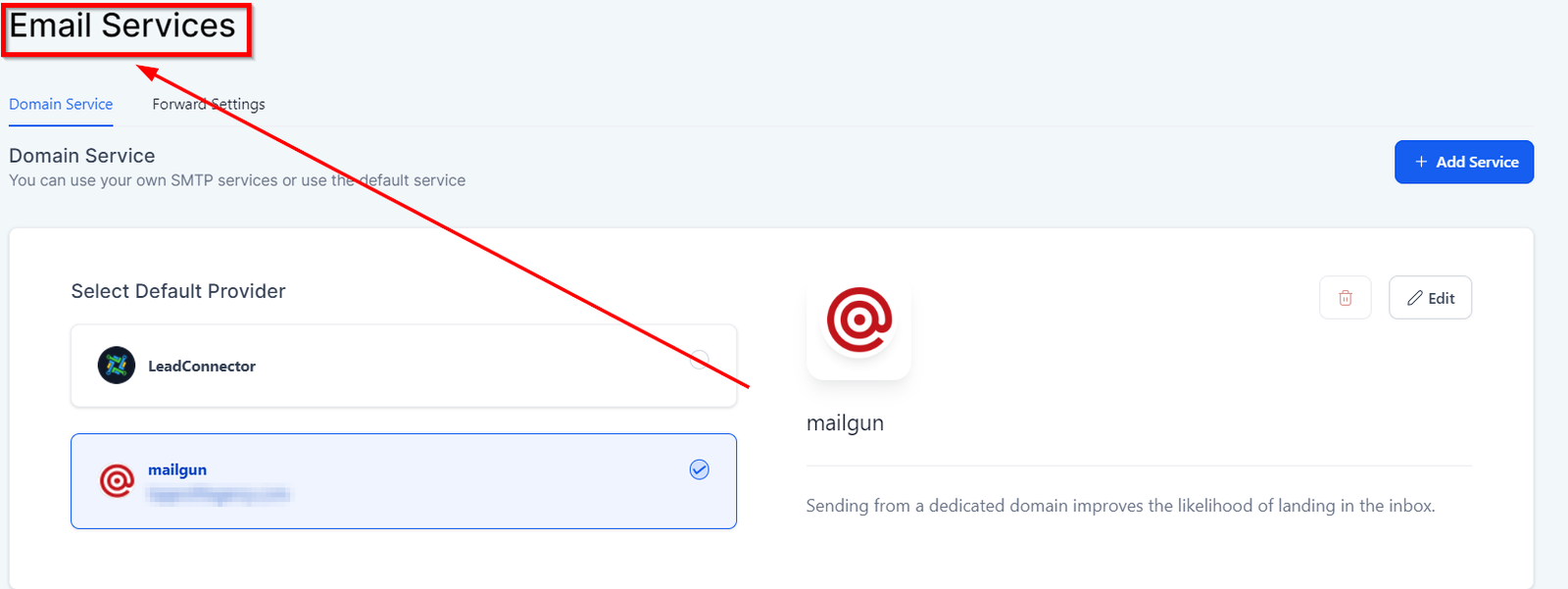
Default provider
Let’s you select the default email service provider in case if you have multiple email providers connected to SMTP.
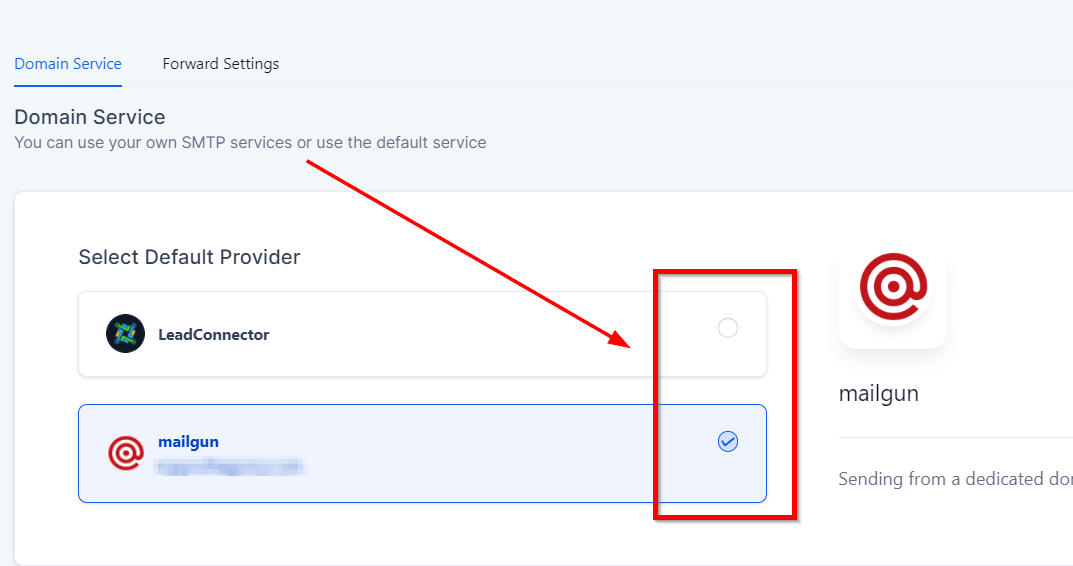
All new accounts will, by default, use Lead connector – Email, but a third-party SMTP provider can be integrated anytime.
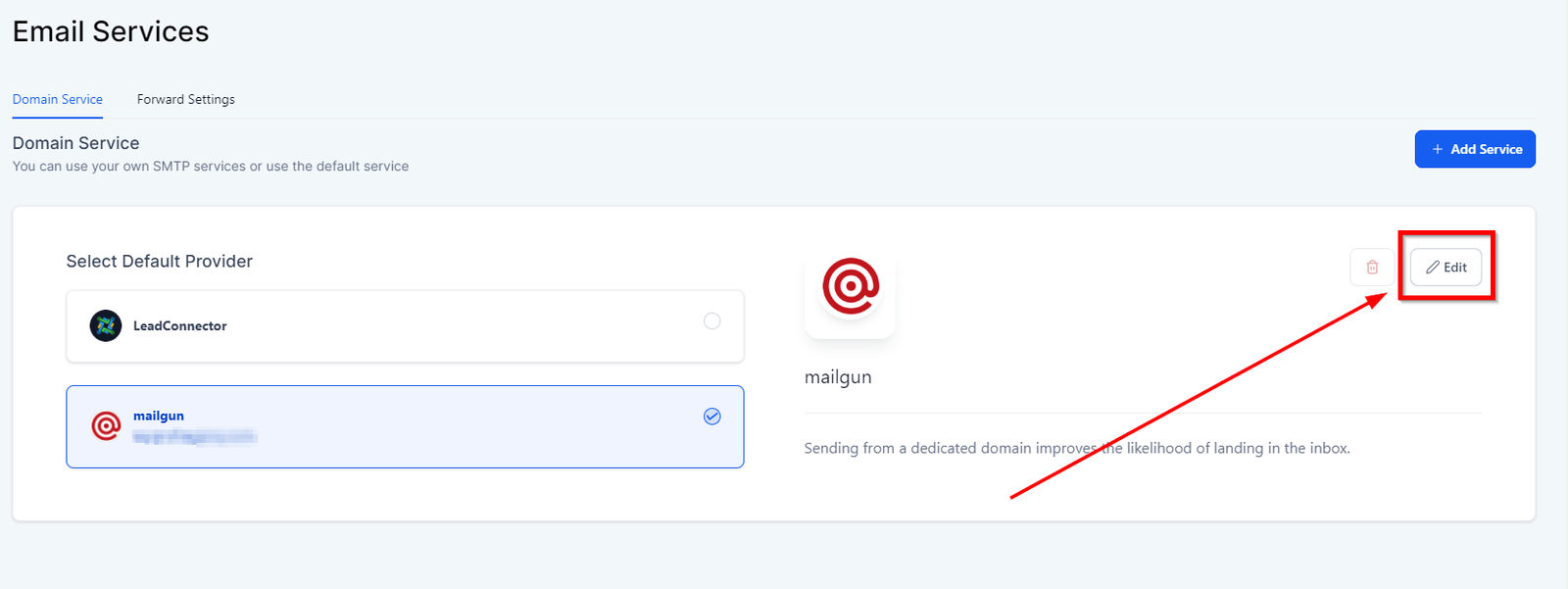
Edit Tab
This tab lets you edit the selected email service provider. We will cover the editing in the next article.
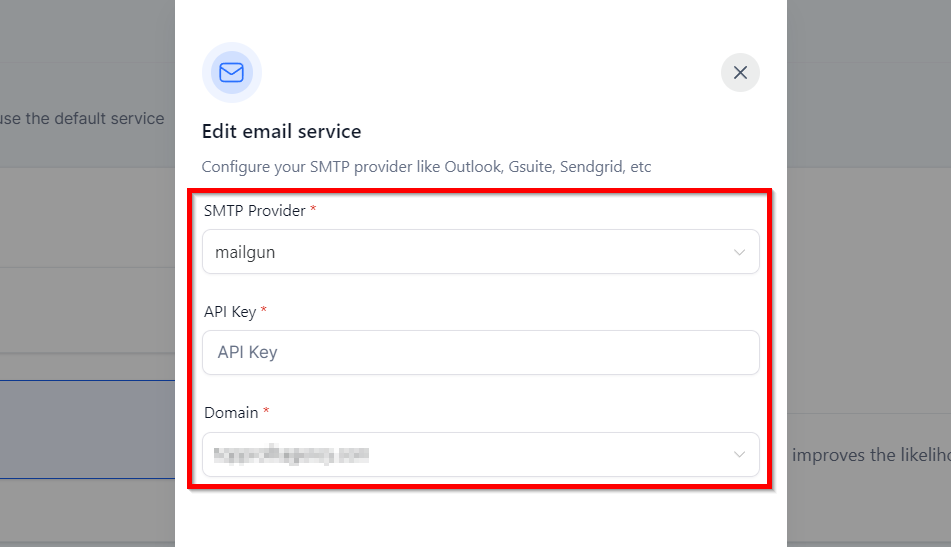
Editing email service
Here you can configure your SMTP provider such as Sendinblue, Gsuite or Microsoft Outlook.
SMTP Provider – Click on the dropdown menu to select the SMTP provider.
API Key – Get the API key from your SMTP account. Every smtp provide has the unique API key. for example, you can get the API key for gsuite by logging in to your google admin console. depending on the smtp provider you have selected, you will need to get the unique API key from the respective account.
Domain – From the dropdown menu, you can select the domain which you would like to configue for email services.
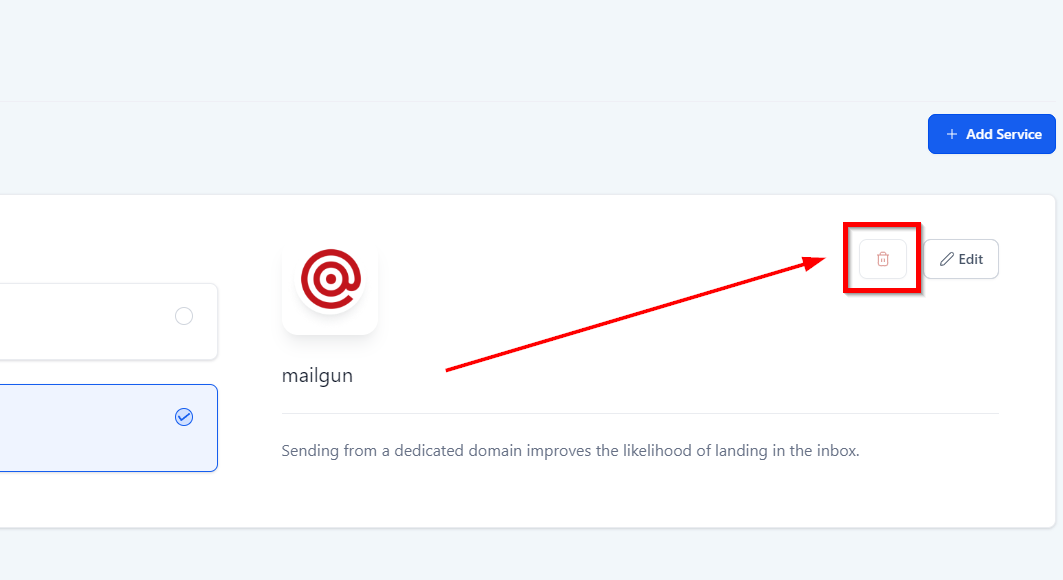
Delete provider
Depending on CRM user permissions, This option will allow you to delete an email service provider.
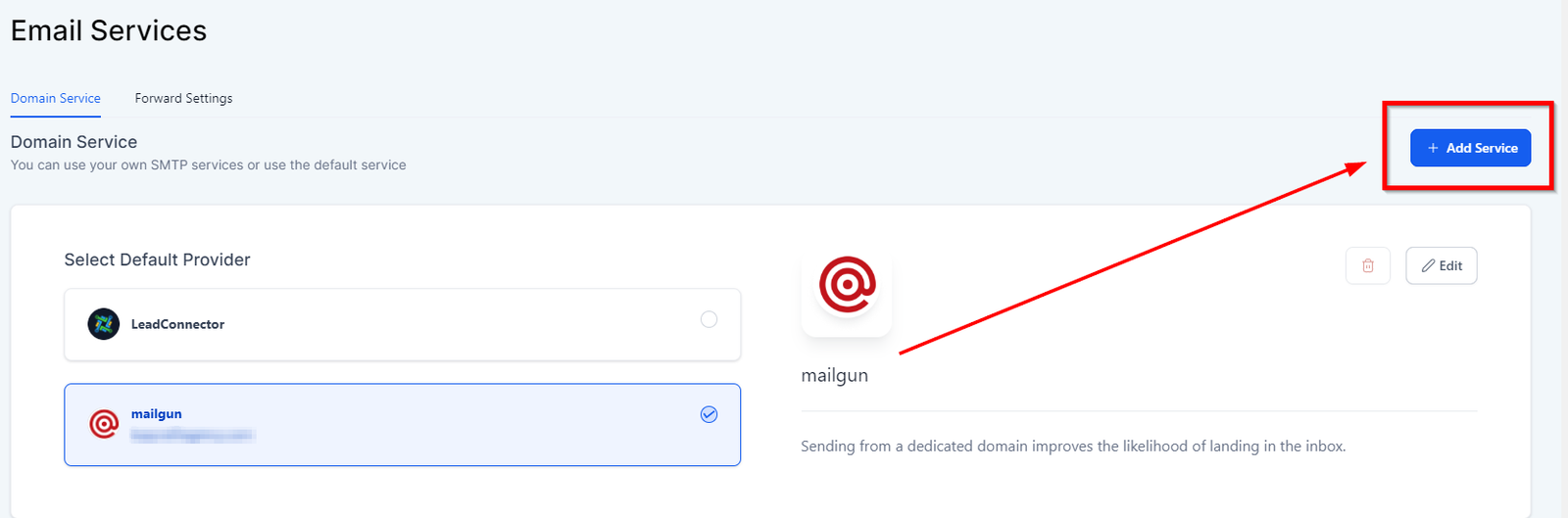
Add an email service
This tab will let you add a new email service provider for your CRM location.
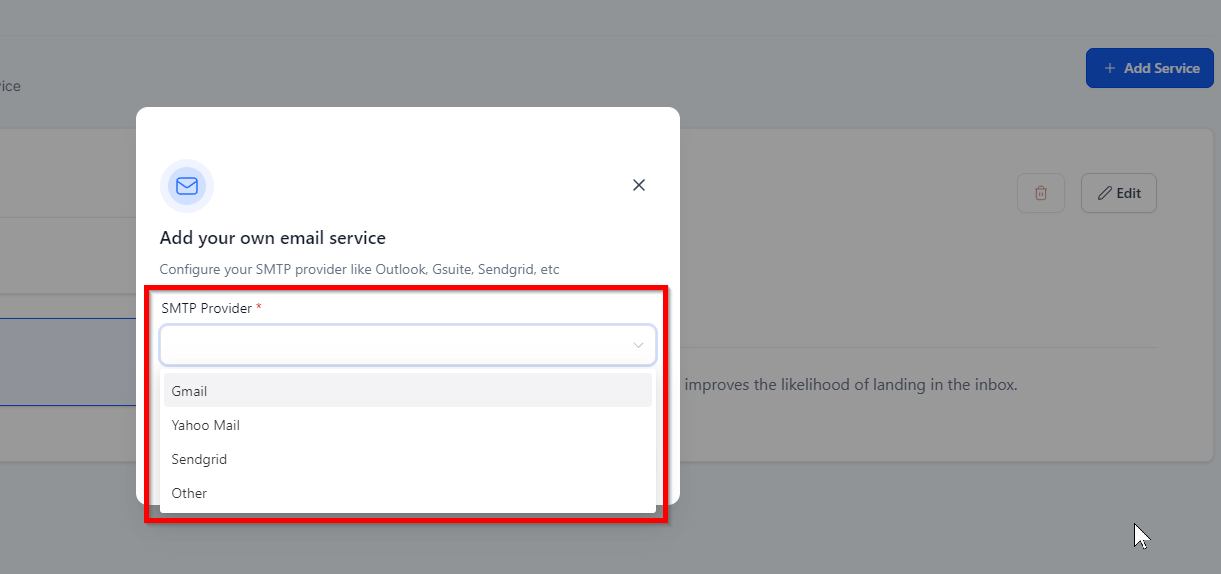
Selecting an email service provider
You can choose which email service provider from the list. you can also add a service provider outside of these options.
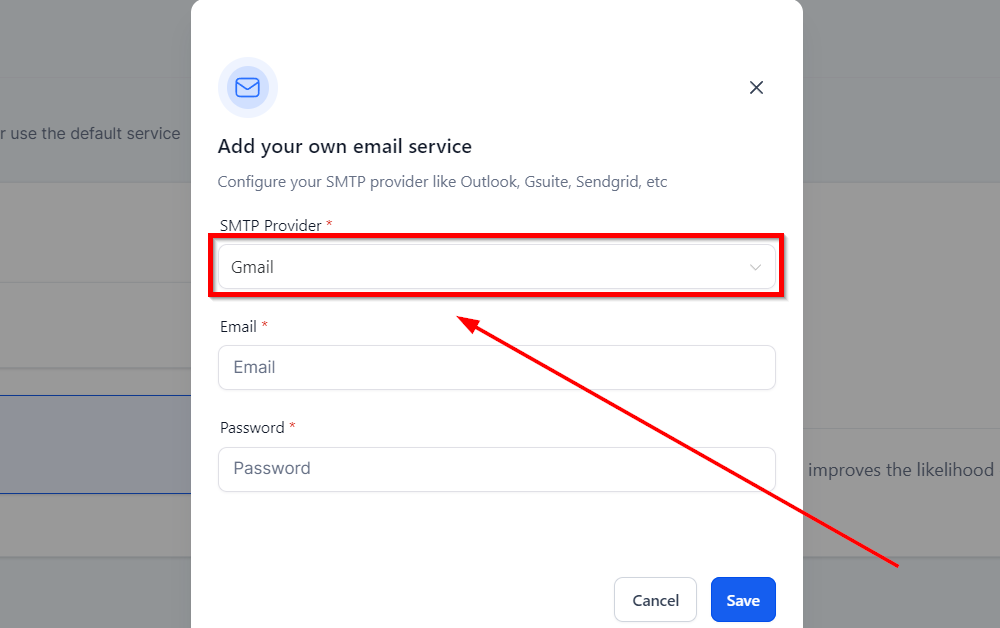
Setting up Gmail
- Select Gmail option 2
- Enter your email address.
- Enter your password.
- Click on the “Save” tab.
Add your own email service