
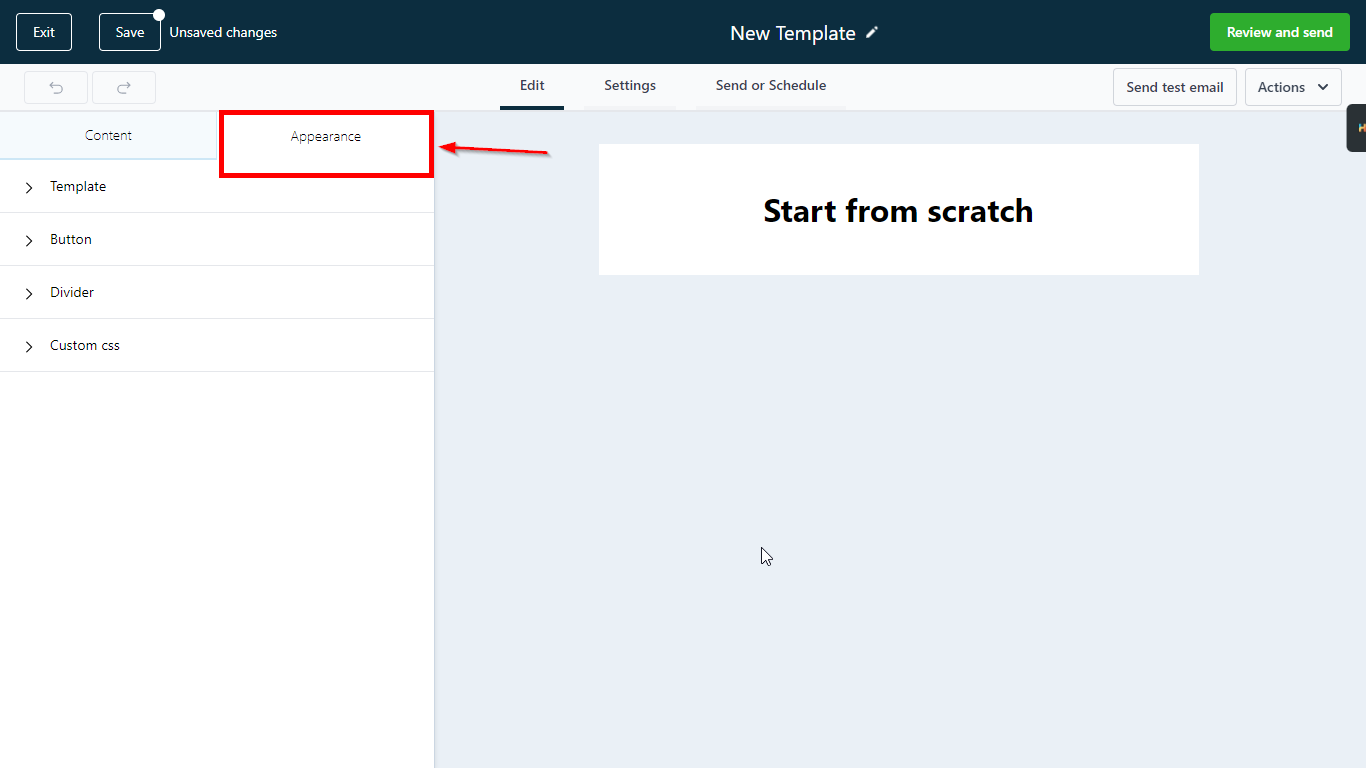
This is where you will find the appearance tab in your CRM. In this section, you will access template settings, buttons, dividers, and custom CSS. These are the global level settings that apply to all your emails by default.
Let’s dig into them and understand how they help us.
Template
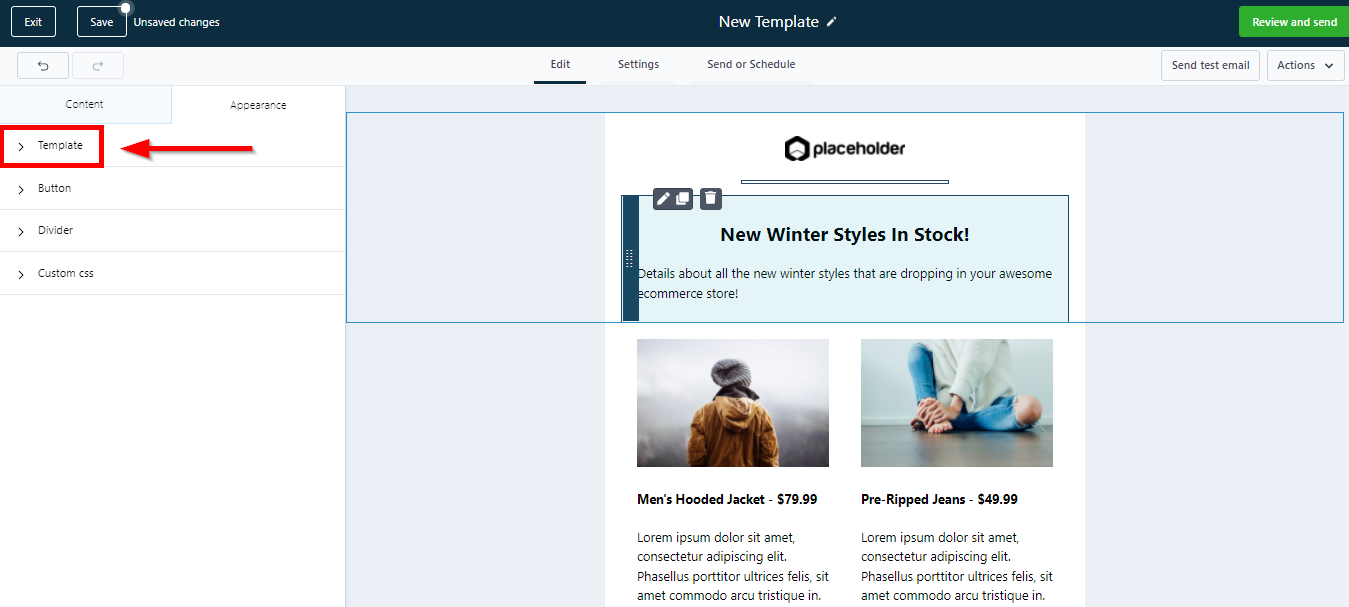
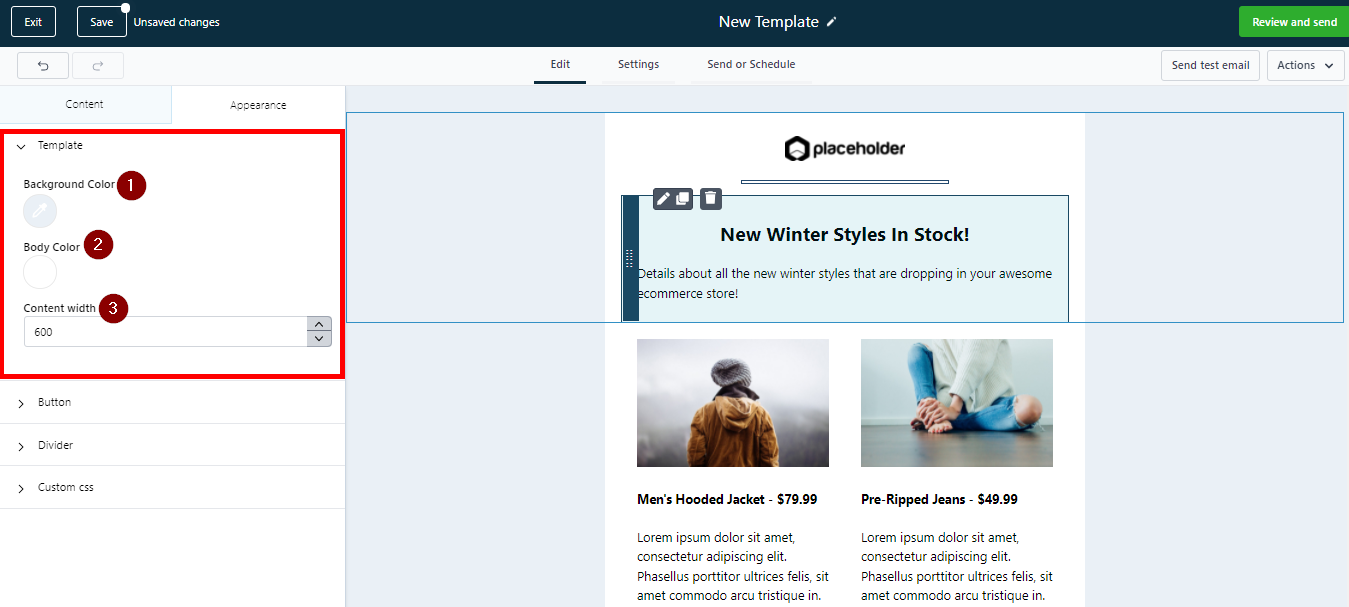
This is where you will find the Template details in your email builder. It allows you to control three things as shown in the image below.
-
Background Color: Choose and customize your emails in your own brand colors or just to make them stand out, you can set default colors here.
-
2.Body Color: Change and customize the color of your email body here.
-
3.Content Width: You can increase or decrease the content width of your emails here.
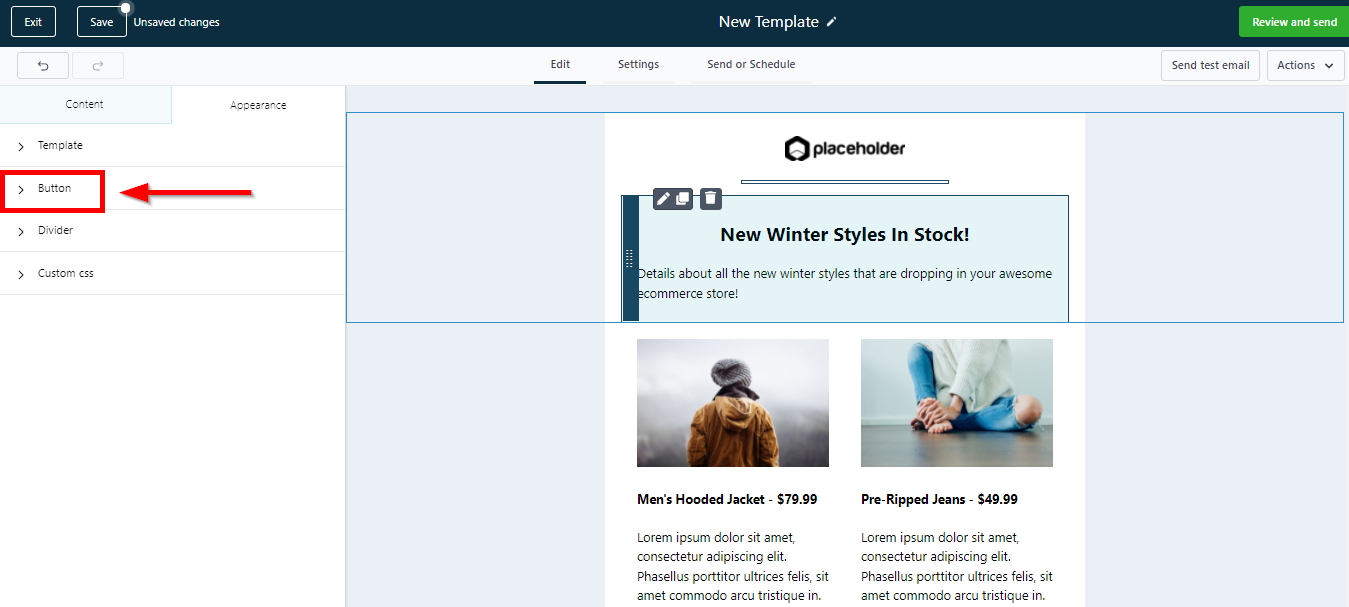
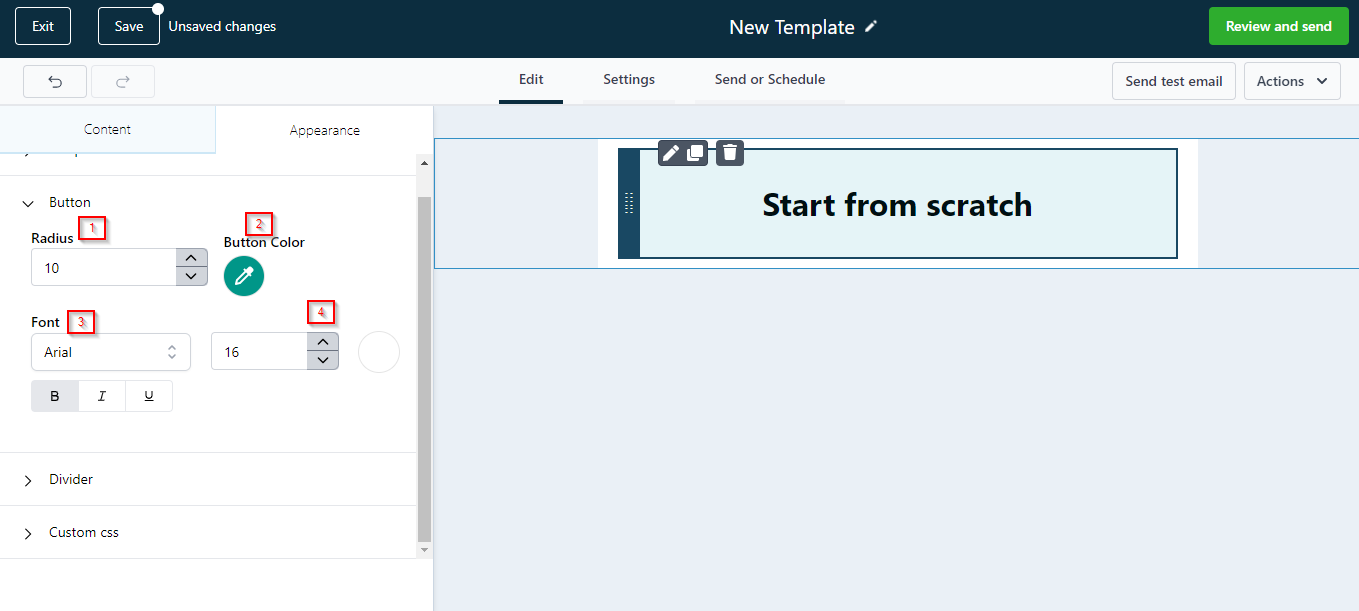
As the name sounds, this section gives you the controls to customize the buttons, mostly used as a Call to Action, in your emails.
-
Radius. Choose how big or small the buttons in your emails should look like.
-
2.Button Color. Choose your brand colors or simply the ones that you relate with.
-
3.Fonts. Choose font types and add bold, italics, and underlines here.
-
4.Font Size. Choose a font size that goes well with your button size or vice versa.
Divider