
Pages
If you’ve already created a website, you will see the list of them here.
Website header
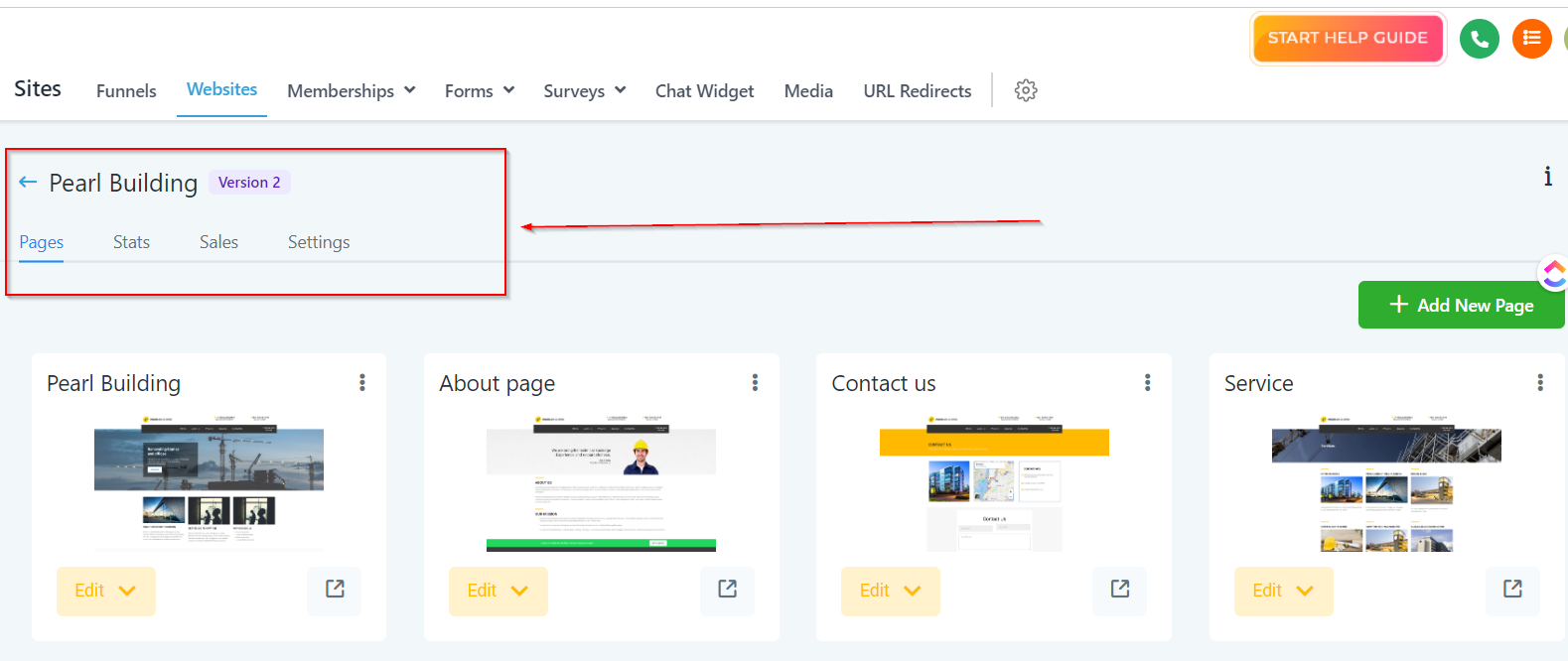
Here you can see the options to choose from. Each option serves a different purpose.
Website Pages
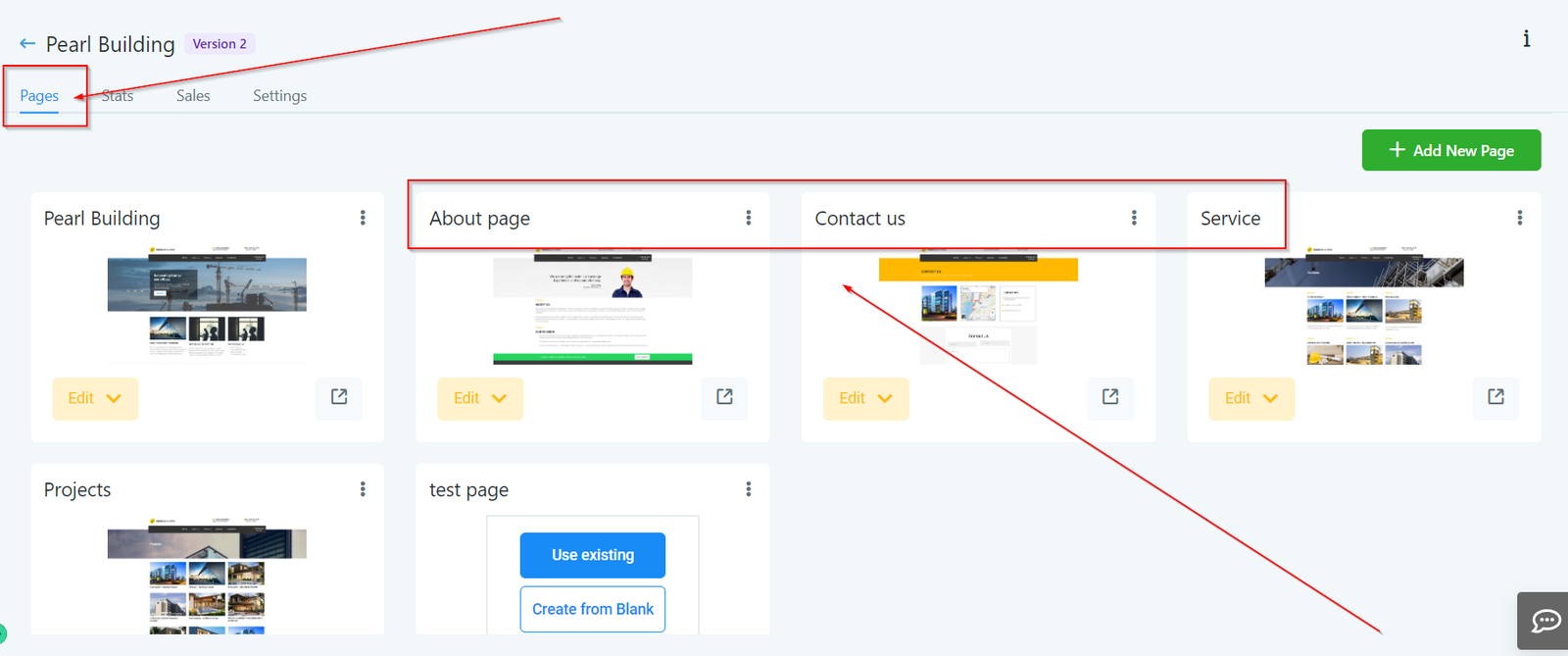
Here you will see all of the pages you have created for your website. you can also add more pages, edit existing pages or remove a specific page of your website.
Website Actions
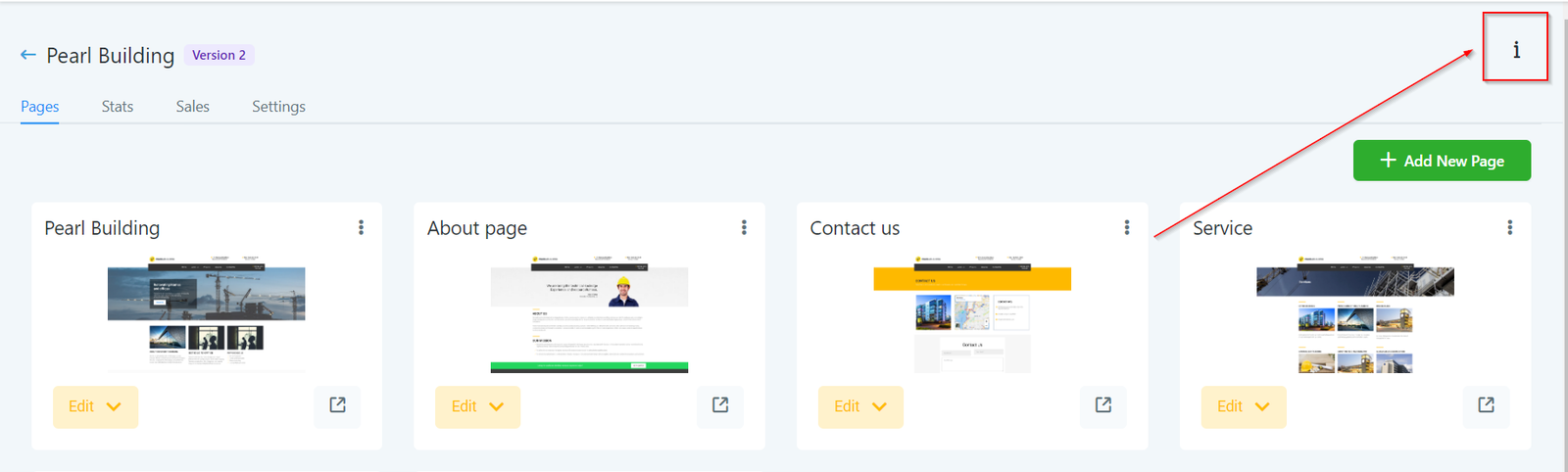
If you’re an admin of your CRM location, you will see a few buttons here. With those buttons, you can either clone and share your entire website with another CRM location or look deeper into the URL path information.
Add New Page
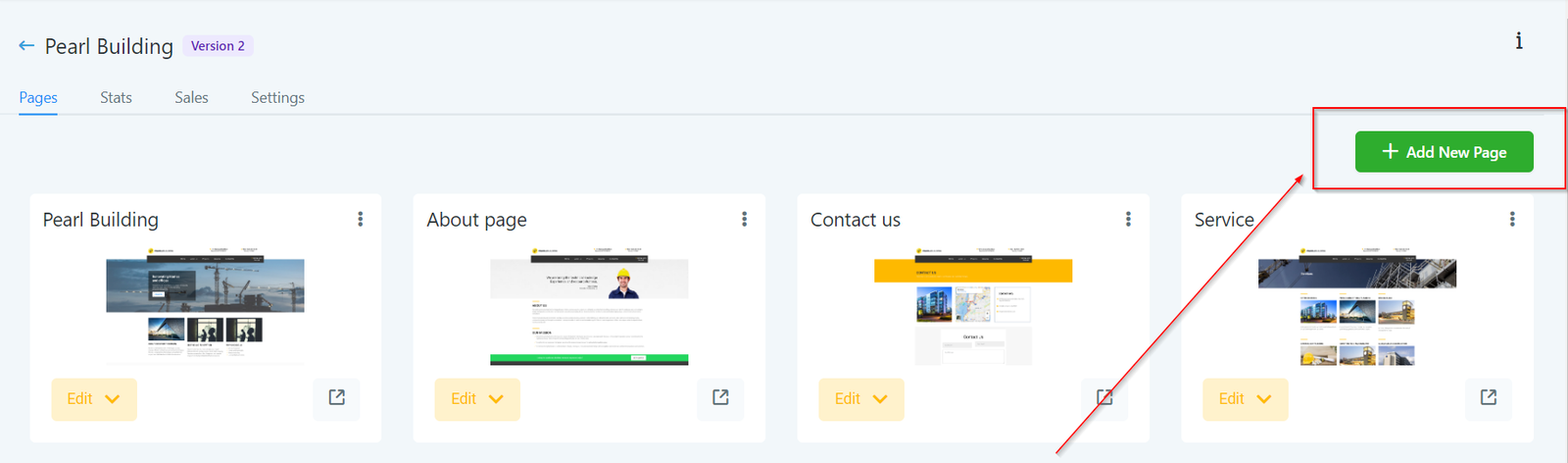
To start building your new website, you will need to start building each page for your website. With the “Add new page” option, you can build out an additional page for your existing website or just start building a new website from scratch.
Name Your Website Page
Naming a website page will help you distribute your content accross your website. When the website is divided in different sections, visitors can click on the exact page of the website that is most relevant to their objective such as “Contact us” or “about US”. You can always come back and edit the name of your page if need be.
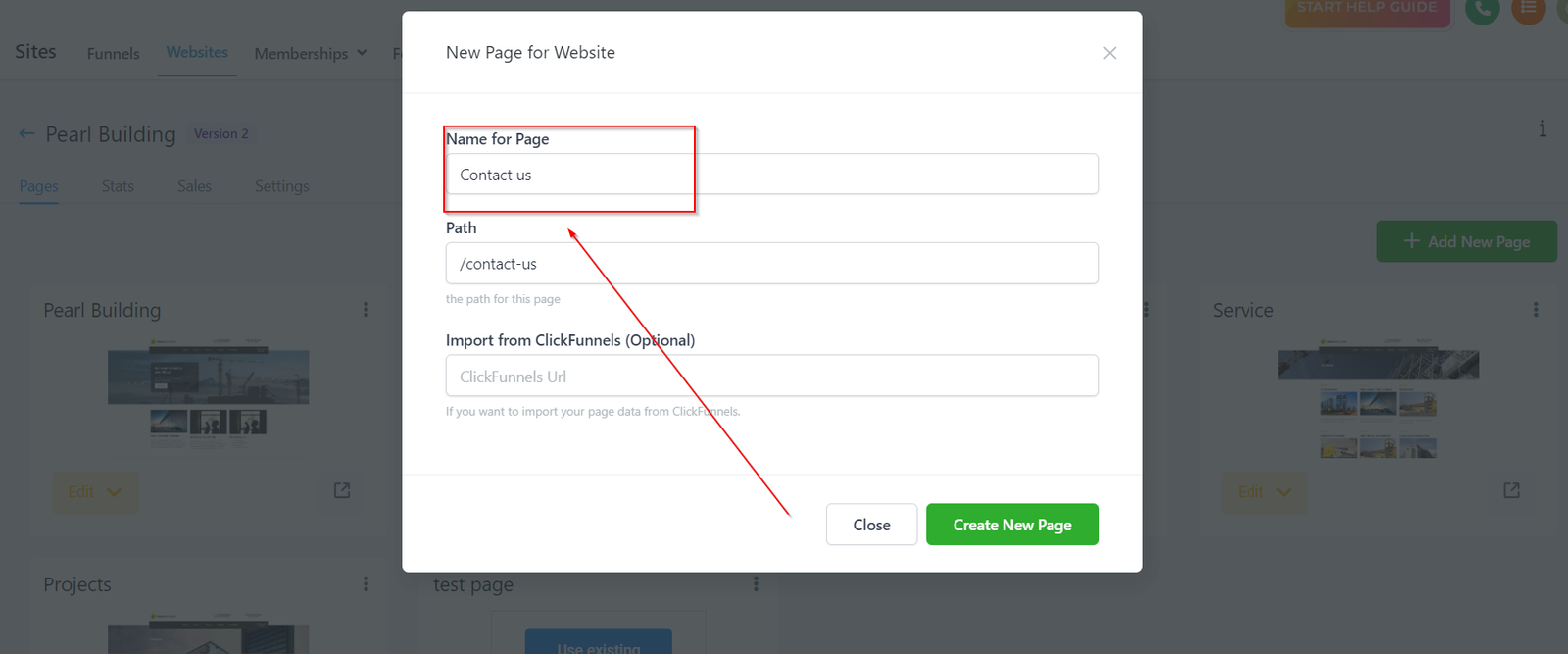
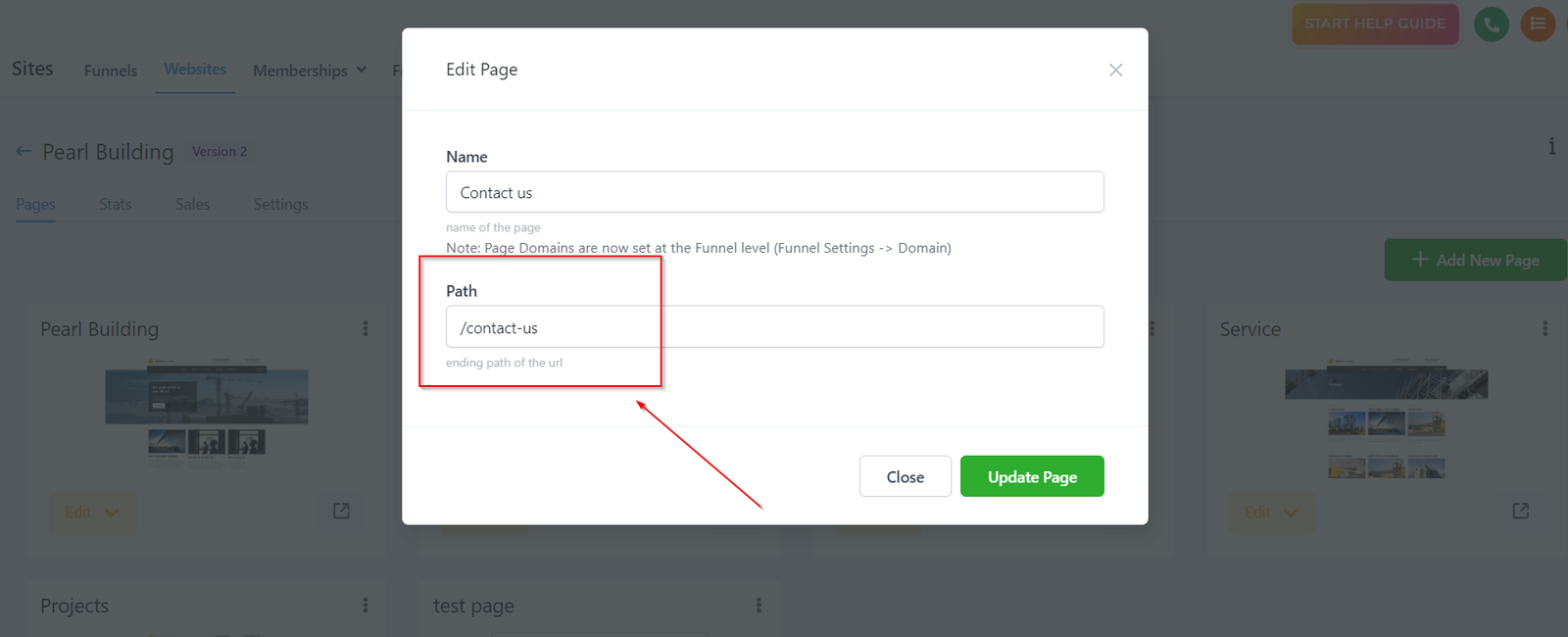
Website Path
You can add a path to your website.
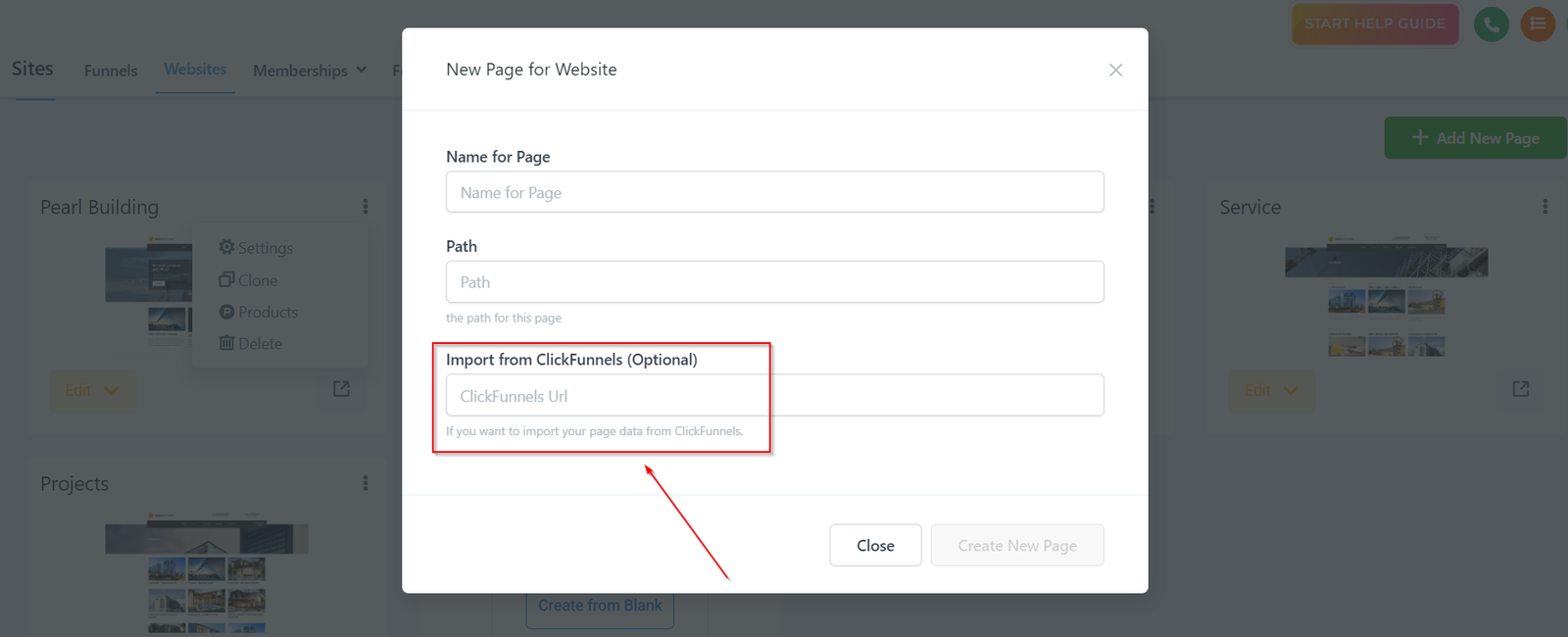
Import From Clickfunnels
Just paste your clickfunnels url If you have pre built funnels or content that you would like to use.
Website Page Actions