
Adding Products To Funnels & Websites
The Funnel products are set to Test mode, if you wish to switch mode simply go to the Settings tab and toggle on the Live mode. Your Website product will be disabled if you haven’t connected it to a payment processor yet.
When you have multiple recurring products and bump products with subscriptions, you won’t be able to use Paypal as a payment processor, use Stripe instead.
Adding Product To Funnel
In this section, you will learn how to add a product to a funnel. First, you have to create a new funnel
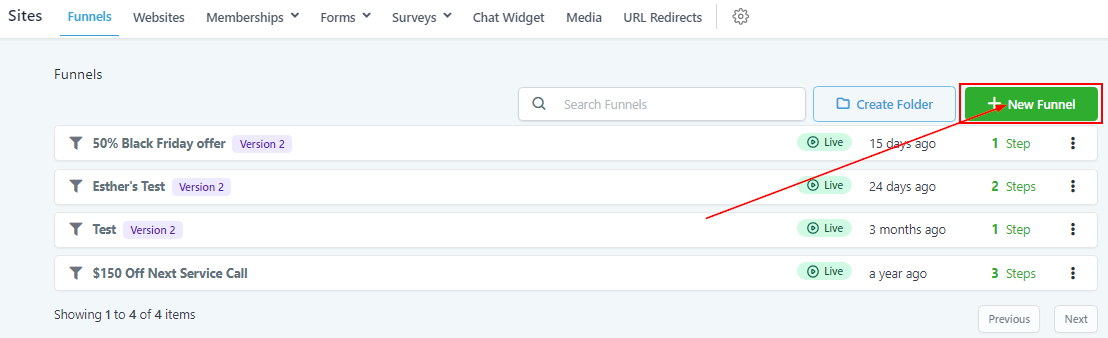
Create New Funnel
You can create a new funnel by clicking this button.
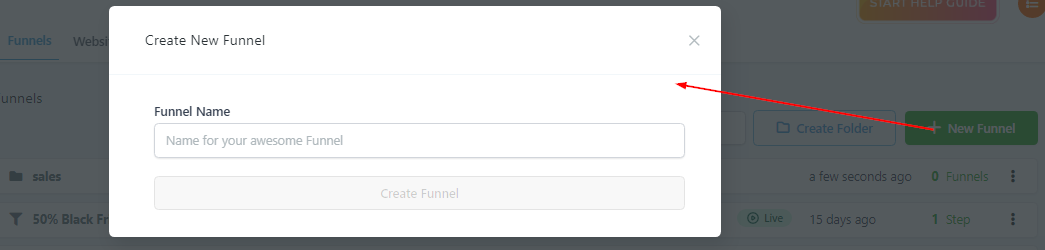
Name and Create Funnel
Here you will give your new funnel a name and create it. For example “Sales Appointment”.
Add New Funnel Step
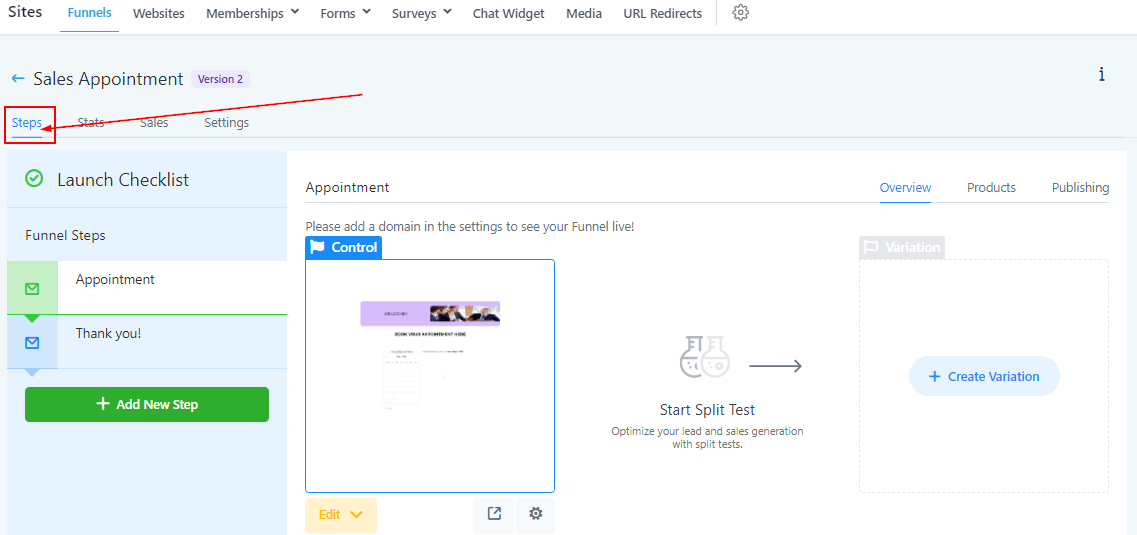
Once you’ve created a funnel, you will be directed to the funnel page. To be able to add a product, you will need to have a funnel step.
The steps in funnels help customers complete a call-to-action. For example, booking appointments. Here in the “steps” section, you will be able to create new funnel pages, organize your funnel steps, and add products to your funnel.
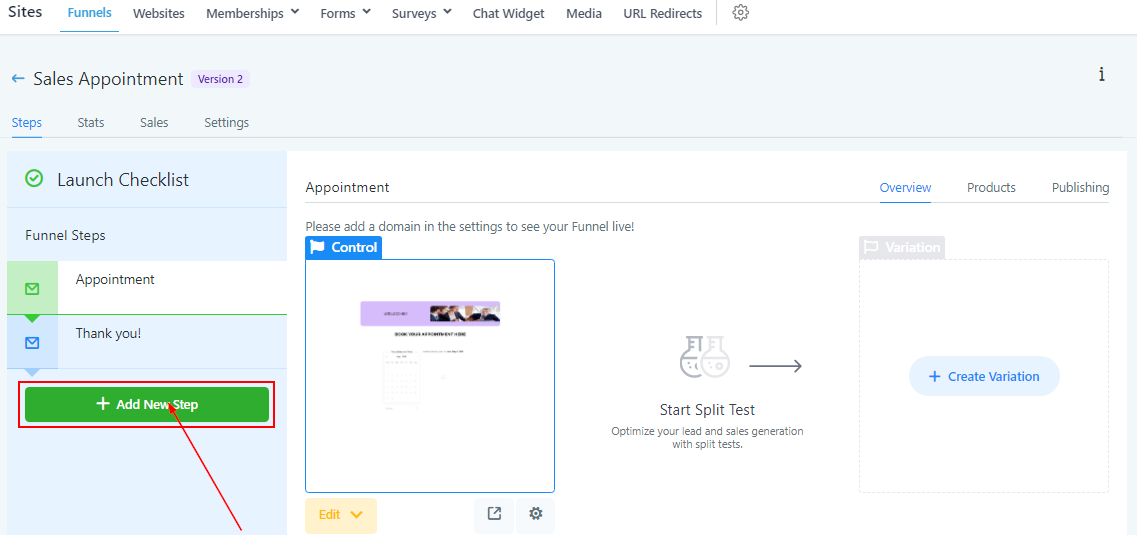
If you’ve not added a funnel step yet, click on “+Add New Step” to create one.
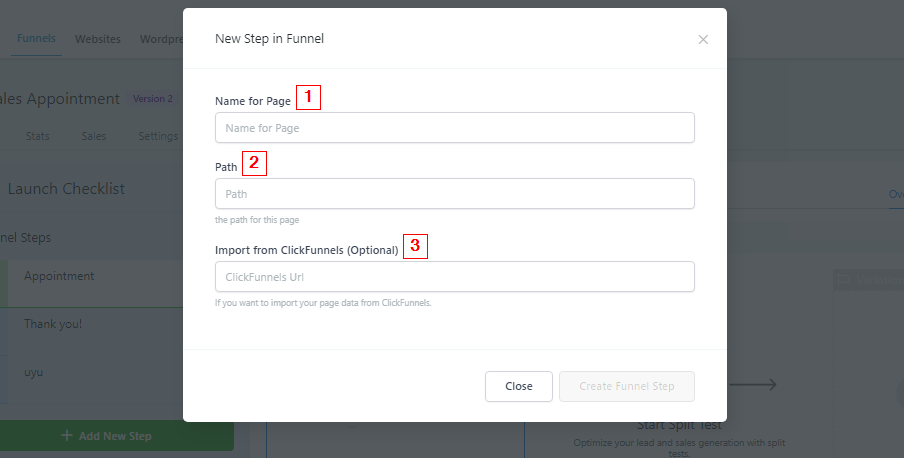
You will get a notification popup like this.
 1.
1.-
Name Your Funnel StepYou will need to give your funnel step a name. Make sure to organize your naming conventions for funnel steps. As you create more funnel steps, an organization with being very important!****
-
2.Establish Funnel PathYou can give your funnel step a unique URL path, or you can simply name the URL path the same as the funnel step name. Adding a URL path is required to save this new funnel step.****