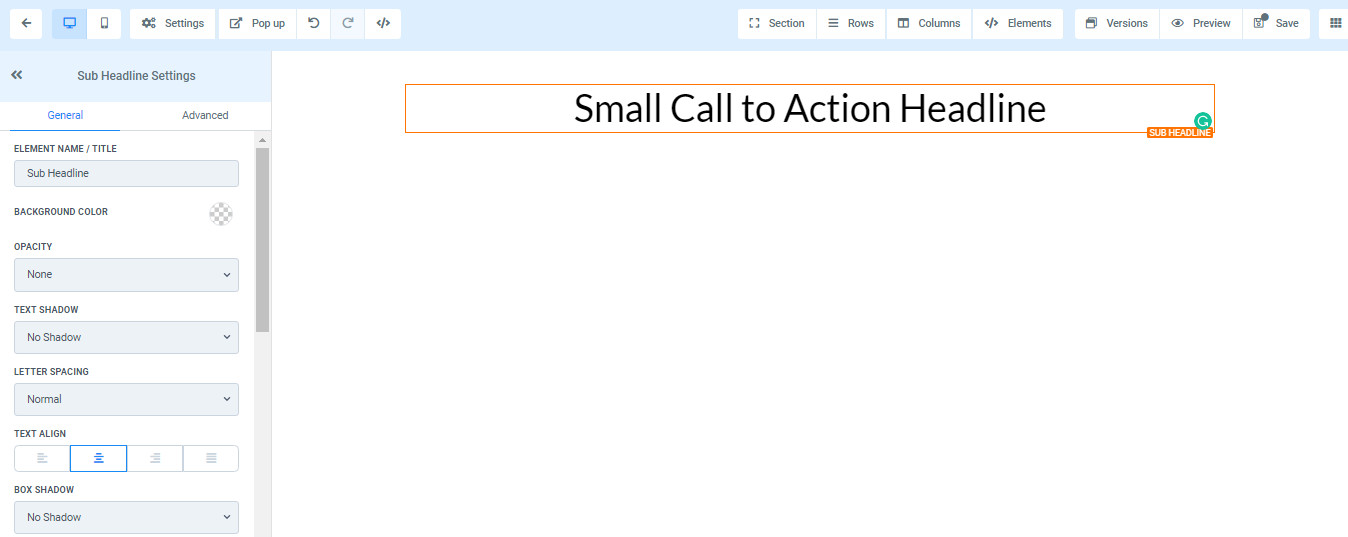
Sub-Headline
Sub-Headline can be used to type in the sub-headings of a page.
General Settings
To add a sub-headline, drag and drop the Sub-headline in the editor’s space to manage the settings.
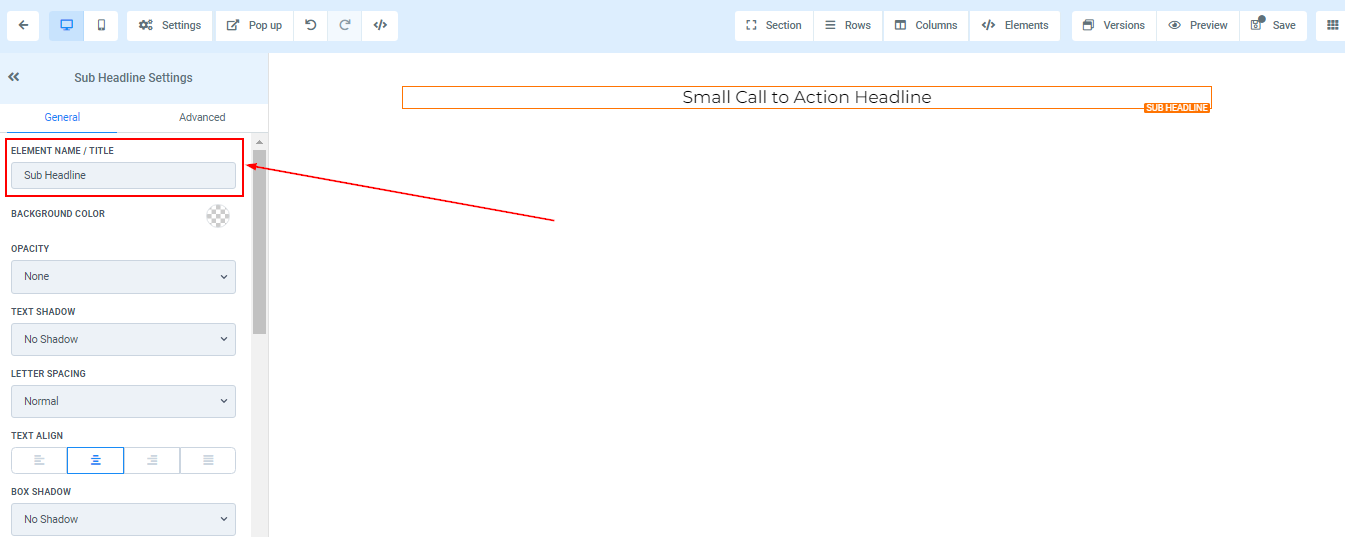
Element Name/Title
Here you will see the default name/title of the Edit option you are working on. You can decide to leave at that or rename it.
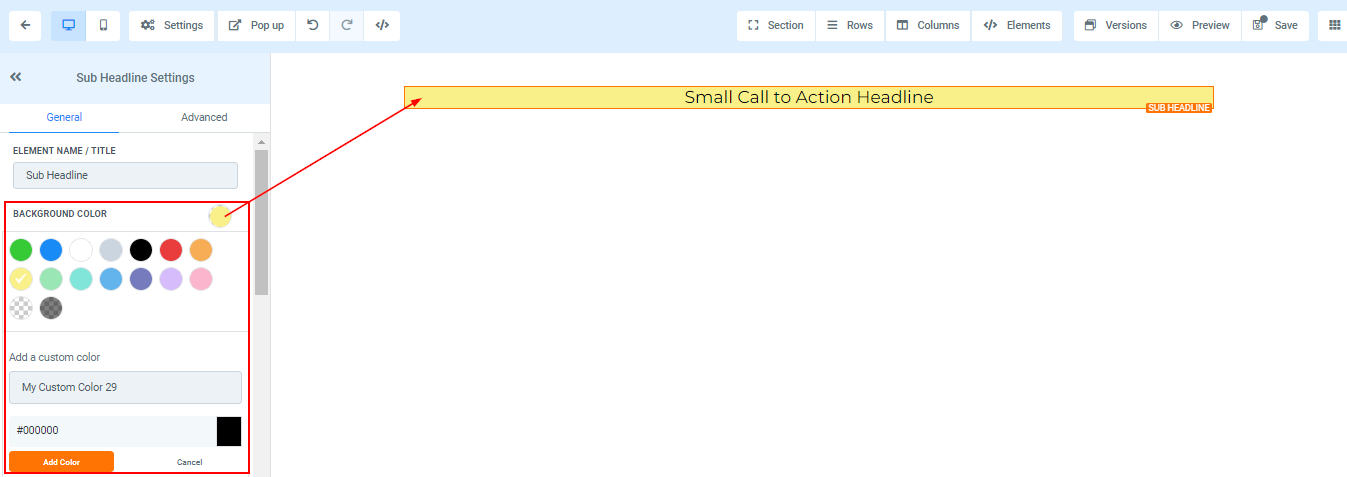
Background Color
If you want to change the background color of your headline, you can do that by clicking on the content you want to adjust its background.
If you didn’t find your color, you can also add custom colors if you have the color code of the exact color you are going for, just type it in the space provided and click “add color”.
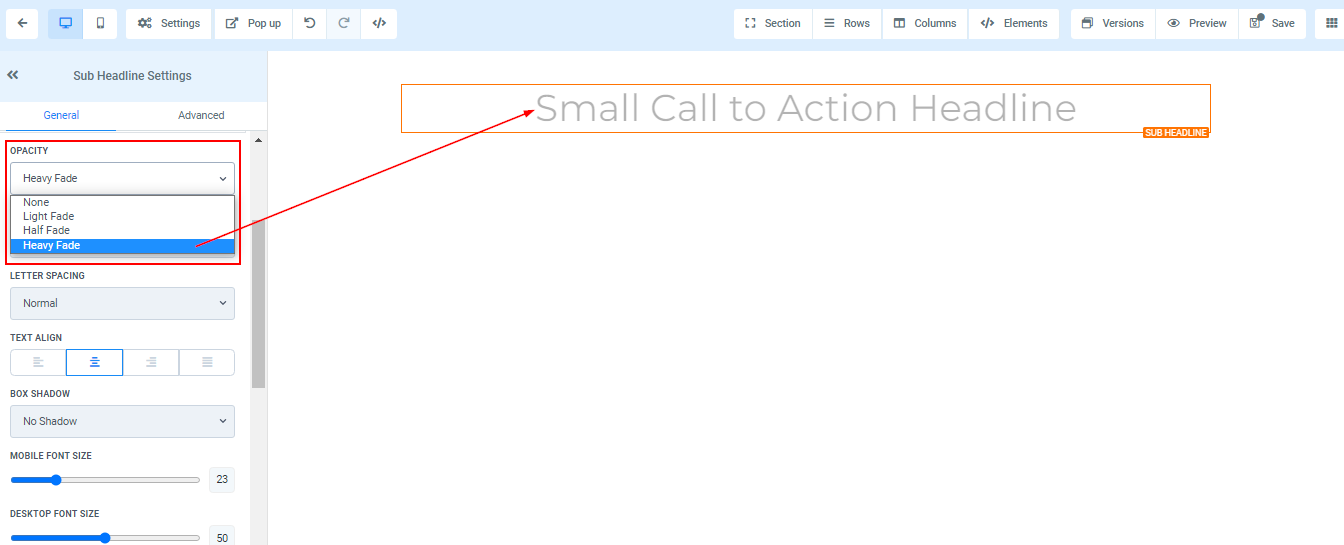
Opacity
You can decide the extent to which you want your text/content to fade in each element box. the opacity varies from None, Light, Half, to Heavy fade.
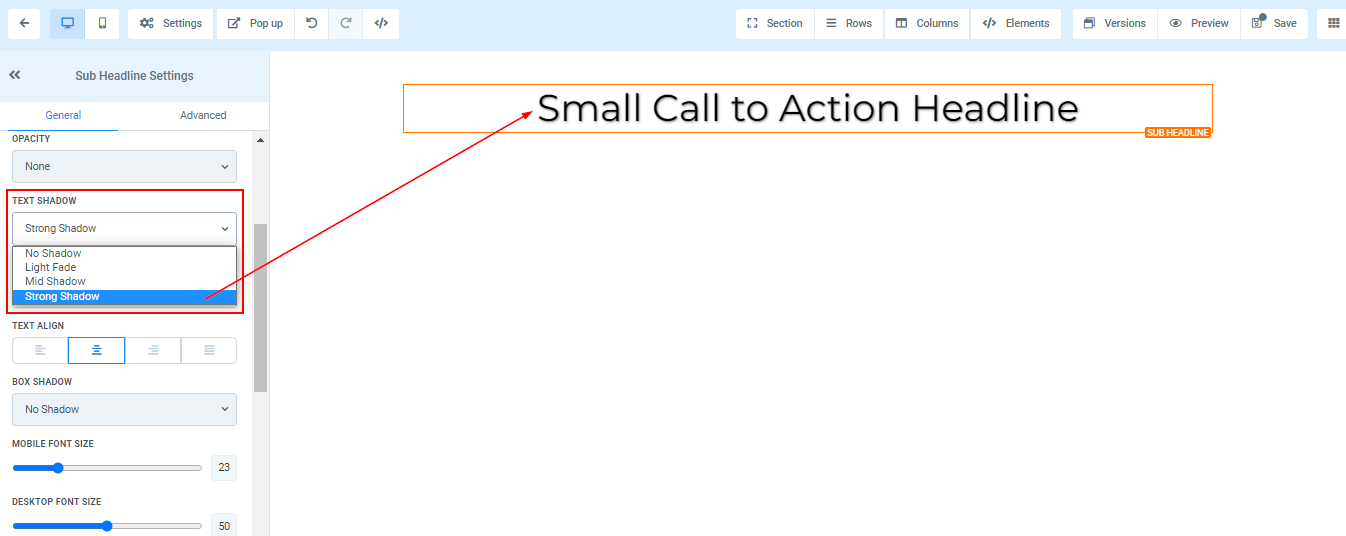
Text Shadow
If you want your text/content to have a shadow, simply select how thick or light you want the shadow to be.
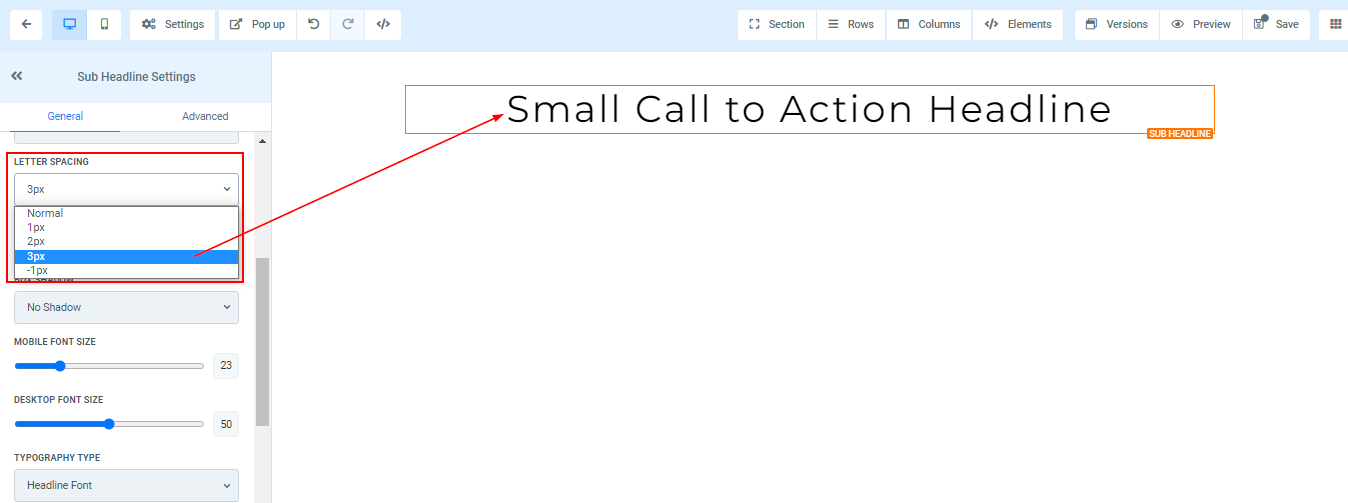
Letter Spacing
You can decide how wide apart you want your letter to be by clicking on this option.
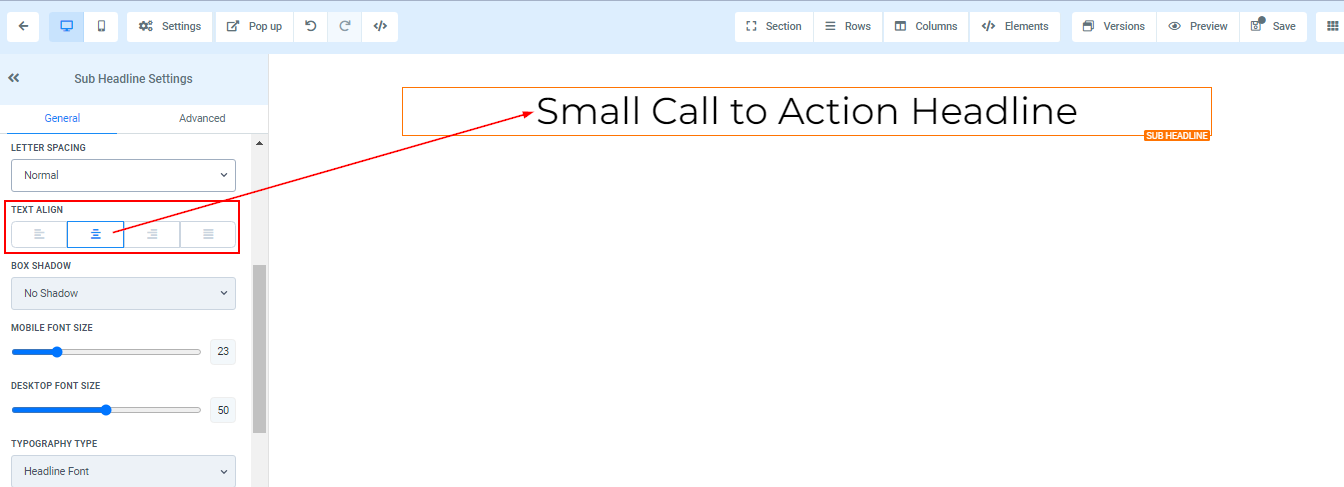
Text Align
You can move your text in different positions as you deem fit, you can position it to the Left, Center, Right, or as Justified.