Countdown
You can use the “Countdown promo” when you have a promo with a set date, having your timer countdown help visitors/clients know how much time they have left to the end of the said promo.
General Settings
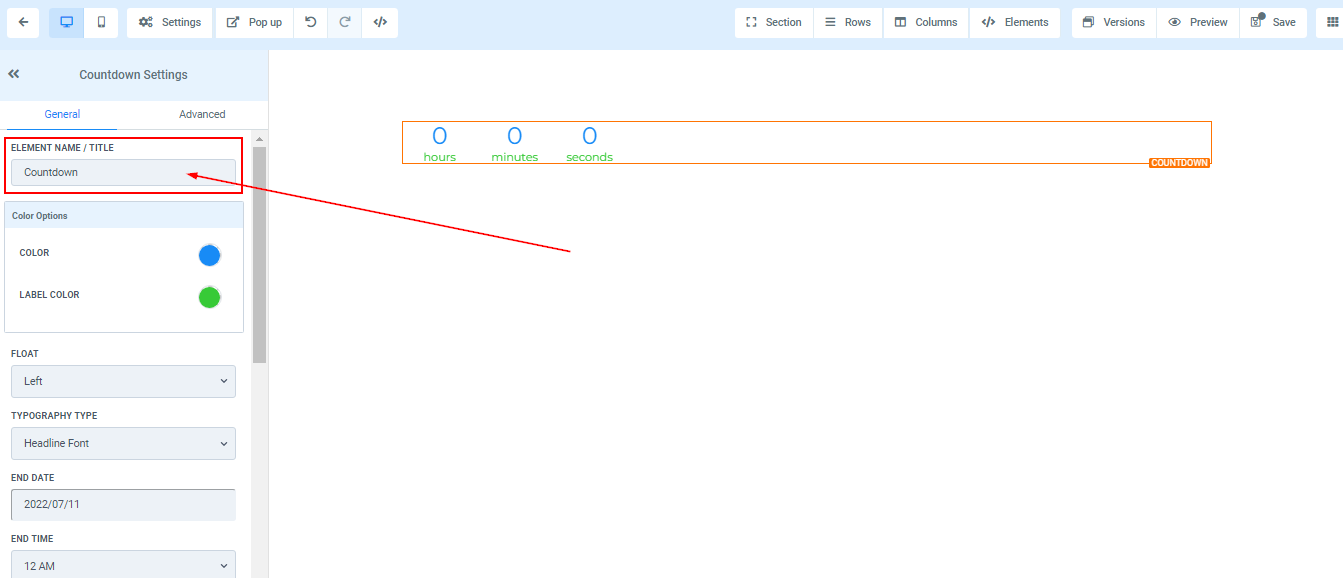
Element Name/Title
Here you will see the default name/title of the Edit option you are working on. You can decide to leave at that or rename it.
Color Options
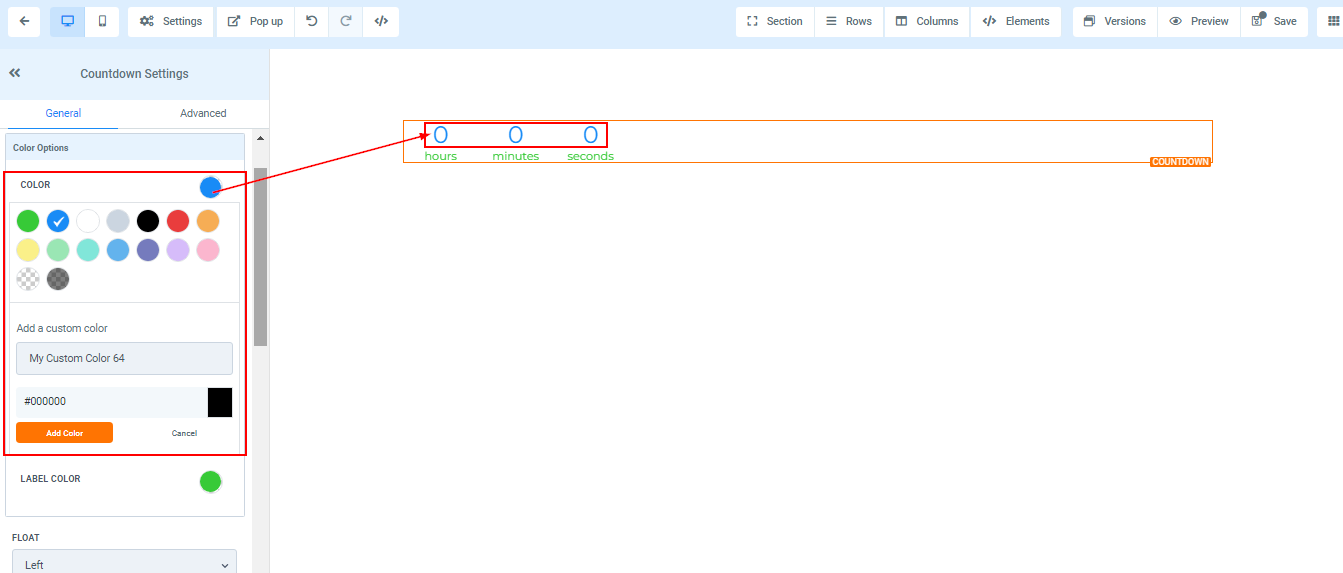
Color
If you want to change the **** color of your timer itself, you can do that by clicking on the color you want.
If you didn’t find your color, you can also add custom colors if you have the color code of the exact color you are going for, just type it in the space provided and click “add color”.
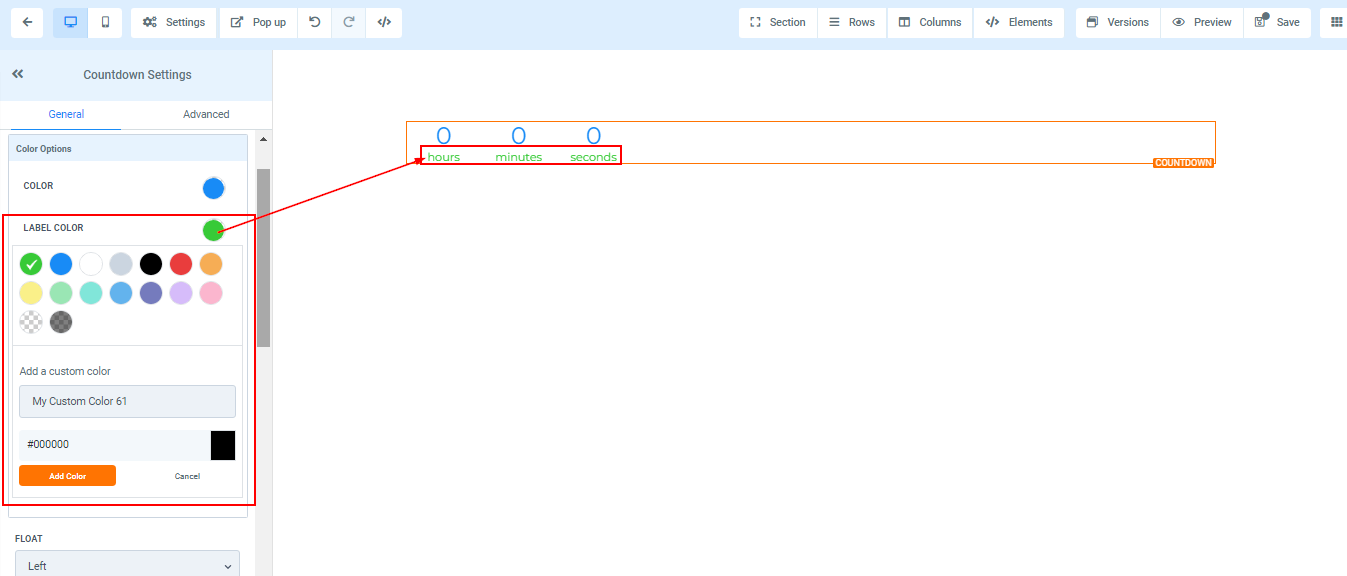
Label Color
If you want to change the **** color of your timer label, you can do that by clicking on the color you want.
If you didn’t find your color, you can also add custom colors if you have the color code of the exact color you are going for, just type it in the space provided and click “add color”.
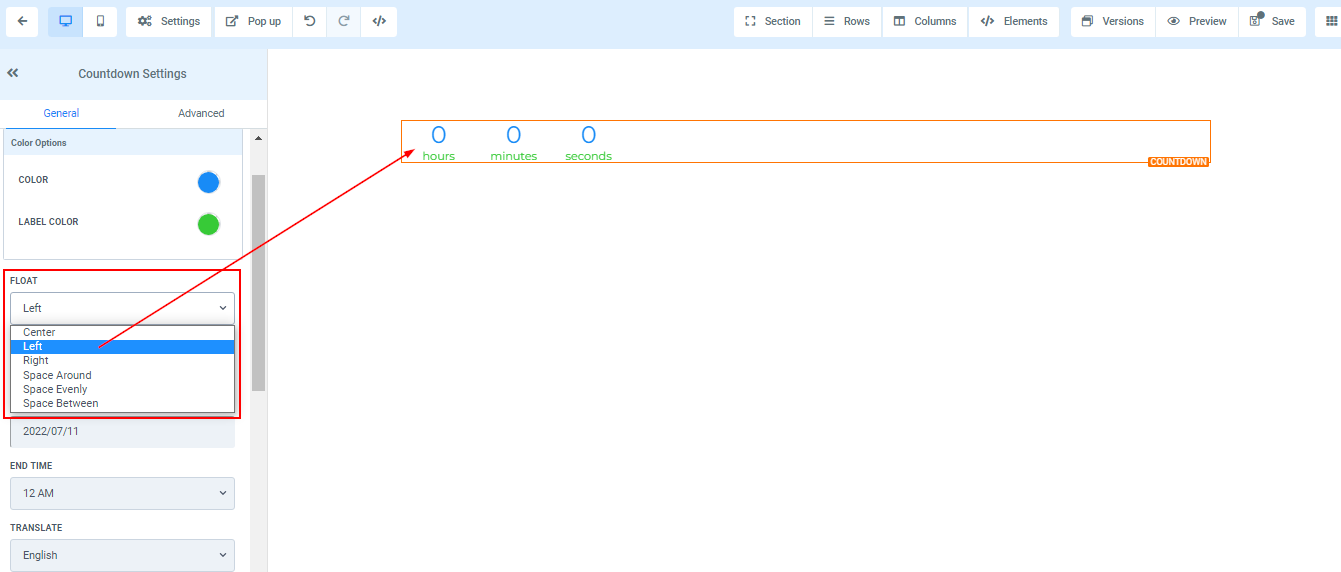
Float
You can move your timer in different positions as you deem fit, you can position it to the Left, Center, Right, space around, space evenly, or space between.
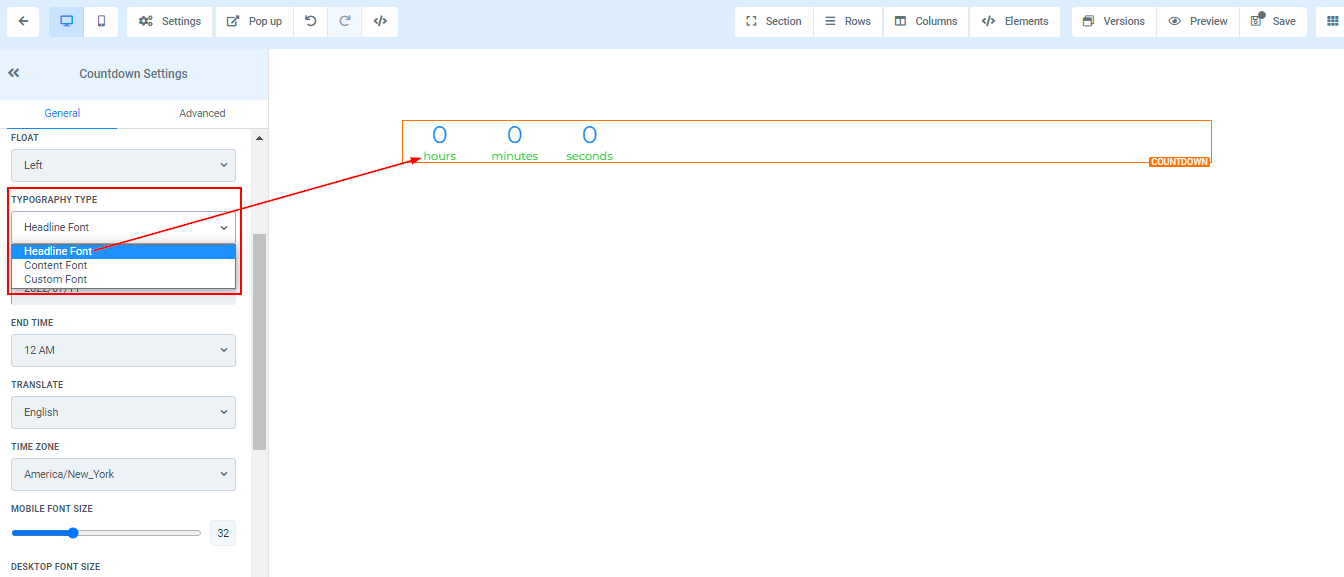
Typography Type
Here you can edit the font of your text/content.
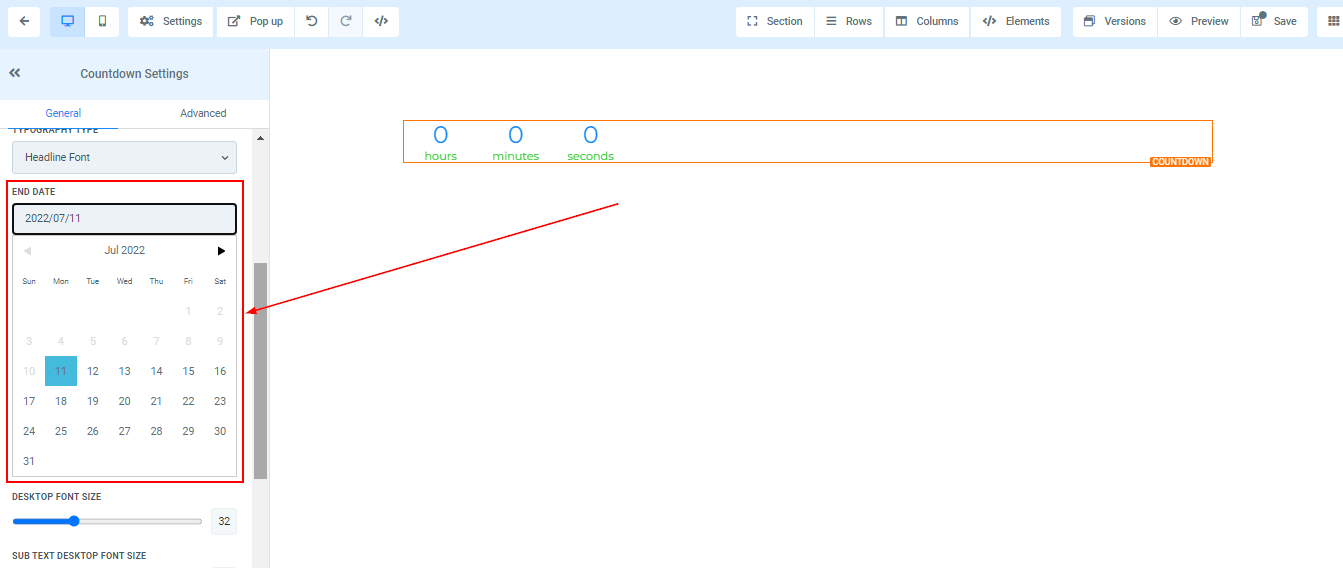
End Date and Time
Here you can set the date and time you want your countdown to end. For instance, you can set the date and time for the timer to end on the 11th of July at 6am.