
Blogs
Blogging Overview
A blog post typically covers a specific topic or query, it’s educational in nature. You can also set up blog posts to engage your visitors.
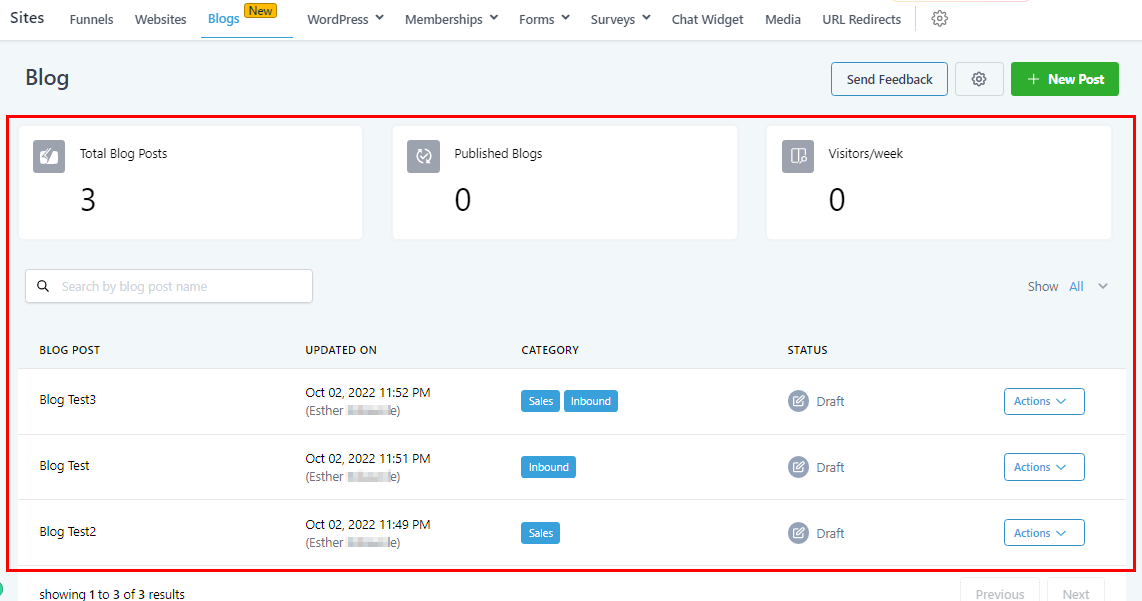
If you’re new to blogging, or if you want to start your own blog but don’t know where to begin, this section will guide you on how to get started. Once you create a blog post, your page should look like this. Here you can see the edit, filter search**,** and view the blog updates.
Blog Settings
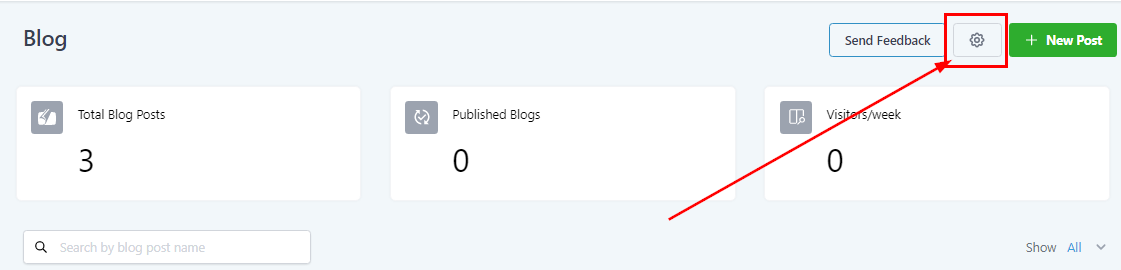
When you click on the “Settings” icon, it directs you to the setting page where you can edit the Authors and the categories;
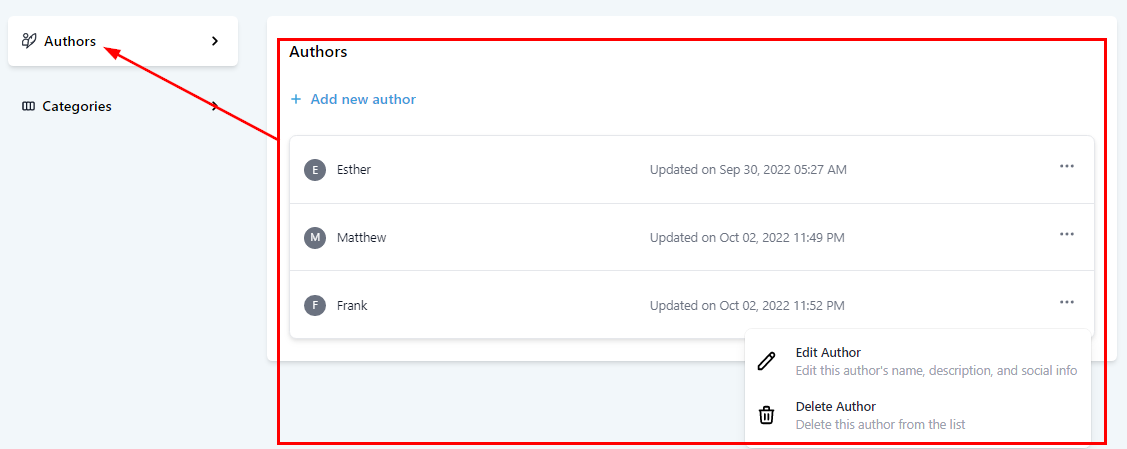
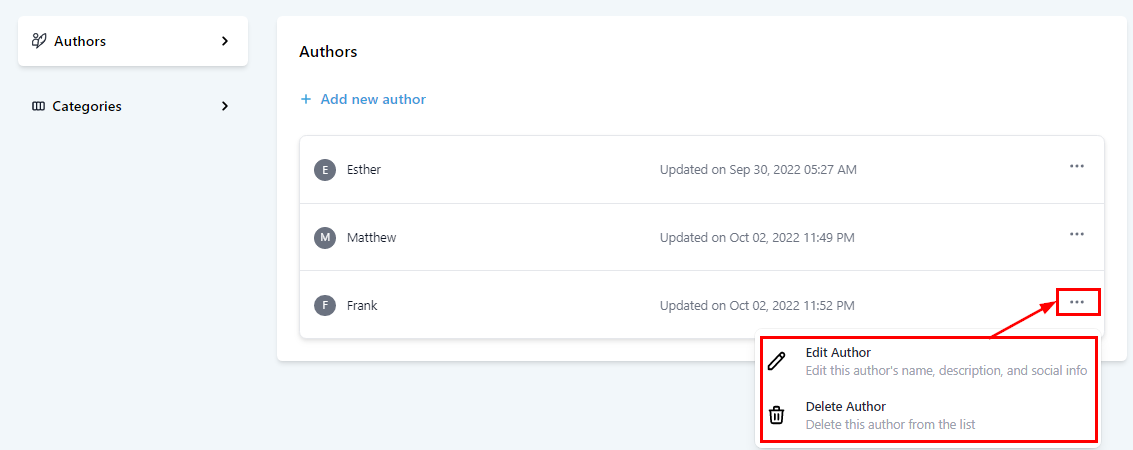
Here you can see the table that shows each Author’s name, the date and time their details were last updated, and the Action menu to edit or delete an author. You can also add a new author.
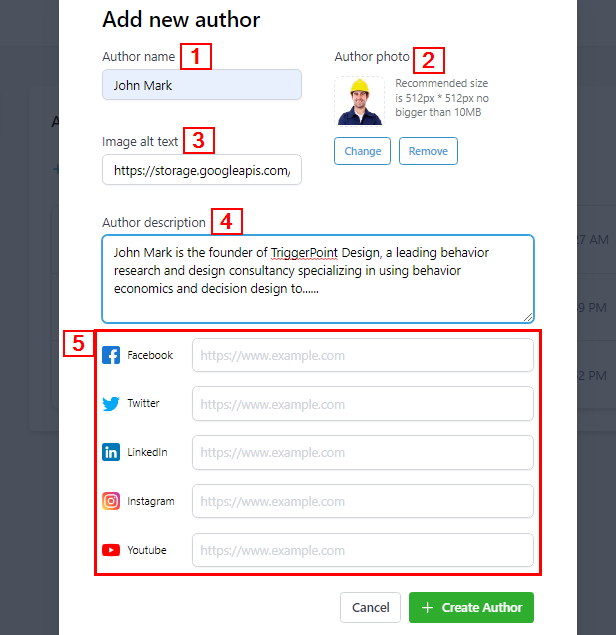
If you want to add the author of a blog post, click on “Add New author” to set it up. When setting up, you will add;
-
1.Author’s Name It is required that you add an author’s name in at least three (3) letters to avoid an error code.
-
2.Author’s Image You can upload the author’s image here by clicking on the “Change” button which directs you to the storage page where you can upload the image you want to use. Once you’ve uploaded the image, double-click on the image which will automatically add the image. To change/replace the image, click on the “Change” button, and if you want to delete the image uploaded, just click on “Remove”. The recommended size is 512px * 512px no bigger than 10MB.
-
3.Image Alt Text You can add target keywords here for your image
-
4.Author’s Description You will have to give a short description here for viewers to get a glimpse of the post. preferably between 100 – 250 characters.
-
5.Social Media Info ****You can type or paste the URL of the author’s Facebook, Twitter, LinkedIn, Instagram, and Youtube accounts.
You can edit an existing author by clicking on the Action menu (the 3 dots) on the right side of each author’s row. This option allows you to either; Edit the author’s info or Delete it. Once you delete an author, it permanently removes from your account.
Categories