
Creating New Custom Fields
Here you will be able to create custom fields as per your objective.
Custom Field Options
-
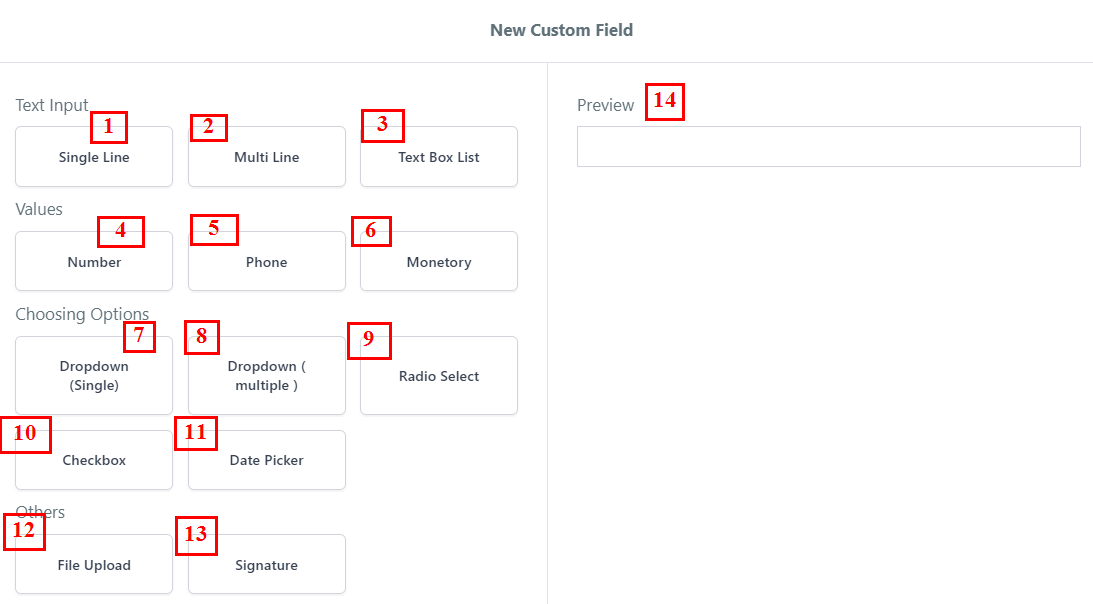
1.Single Line TextAlso known as “single-line text”, this text field is used when requesting the user to input a small amount of text as their answer.
-
2.Multi Line Text FieldAlso known as “paragraph text”, this text field is used when requesting the user to input a large amount of text as their answer.
-
3.Text Box List The text box list field gives your user a list of inputs that need to be filled. This is very useful when asking for text items closely related to keeping them all in one spot.
-
4.Number FieldThis is an input field that MUST contain numbers ONLY. This field can contain decimal points if needed as well.
-
5.Phone FieldThe phone field is used to capture phone numbers. There is also a country code selector so the user can select what country their phone number is registered in.
-
6.Monetary FieldLike the numerical field, this field can only contain numbers as this is meant to capture monetary amounts.This can be used when referencing things like salaries, gross income, hourly wages, etc.
-
7.Single Options Dropdown FieldThis is also known as a “drop-down field”. This allows the user to open a list of options to select from. They can only choose one option.
-
8.Multiple Options Dropdown FieldLike the “single options” field, this field opens up a drop-down selector.However, your user will be able to select multiple options with this field type.
-
9.Radio Select FieldRadio buttons will give your user the ability to select their choice from a list of options.Unlike the checkbox field, radio buttons restrict the user to only selecting one choice.
-
10.Checkbox FieldThis is your standard checkbox field. Users will be allowed to select multiple options when using the checkbox option.
-
11.Date Picker FieldWhen clicked, the date field will open up a calendar that allows the user to select a specific date.
-
12.File Upload FieldYou can offer your user a file upload field where they can upload many different file types. You can also add an upload limit so the user does not upload too many files.Supported file types are: PDF, DOC/DOCX, JPG/JPEG, PNG, GIF, CSV/XLSX
-
13.Signature FieldUsing this field you can collect a signature from your user. They will need to draw their signature with their computer mouse or touchpad.
-
14.Preview Based on the type of field you have selected, you will be able to preview them here.
Creating New Custom Fields