
TABLE OF CONTENTS
- When first time user is given access via membership offer checkout
- When first time user is given access via workflows or contact smart-list
- Request for forgotten password in membership portal
- FAQs
When first time user is given access via membership offer checkout
Step 1 – User Checkout from offer page
Step 2- Post Check Out User would click on View Dashboard
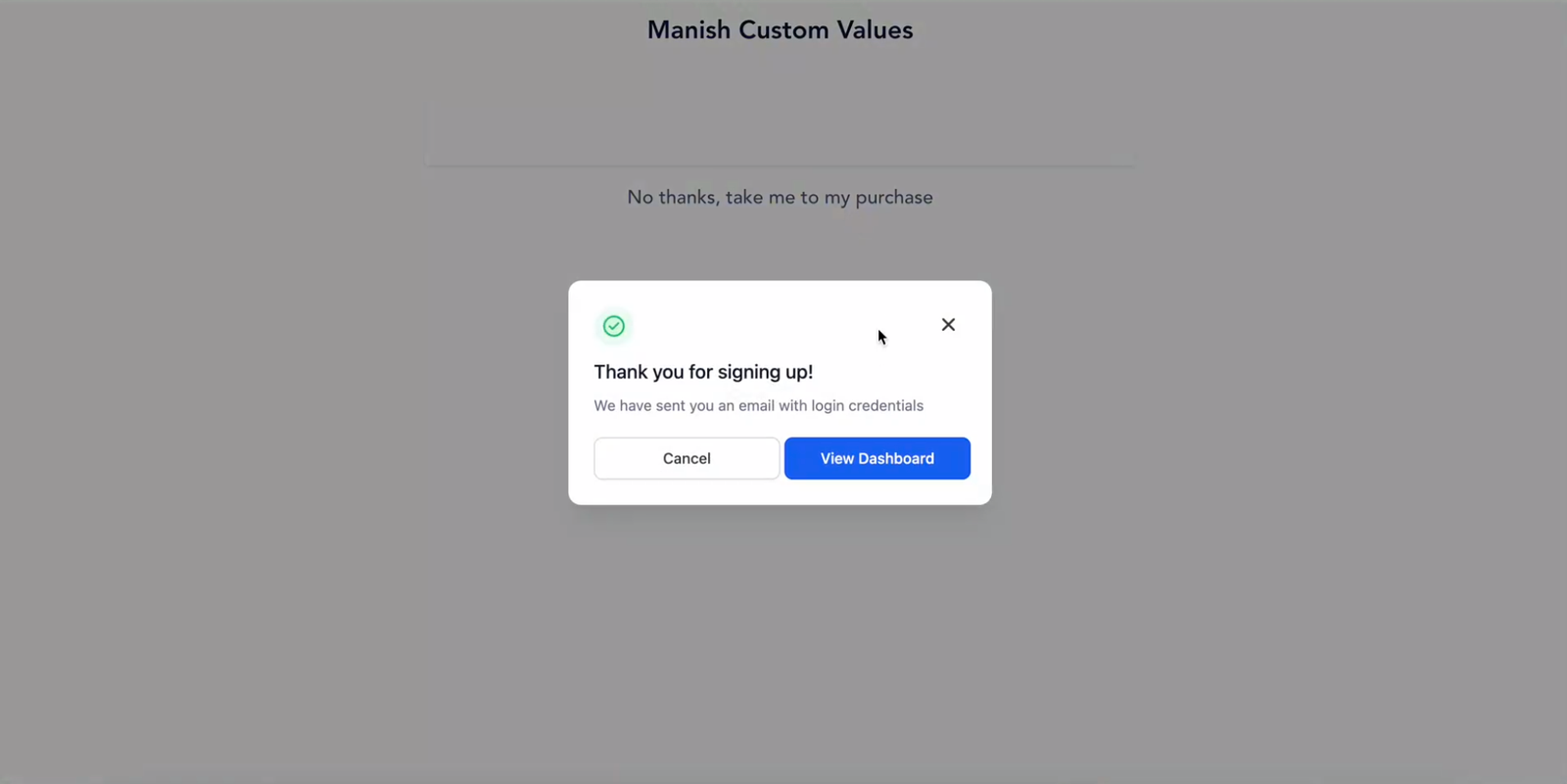
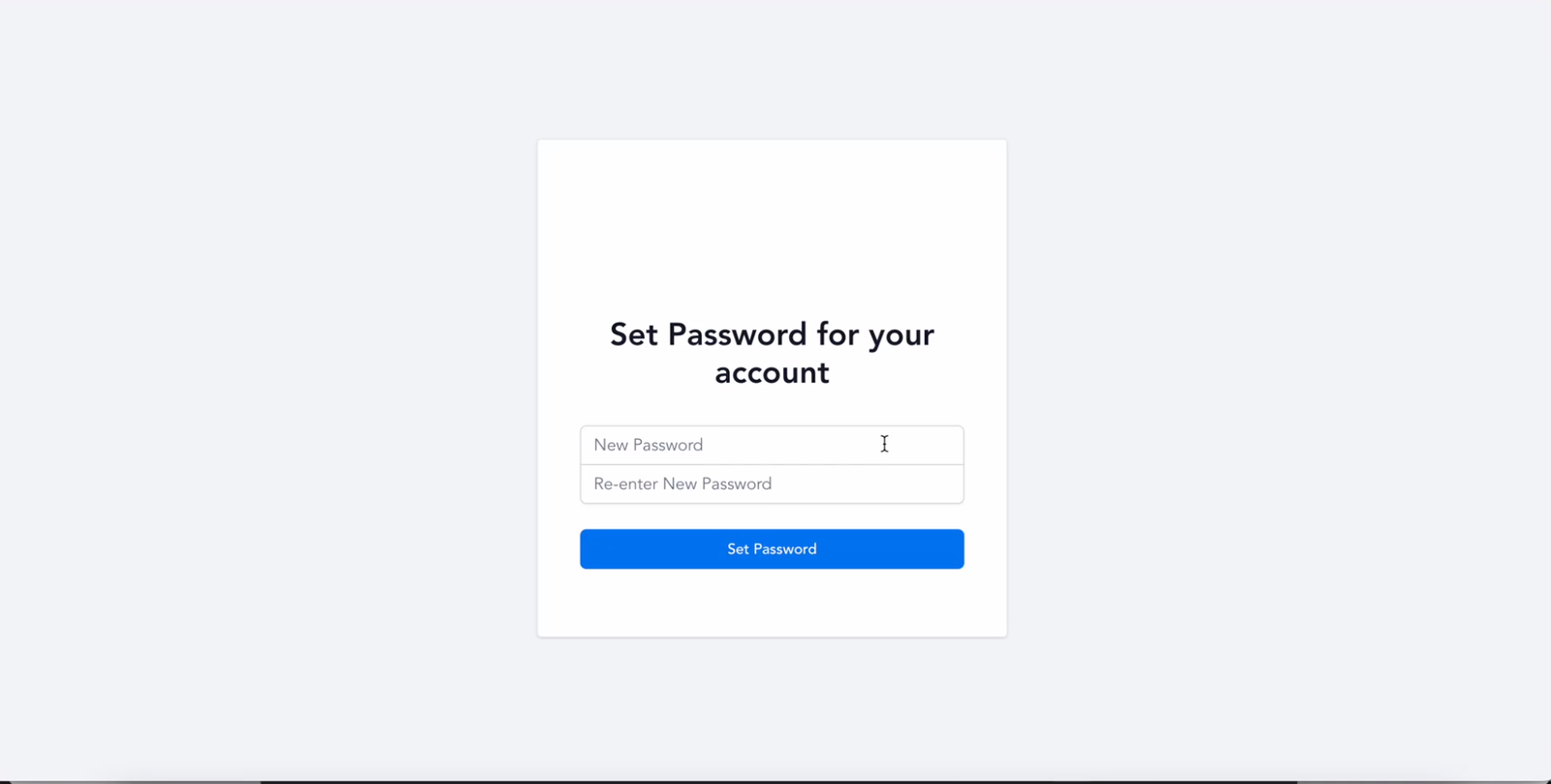
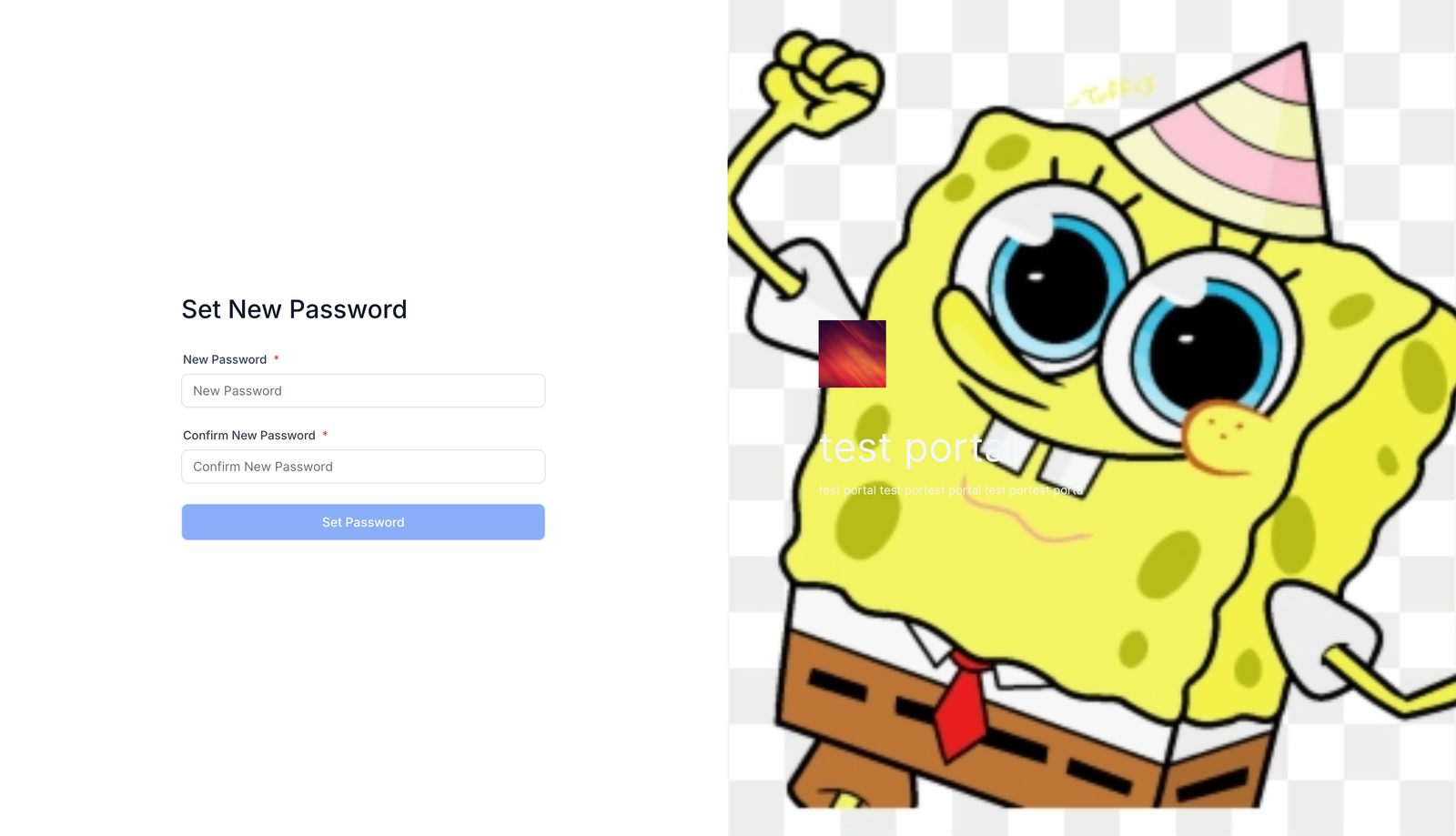
Step 3- As first time user a prompt will be shown to set password
When first time user is given access via workflows or contact smart-list
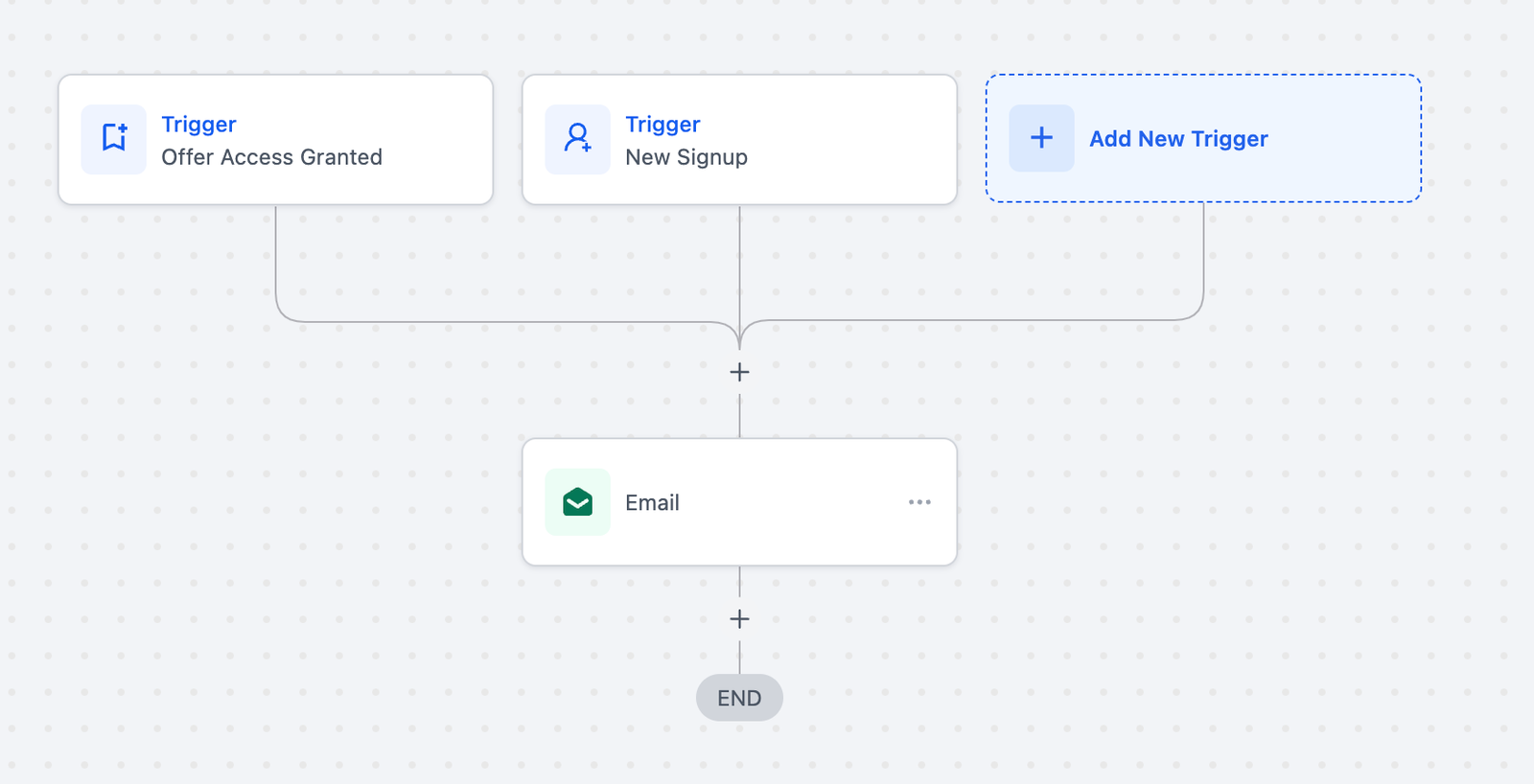
Step 1 – User is given access to a new offer using offer Access Granted Trigger or Membership New Signup
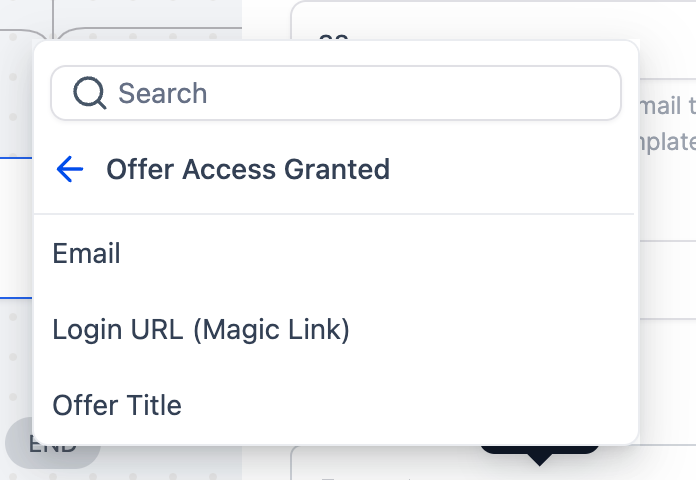
In the Email body use Courses Login URL (Magic Link)
When the user opens them email for courses access they will be prompted to set their password.
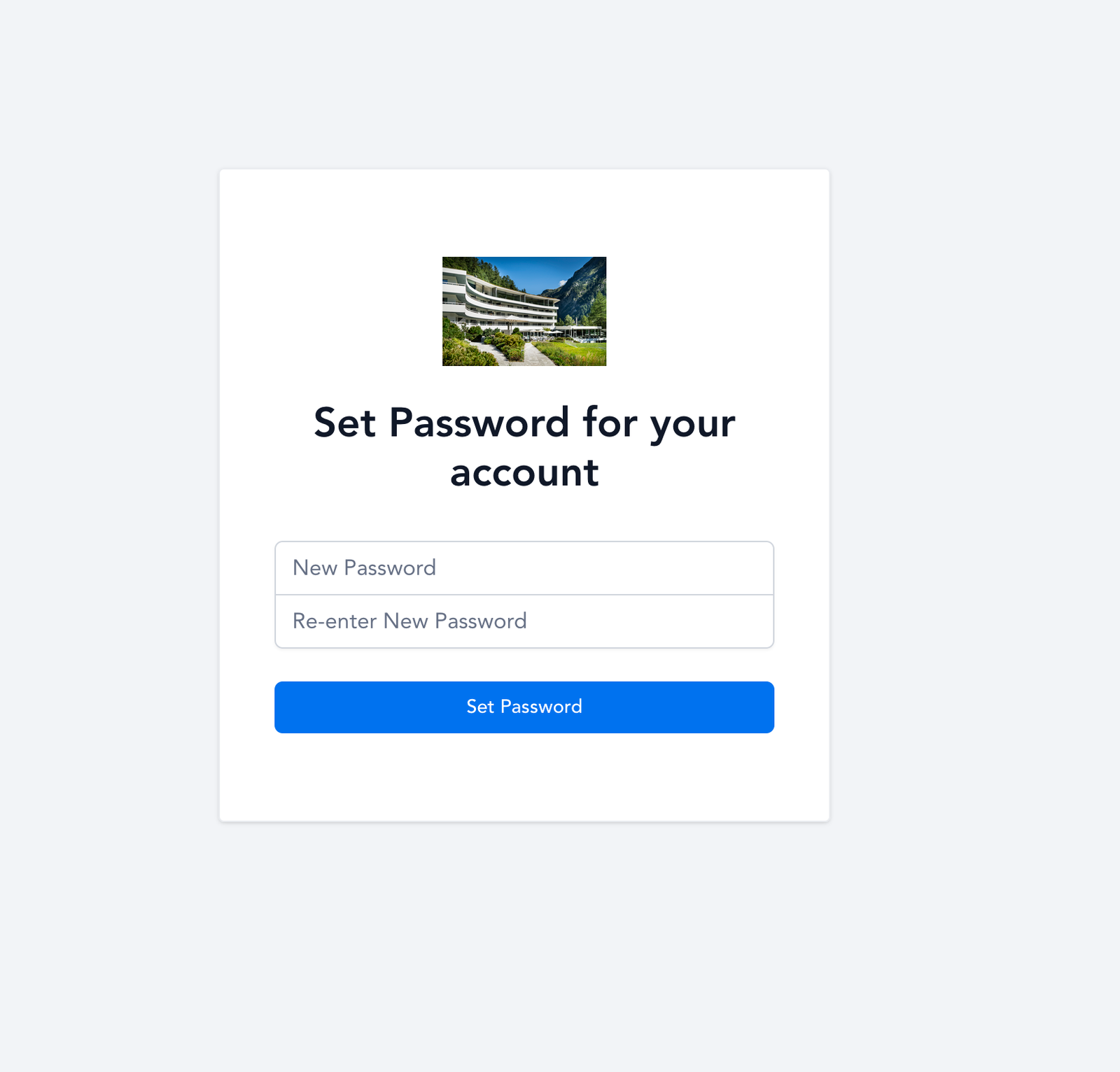
The same behaviour is also applicable to client portal users
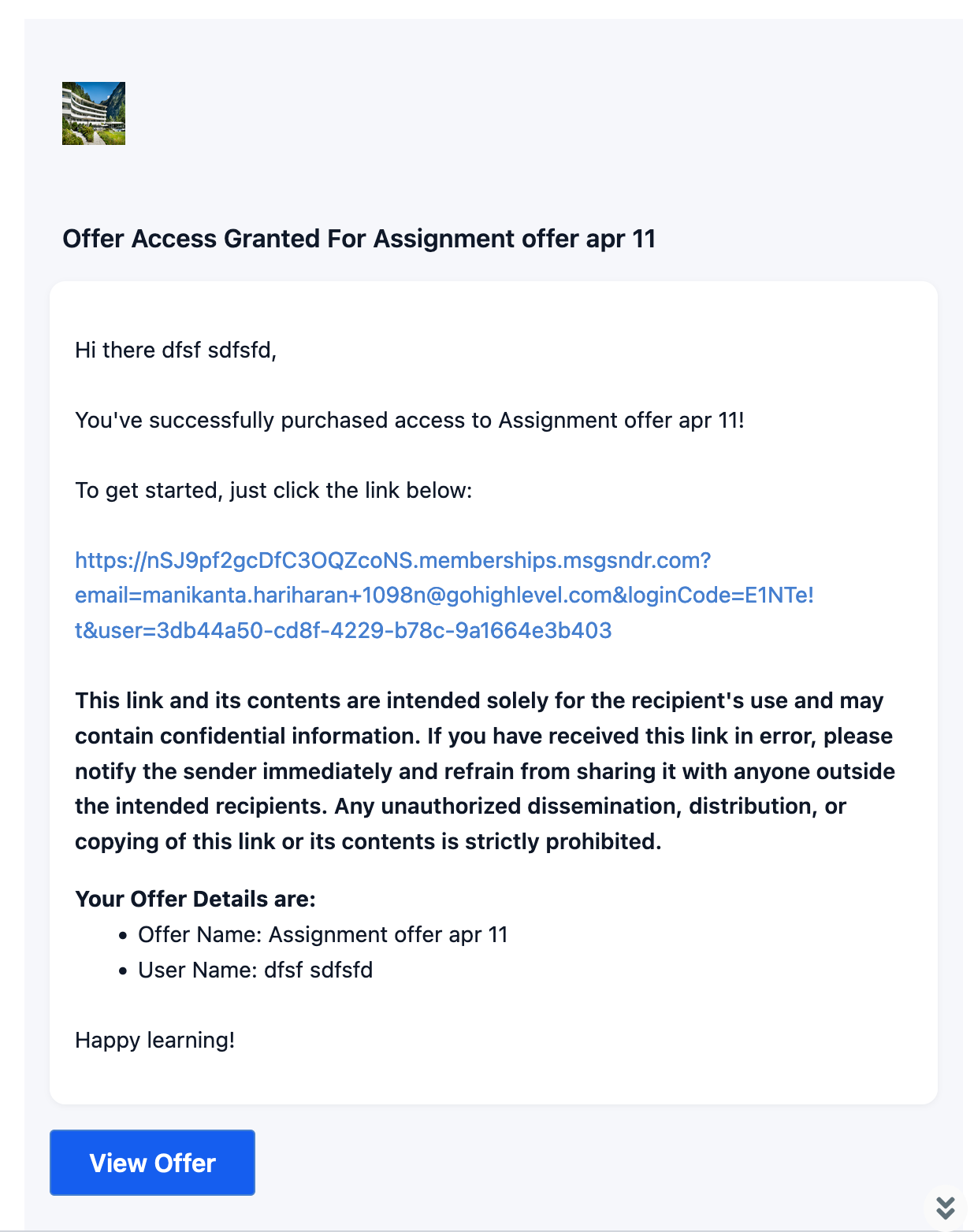
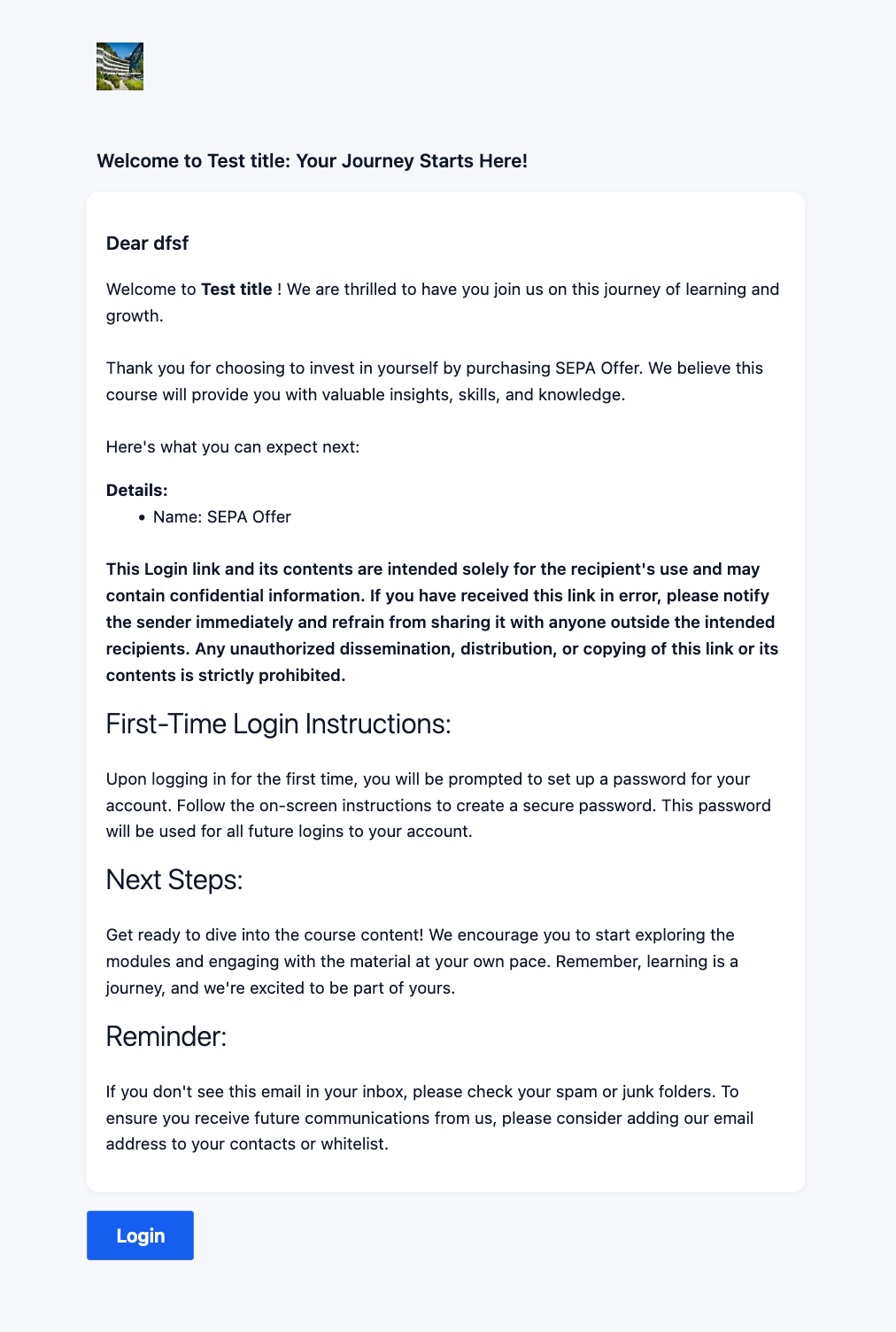
The following default emails go out when course access is given from Workflows, Smart-list and offer checkouts. These default emails can be customised.
When a user opens the magic link in these emails for the first time ,they will be prompted to set password
Offer Access Email
New Signup Email
Request for forgotten password in membership portal
Step 1 : User requests for forgot password
Step 2 : An autogenerated email will be sent out with details
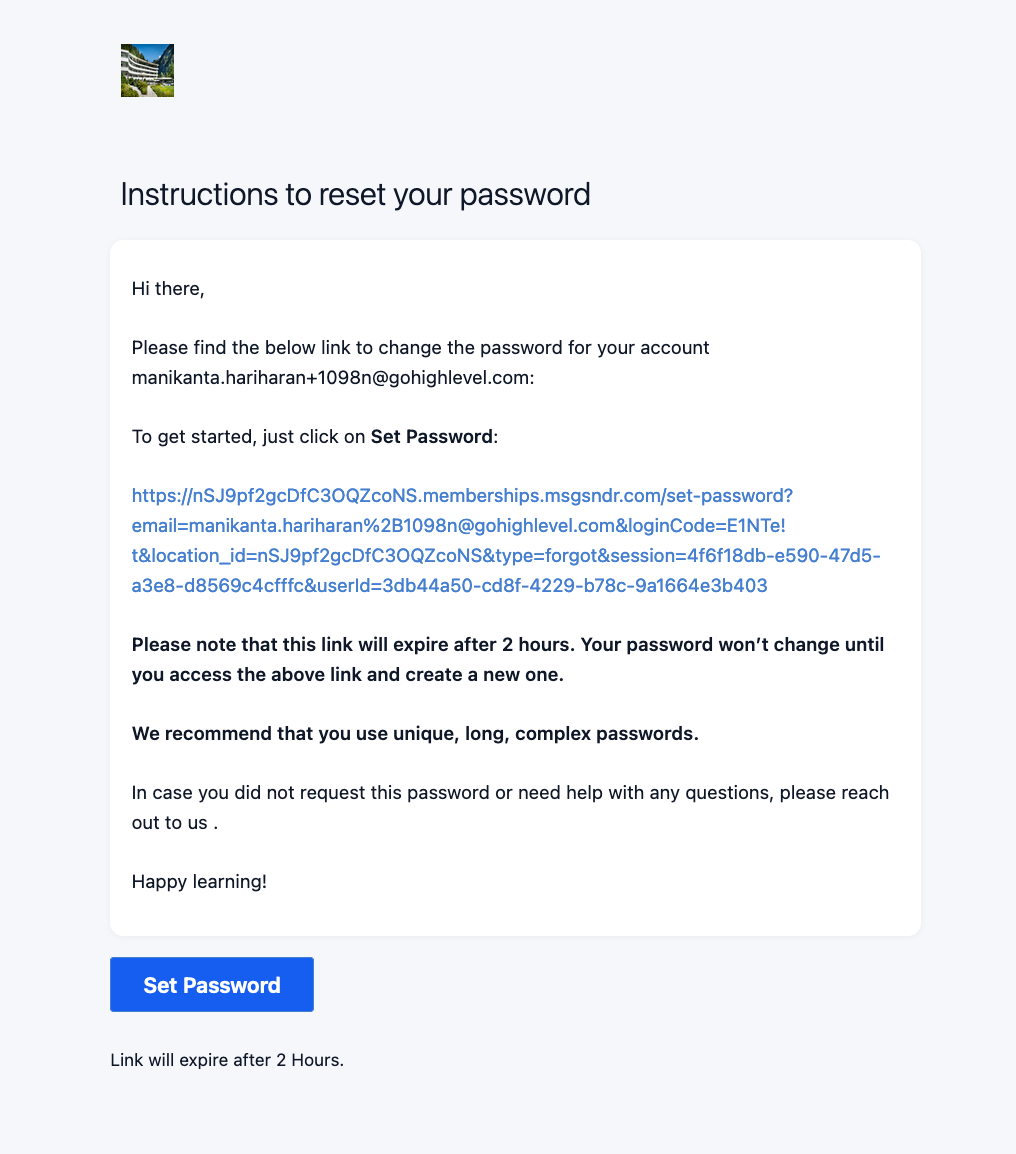
The link expires in 2 hours
Step 3 : The user can click on the link and set their own password.
FAQs
- No more system generated passwords in your reset password emails, with new reset link you will be able to set your own password within 2 hours of your request
- Password Custom field wont be visible across all template builders and workflow email options, users also wont be able to add password field in their new templates.
- No more system generated password for users


