
- How to view WhatsApp statics under Workflow
- Statuses and their meaning
- How to export WhatsApp Statistics
- FAQs
- Q: What information does the WhatsApp statistics feature provide?
- Q: How can I access the WhatsApp statistics for a workflow?
- Q: What does the "Total" statistic represent?
- Q: What's the difference between "Sent" and "Delivered" statuses?
- Q: How are messages counted if a customer has turned off Read Receipts?
- Q: What does the "Failed" status indicate?
- Q: Can I export the WhatsApp statistics?
- Q: Does the statistics view show individual message details?
The WhatsApp statistics feature in workflows provides users with comprehensive analytics for WhatsApp actions. It offers insights into:
- Total messages sent
- Pending messages
- Successfully sent messages
- Delivered messages
- Messages read by customers
- Failed WhatsApp messages
This detailed breakdown allows users to track the performance and effectiveness of their WhatsApp communication within the workflow.
TABLE OF CONTENTS
- How to view WhatsApp statics under Workflow
- Statuses and their meaning
- How to export WhatsApp Statistics
- FAQs
- Q: What information does the WhatsApp statistics feature provide?
- Q: How can I access the WhatsApp statistics for a workflow?
- Q: What does the “Total” statistic represent?
- Q: What’s the difference between “Sent” and “Delivered” statuses?
- Q: How are messages counted if a customer has turned off Read Receipts?
- Q: What does the “Failed” status indicate?
- Q: Can I export the WhatsApp statistics?
- Q: Does the statistics view show individual message details?
How to view WhatsApp statics under Workflow
Step 1: Go to Automations > Workflow which has WhatsApp Action

Step 2: Click on the WhatsApp Action > Statistics
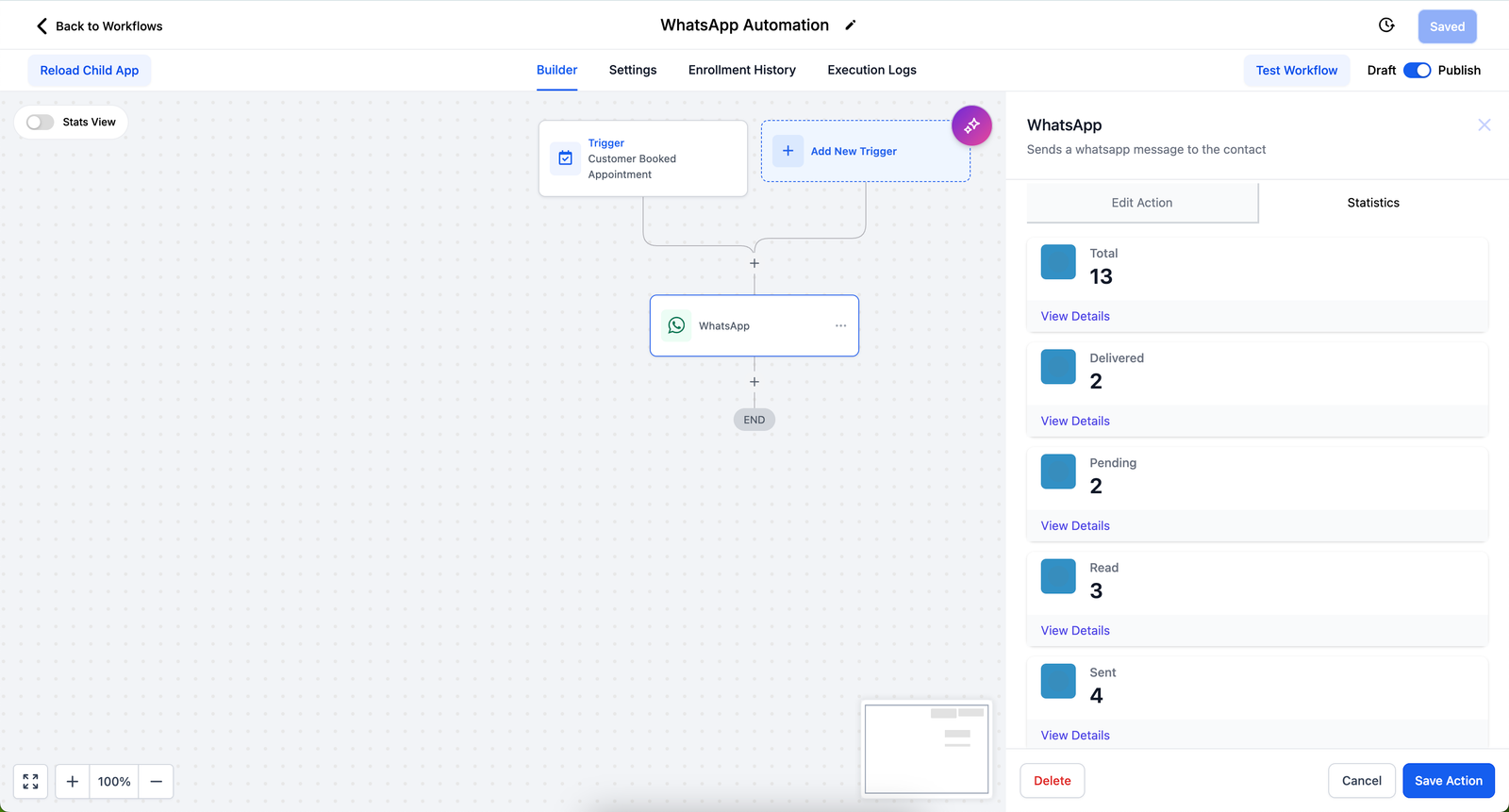
Step 3: View all Statistics
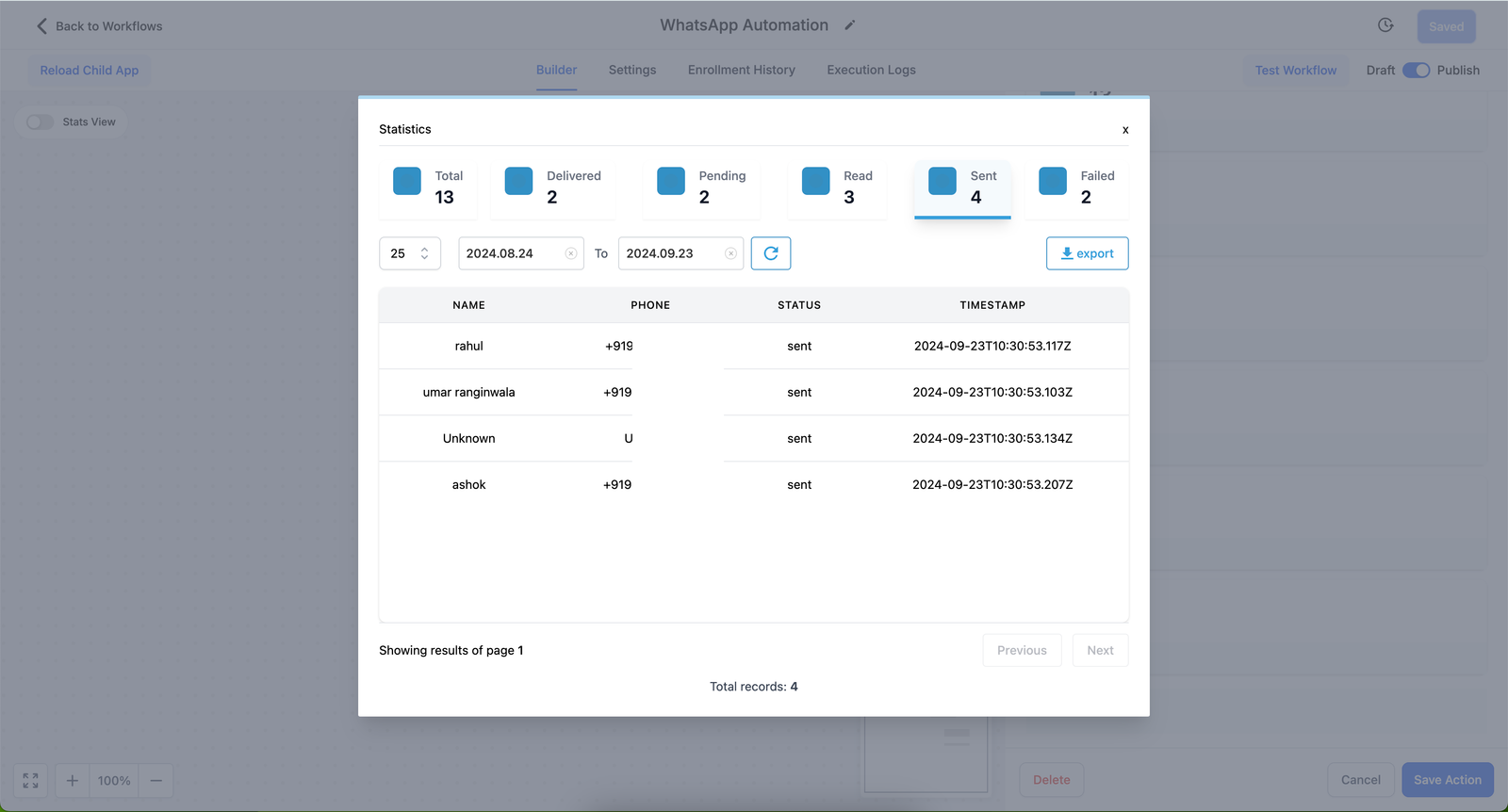
Customers who have turned off Read Receipts will be shown under the Delivered tab
Statuses and their meaning
| Status | Meaning |
|---|---|
| Total | Total number of WhatsApp messages triggered through the particular WhatsApp action under the current workflow for the selected date range |
| Pending | Represents the total number of contacts for which the WhatsApp message is yet to be triggered |
| Sent | The WhatsApp message has been sent to the recipient. This indicated one tick on WhatsApp |
| Delivered | The WhatsApp message has been delivered to the recipient. This indicated two ticks on WhatsApp
NOTE Customers who have turned off Read Receipts will be shown under the Delivered tab |
| Read | The WhatsApp message has been opened by the recipient. This indicated blue tick on WhatsApp |
| Failed | Represents the WhatsApp messages where an error was encountered. These could range from the contact not being on WhatsApp to Template being blacklisted, WhatsApp account being blocked on Meta, or Per-User Marketing Template Message Limits |
How to export WhatsApp Statistics
Step 1: Go to Automations > Workflow which has WhatsApp Action

Step 2: Click on the WhatsApp Action > Statistics
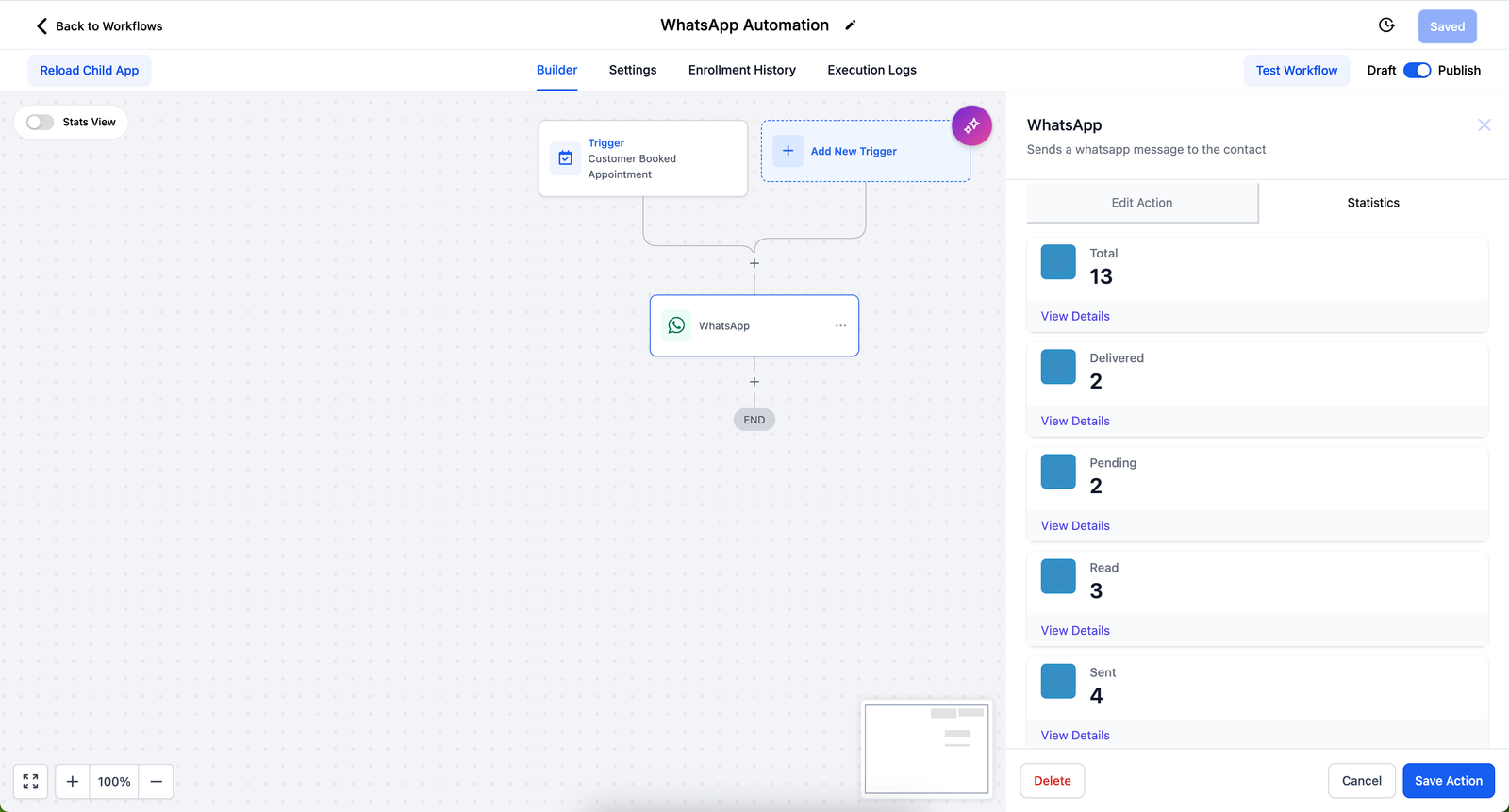
Step 3: View all Statistics

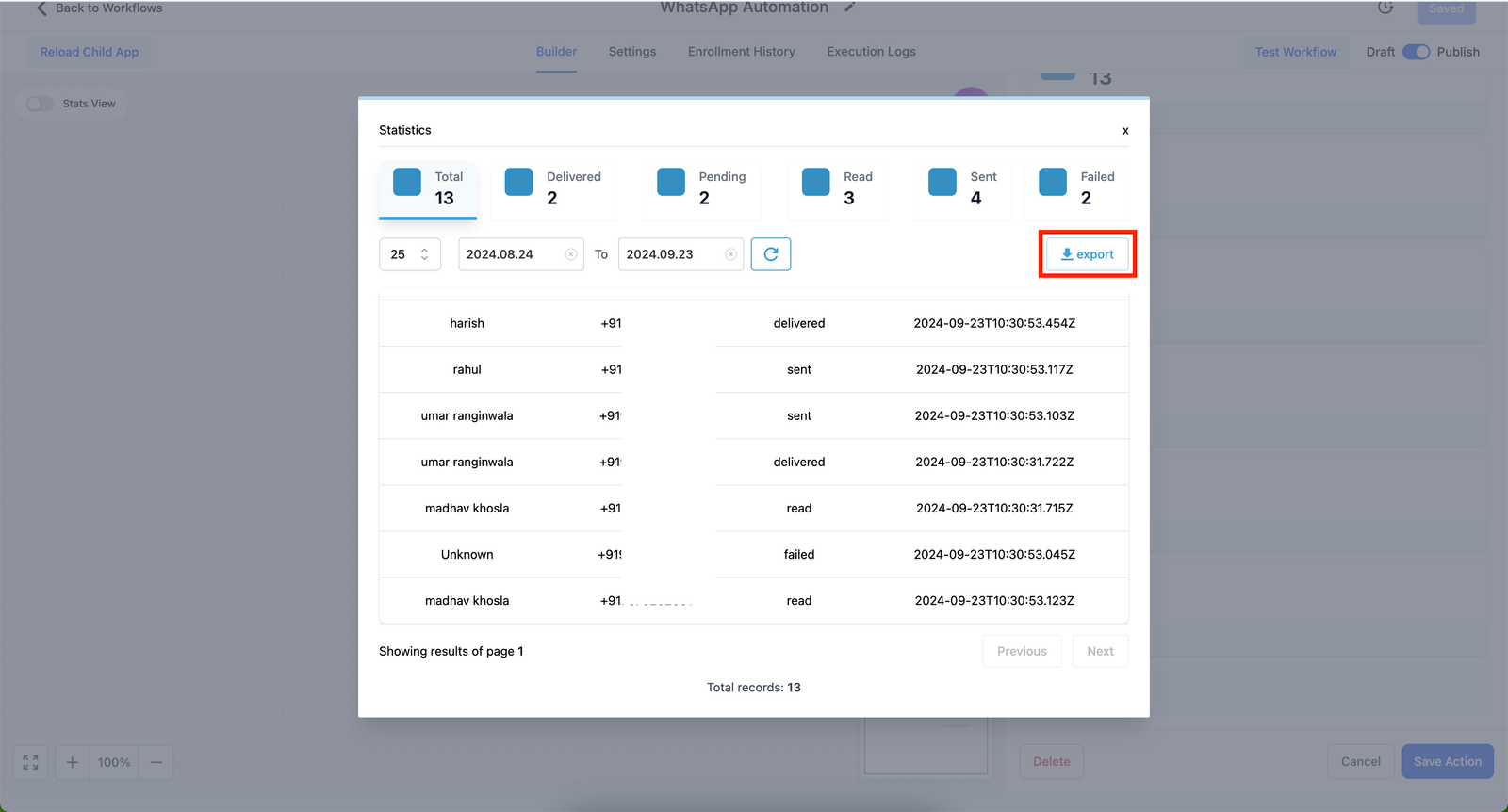
Step 4: Click on Export
FAQs
Q: What information does the WhatsApp statistics feature provide?
A: The feature provides comprehensive analytics for WhatsApp actions, including total messages sent, pending messages, successfully sent messages, delivered messages, messages read by customers, and failed WhatsApp messages.
Q: How can I access the WhatsApp statistics for a workflow?
A: Go to Automations > select the Workflow with WhatsApp Action > click on the WhatsApp Action > click on Statistics.
Q: What does the “Total” statistic represent?
A: The “Total” represents the total number of WhatsApp messages triggered through the particular WhatsApp action in the current workflow for the selected date range.
Q: What’s the difference between “Sent” and “Delivered” statuses?
A: “Sent” means the message has been sent to the recipient (one tick on WhatsApp), while “Delivered” means the message has reached the recipient’s device (two ticks on WhatsApp).
Q: How are messages counted if a customer has turned off Read Receipts?
A: Messages to customers who have turned off Read Receipts will be shown under the Delivered tab.
Q: What does the “Failed” status indicate?
A: The “Failed” status represents WhatsApp messages where an error was encountered. This could be due to various reasons such as the contact not being on WhatsApp, template being blacklisted, WhatsApp account being blocked on Meta, or reaching per-user marketing template message limits.
Q: Can I export the WhatsApp statistics?
Q: Does the statistics view show individual message details?
A: Yes, the view includes a table with details such as recipient name, phone number, message status, and timestamp for each message.


