Table of Contents
Hubspot to HighLevel (Migration Guide)
Preparation for Migration
Step 1: Review Current HubSpot Setup
- Identify Key Features: List all key features used in HubSpot, such as CRM, automation workflows, marketing campaigns, calling, SMS messaging, and e-commerce tools.
- Document Existing Workflows: Record details of existing workflows, pipelines, and campaigns that need to be replicated in HighLevel.
- Assess Data Volume: Evaluate the amount of data (e.g., contacts, deals, emails) to be migrated, ensuring you have adequate storage and resources in HighLevel.
Step 2: Define Migration Goals
- Set Clear Objectives: Define what you aim to achieve with the migration, such as improved automation, better CRM integration, or cost savings.
- Prioritize Features: Prioritize which features and data sets are most critical to migrate first.
Step 3: Prepare Backup
- Export Data from HubSpot: Export all necessary data from HubSpot, including contacts, companies, deals, tickets, workflows, and other essential records.
- Backup Data: Ensure you have a secure backup of all data before beginning the migration process.
Migrate CRM Data
Step 1: Export Data from HubSpot
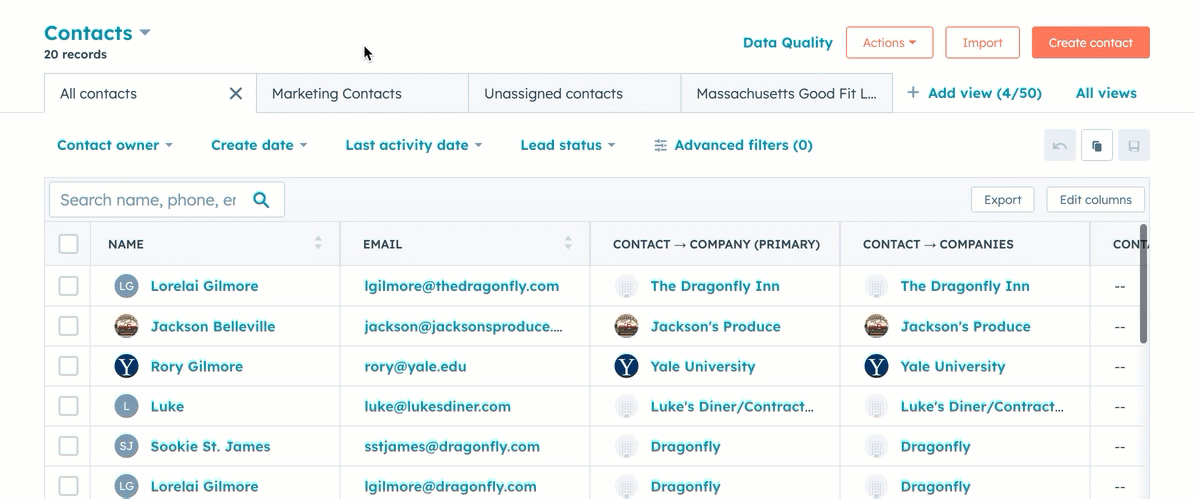
- Contacts and Companies: Navigate to Contacts > Contacts and CRM > Companies. Export data as CSV files.
- Deals and Pipelines: Go to Sales > Deals. Export your pipelines and associated deals.
- Marketing Assets: Export emails, landing pages, forms, and workflows.
- Products and Invoices: Export your product catalog and any invoices generated through HubSpot’s payment tool.
Step 2: Import Data into HighLevel
- Import Contacts and Companies:
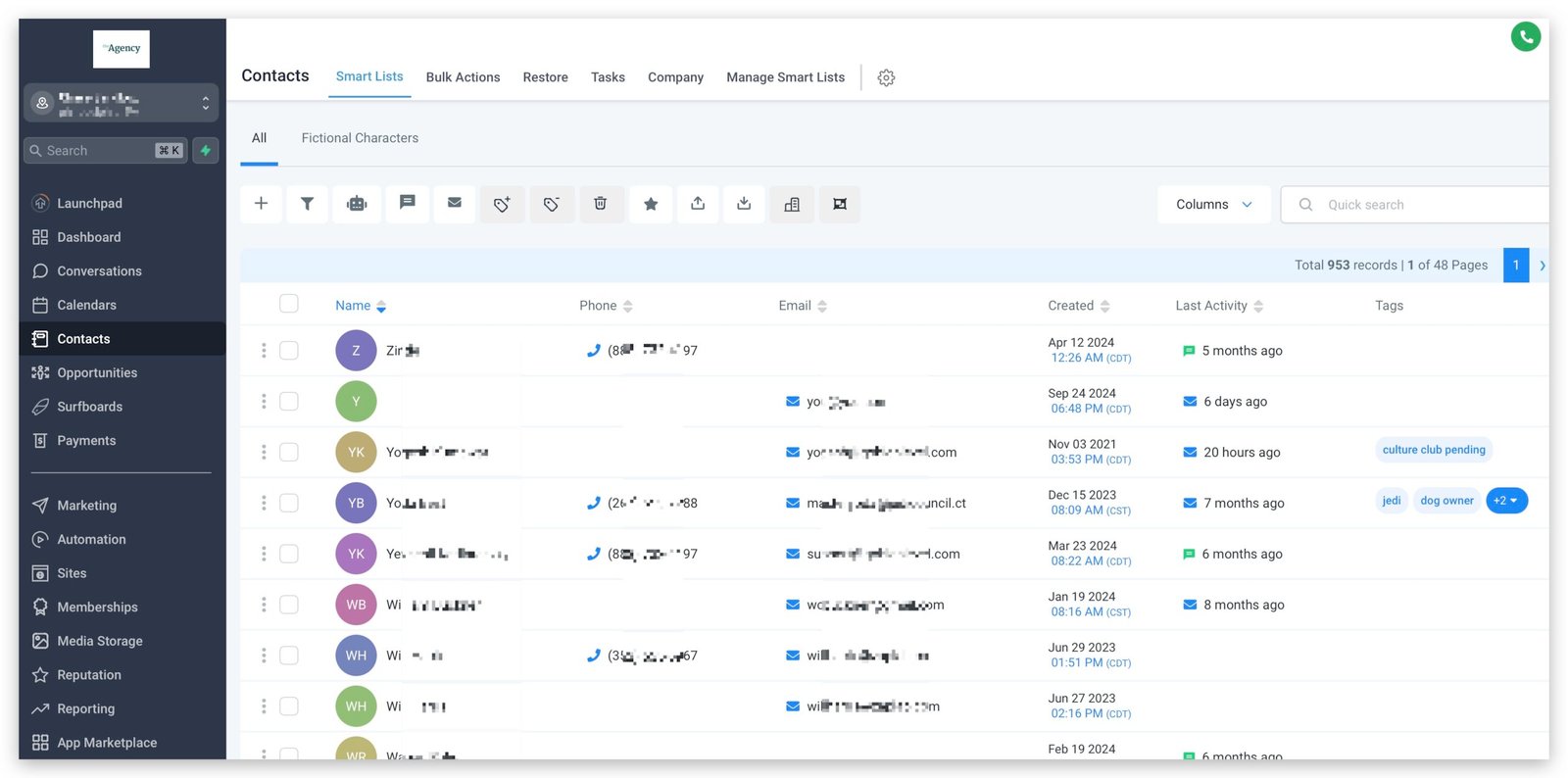
- In HighLevel, navigate to Contacts > Import Contacts.
- Upload the CSV files exported from HubSpot, mapping fields appropriately (e.g., first name, last name, email).
- Recreate Deals and Pipelines:
- Set up new pipelines in HighLevel under Opportunities > Pipelines.
- Manually recreate deals or import them if necessary.
- Migrate Products and Invoices:
- Recreate product listings in HighLevel under Payments > Products.
- Set up invoices and payment links using HighLevel’s invoicing tool.
Migrate Workflows and Automations
Step 1: Review Existing HubSpot Workflows
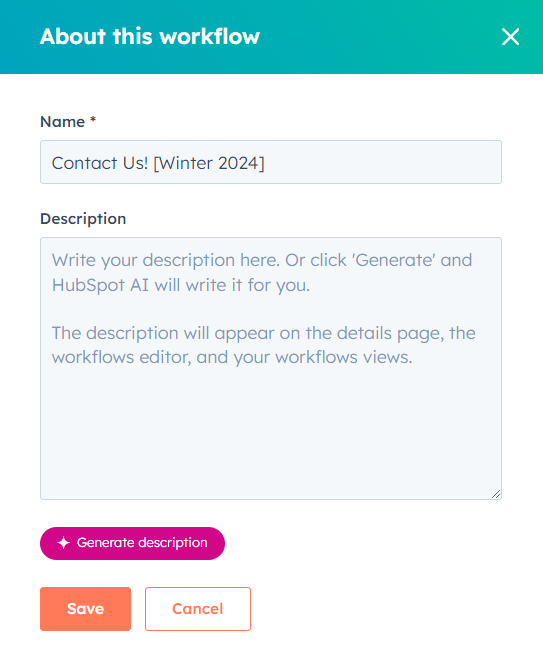
- List Active Workflows: Identify and document all active workflows in HubSpot, including triggers, actions, and delays.
- Evaluate Workflow Complexity: Assess the complexity of each workflow to determine the best approach for replicating it in HighLevel.
Step 2: Recreate Workflows in HighLevel
- Create Automation Triggers:
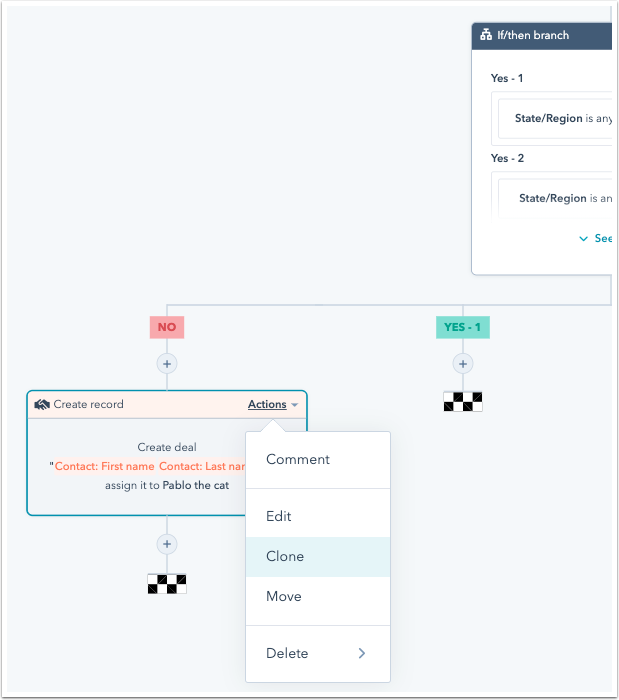
- In HighLevel, navigate to Automation > Workflows.
- Set up triggers equivalent to those in HubSpot (e.g., form submissions, contact updates).
- Rebuild Actions and Delays: Recreate actions such as sending emails, SMS, tagging contacts, or updating deal stages. Configure any necessary delays and conditional logic within workflows.
Step 3: Test Workflows
- Run Tests: Before activating workflows, run tests to ensure they function as intended.
- Adjust Settings: Make necessary adjustments based on test results to ensure smooth operation.
Migrate Marketing Campaigns
Step 1: Export and Recreate Email Campaigns
- Export Email Templates: Save HTML copies of your HubSpot email templates.
- Import or Rebuild in HighLevel:
- Navigate to Marketing > Email Campaigns in HighLevel.
- Recreate or import your email templates and configure them to match your existing designs.
Step 2: Rebuild Landing Pages and Forms
- Export Landing Pages: Download the HTML for HubSpot landing pages.
- Rebuild in HighLevel:
- Use HighLevel’s Sites > Landing Pages builder to recreate landing pages.
- Ensure all forms and CTA buttons are linked to your HighLevel workflows.
Step 3: Campaign Settings
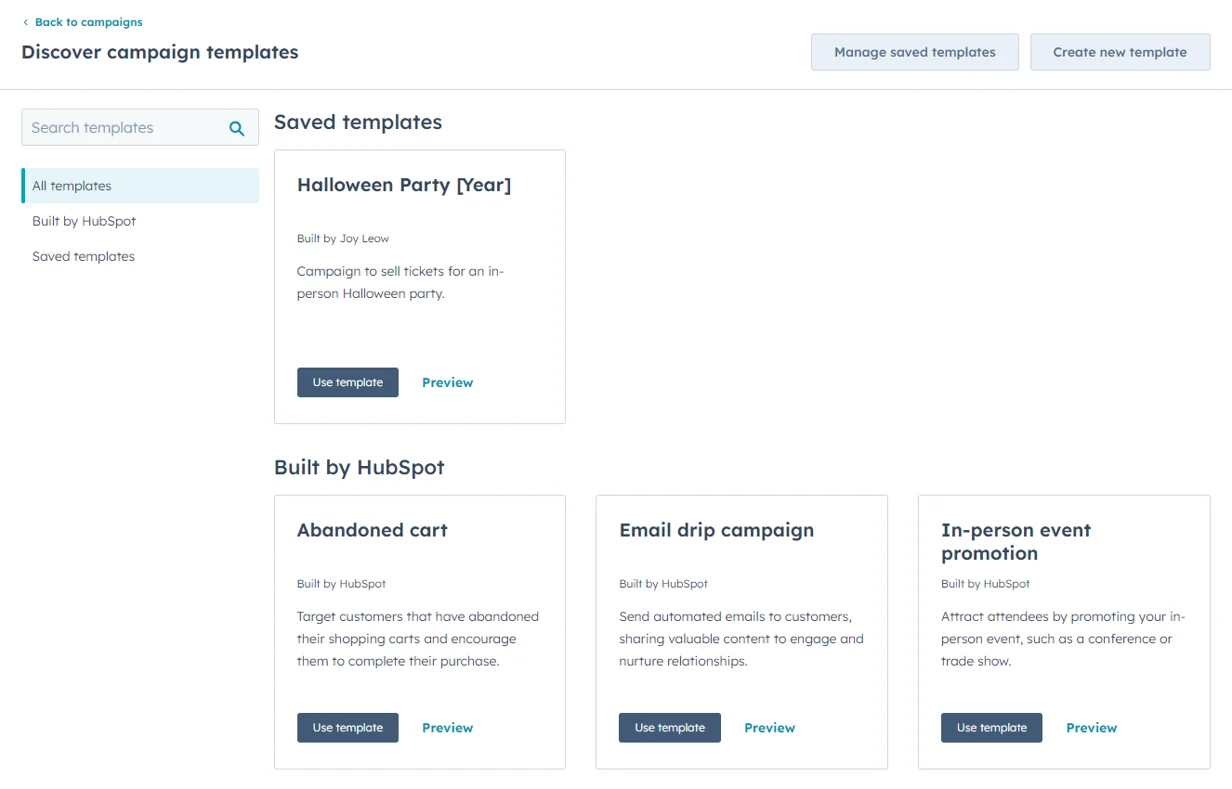
- Configure Campaigns: Set up your campaigns in HighLevel, ensuring that all assets (emails, landing pages, forms) are linked. Assign specific goals, budgets, and tracking settings as needed.
Migrate Communication Tools
Step 1: Migrate Calling and SMS
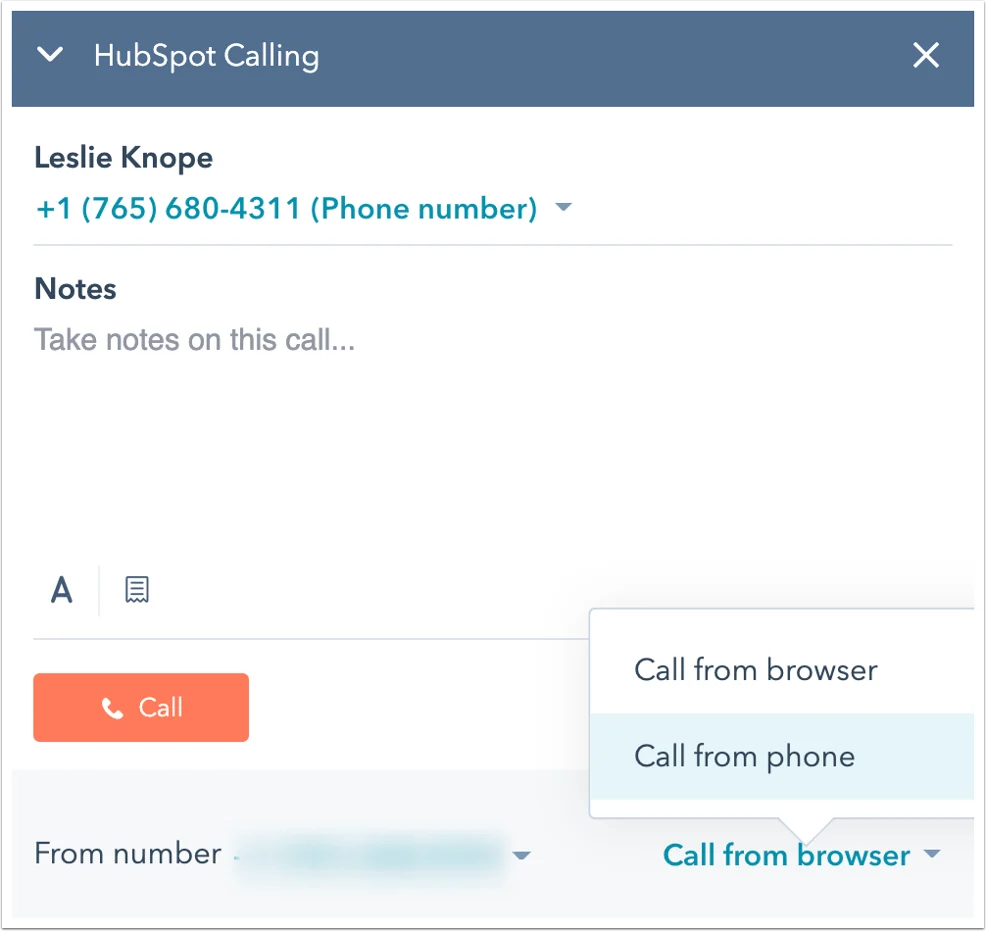
- Twilio Integration: If using Twilio in HubSpot, integrate it with HighLevel for calling and SMS. Go to Settings > Phone Numbers in HighLevel to set up your Twilio account.
- Configure Communication Workflows: Set up SMS and call automation workflows in HighLevel under Automation > Workflows. Ensure all client communication is appropriately logged and tracked.
Step 2: Setup Conversations Inbox
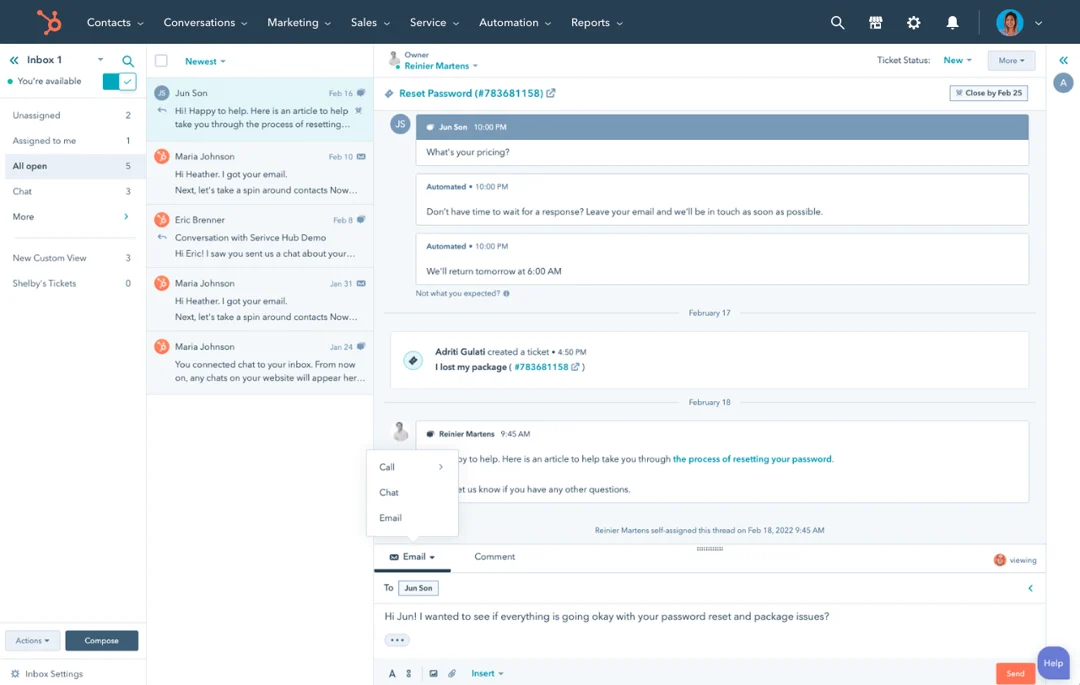
- Configure Inbox: In HighLevel, navigate to Conversations > Inbox. Set up your default inbox and connect communication channels such as email, SMS, and Facebook Messenger.
- Test Communication Channels: Ensure all channels are functioning correctly and that messages are properly routed to the appropriate inbox.
Final Checks and Training
Step 1: Perform Final Data Validation
- Cross-Check Data: Ensure that all data has been successfully migrated and that there are no discrepancies between HubSpot and HighLevel records.
- Validate Workflows and Campaigns: Confirm that all workflows, automations, and campaigns are operational.
Step 2: Train Team Members
- HighLevel Training: Provide training to your team on how to use HighLevel, focusing on the differences from HubSpot.
- Utilize HighLevel Support: Encourage team members to leverage HighLevel’s support resources and community forums for ongoing learning.
Step 3: Monitor and Optimize
- Monitor Performance: Track the performance of your new setup in HighLevel, making adjustments as necessary.
- Continuous Improvement: Regularly review and refine workflows, automations, and campaigns to ensure they align with business goals.
Decommissioning HubSpot
Step 1: Transition Period
- Run in Parallel: Consider running HubSpot and HighLevel in parallel during the transition phase to ensure no critical operations are missed.
- Gradual Phase-Out: Gradually reduce reliance on HubSpot as HighLevel becomes fully operational.
Step 2: Cancel HubSpot Subscription
- Final Data Backup: Before canceling your HubSpot subscription, ensure all data is securely backed up.
- Official Cancellation: Follow HubSpot’s process to cancel your subscription and terminate services.
Step 3: Post-Migration Review
- Review Success: Evaluate the success of the migration process and document any lessons learned.
- Continuous Monitoring: Keep monitoring the system post-migration for any potential issues.