
Table of Contents
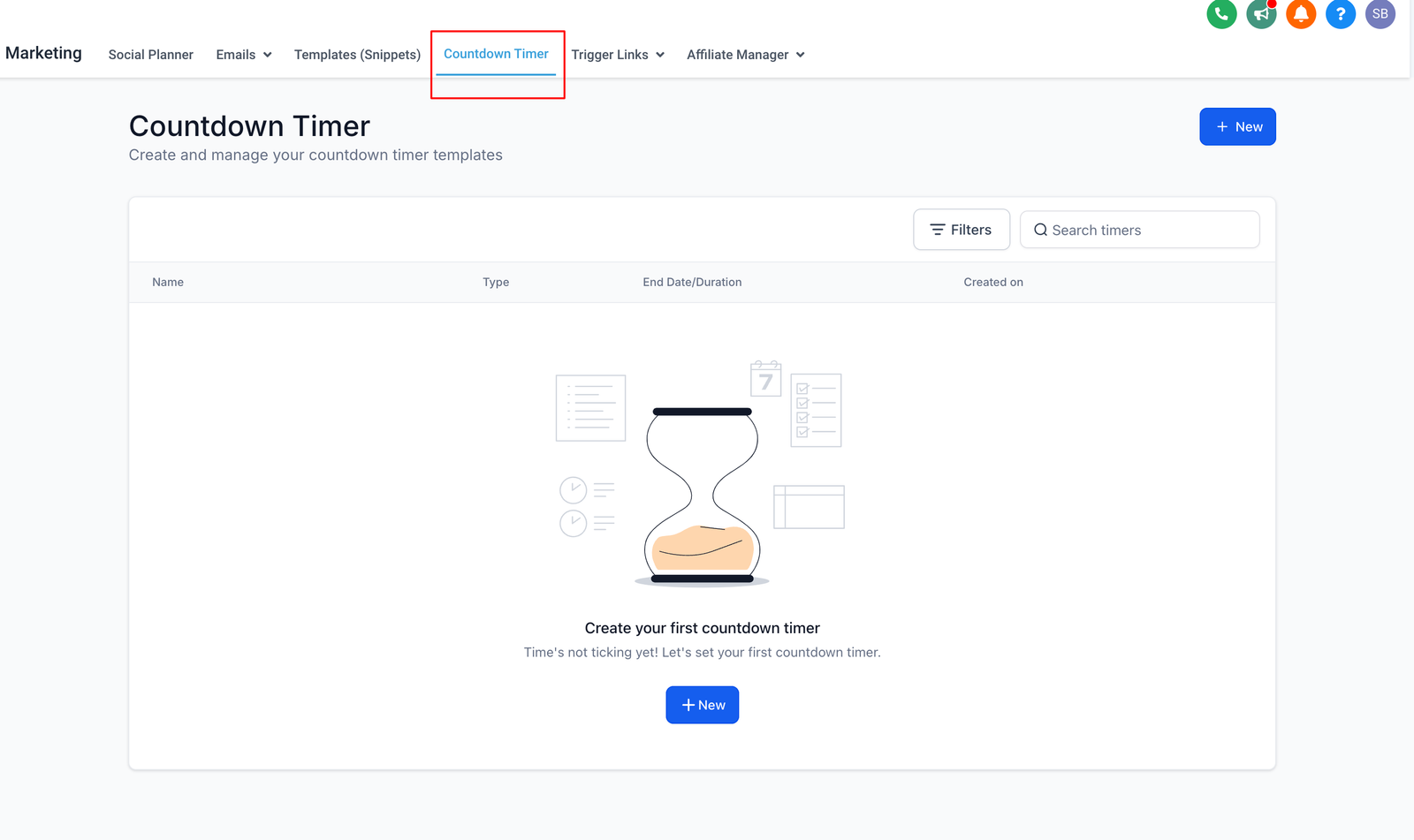
- Navigate to Marketing: Go to the "Marketing" section and select "Countdown Timer."
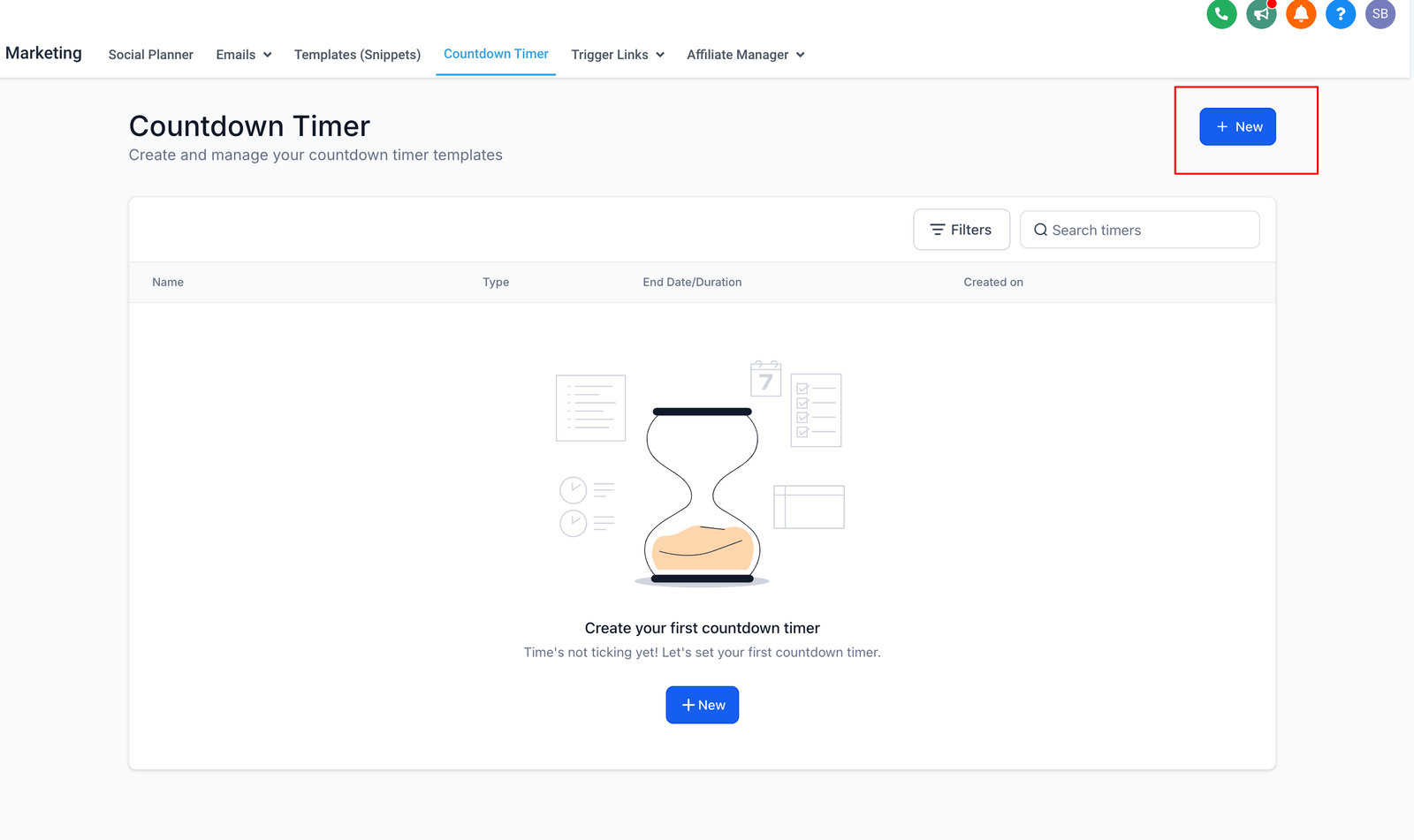
- Click on New: Click the "New" button to start creating your timer.
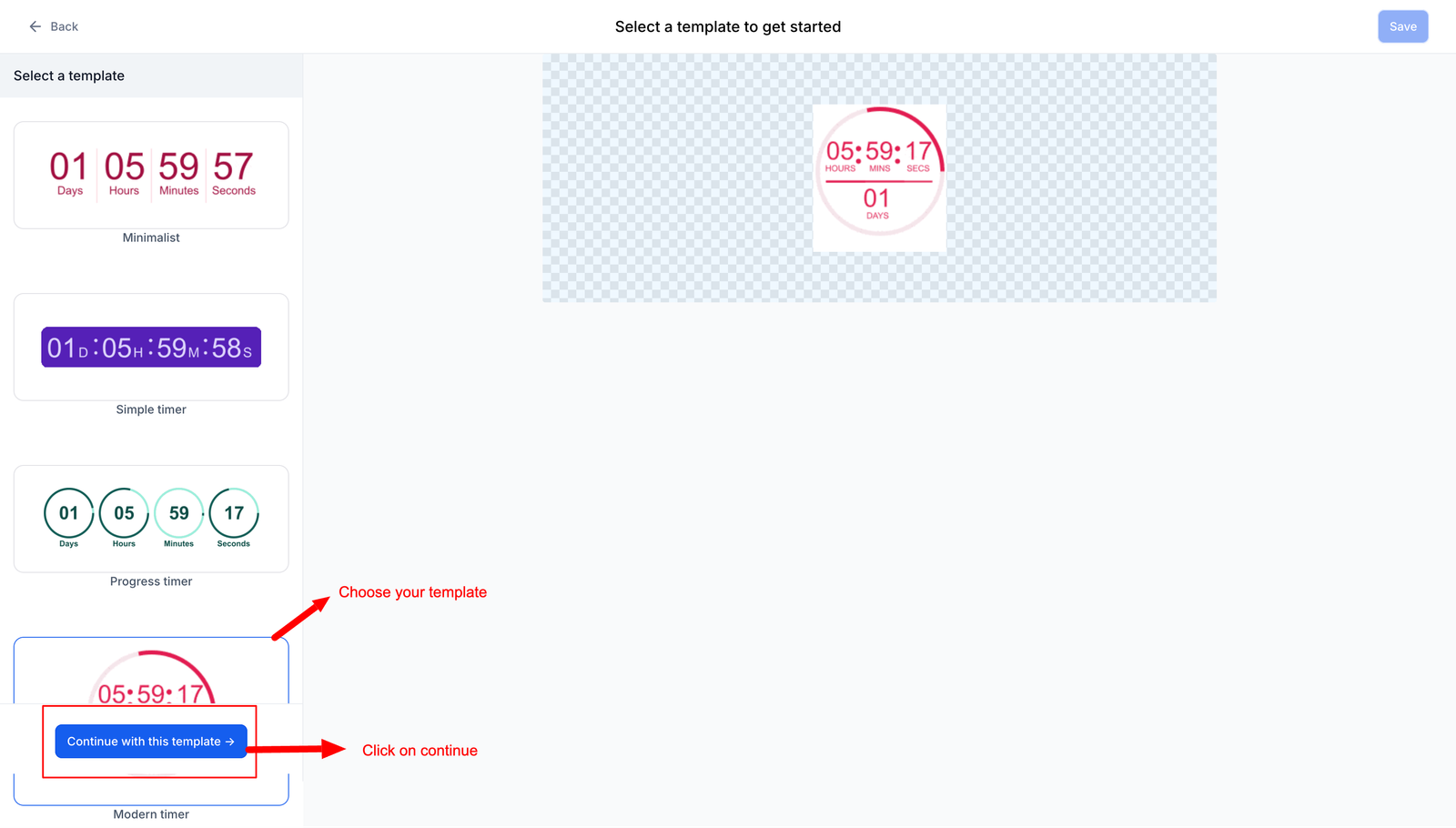
- Select a Template: Choose a design template and click "Continue with this template."
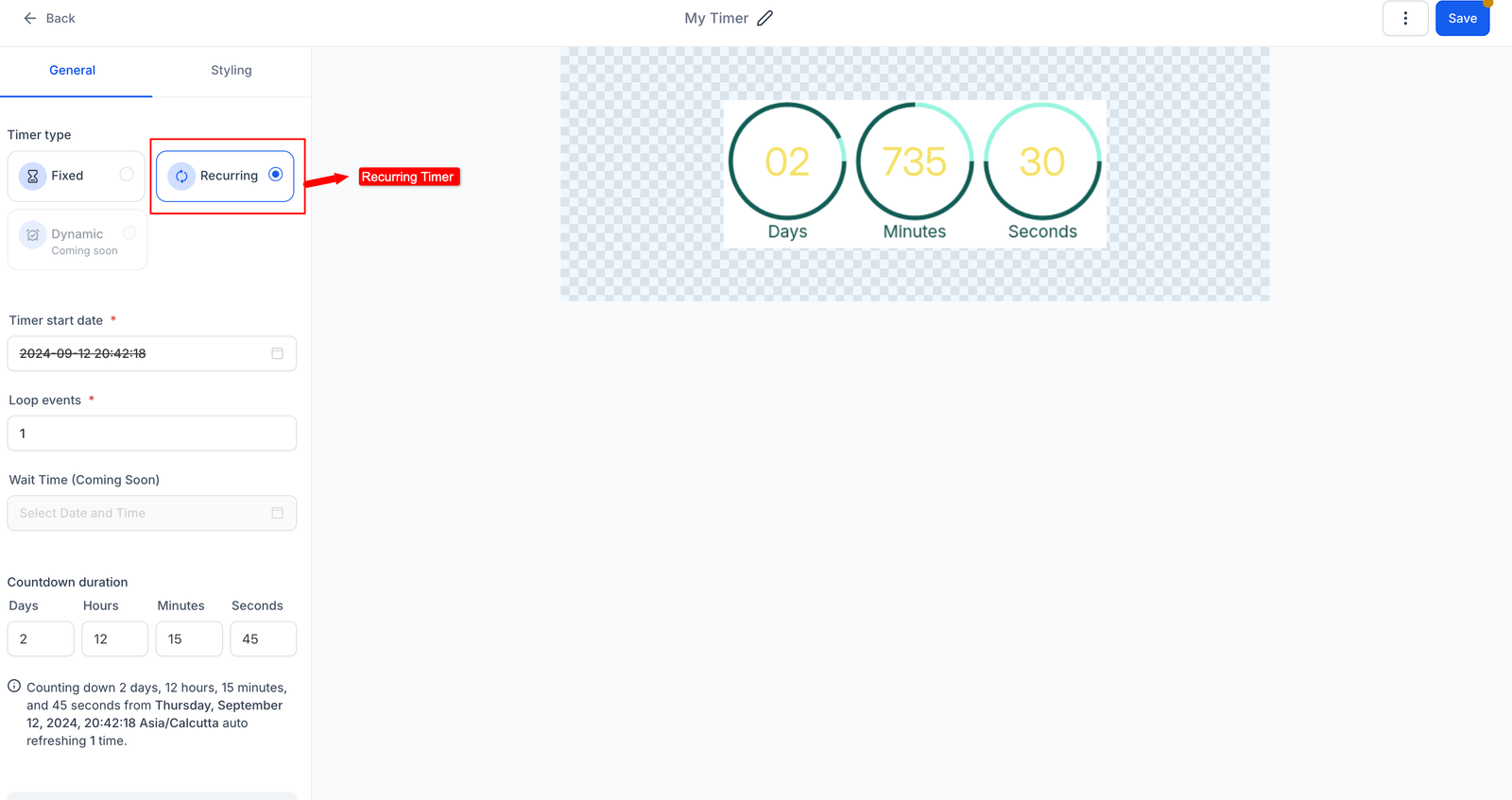
- Choose Timer Type: Select the type of timer you want: Recurring
- Configure Timer Details: Define the countdown duration and number of loops.
- Add Links:
- Active Link: Specify the URL users will be directed to while the timer is active.
- Expired Link: Specify the URL users will land on after the timer expires.
- Customize Styling: Adjust the timer’s appearance, including colors, fonts, expiry image, and time display format.
- Rename Timer: Give your timer a descriptive name.
- Save: Click "Save" to finalize and activate your countdown timer. Quick Links: 1. How to use Countdown Timer in Emails 2. Syn your Countdown Timer in Websites and Funnels 3. How to copy code of a timer? 4. How to use a timer in Funnels
A recurring timer is a useful tool for managing and promoting events, sales, or activities that happen regularly. Unlike a fixed timer, which counts down to a single event, a recurring timer resets after each cycle, providing ongoing reminders about repeating events or deadlines.
Where Can You Use a Recurring Timer?
- Weekly Sales or Promotions
Use a recurring timer to highlight weekly sales or special offers that occur on a regular basis. Display the timer on your website, in emails, and on social media to remind customers of the recurring opportunity to save. - Monthly Subscriptions or Renewals
For subscription-based services or membership renewals, a recurring timer can remind users of their upcoming renewal date each month. Include it in your subscription management emails or on the user dashboard. - Regular Webinars or Classes
If you host webinars or classes on a regular schedule (e.g., every Tuesday), a recurring timer can show the time remaining until the next session. Embed the timer on your event registration page or in promotional emails. -
Daily Deals or Flash Offers
For daily deals or limited-time flash offers that repeat every day or week, a recurring timer can create a sense of urgency and remind customers of the next opportunity to take advantage of the deal.
How to create a recurring timer?
-
Navigate to Marketing: Go to the “Marketing” section and select “Countdown Timer.”
-
Click on New: Click the “New” button to start creating your timer.
-
Select a Template: Choose a design template and click “Continue with this template.”
-
Choose Timer Type: Select the type of timer you want: Recurring
-
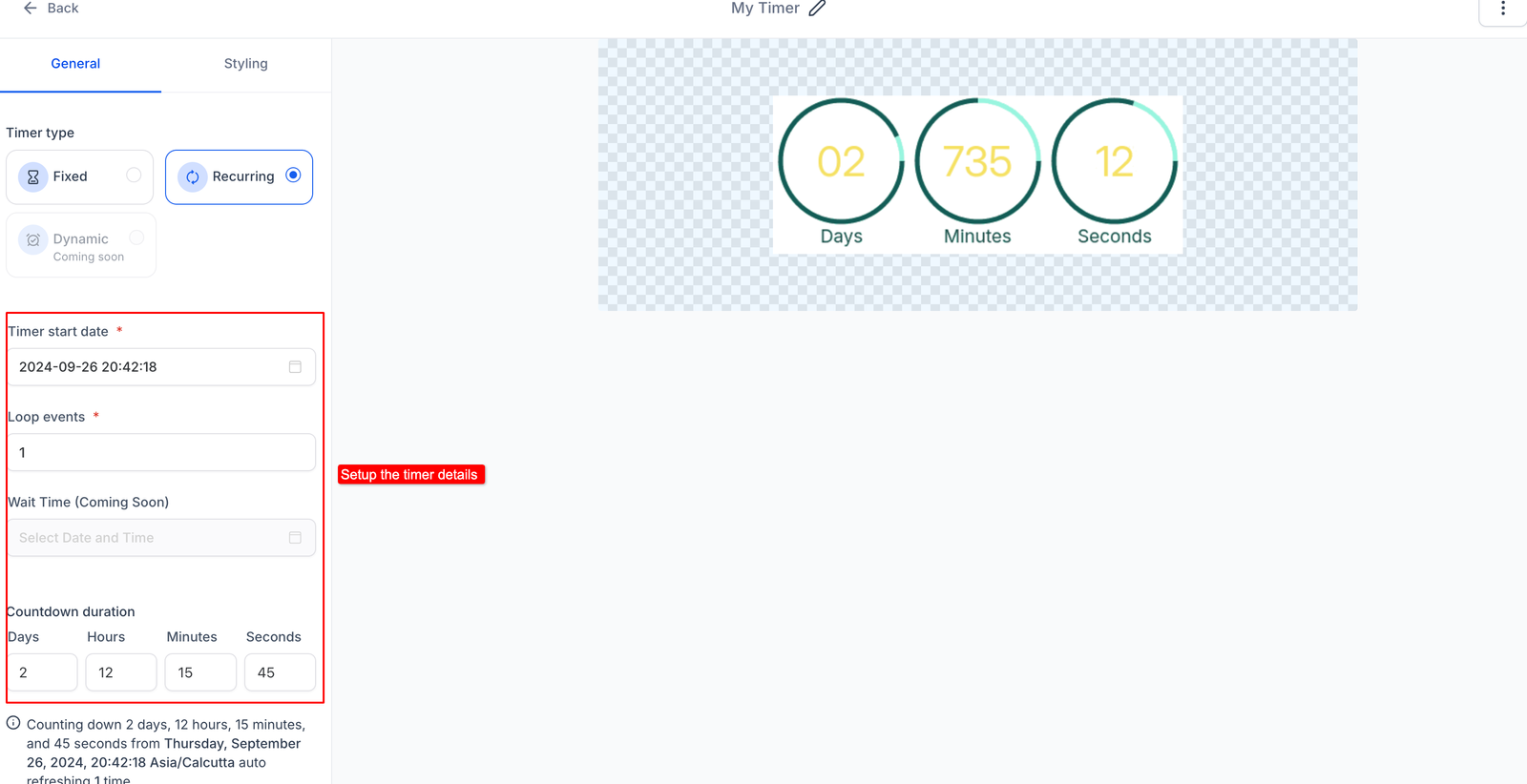
Configure Timer Details: Define the countdown duration and number of loops.
-
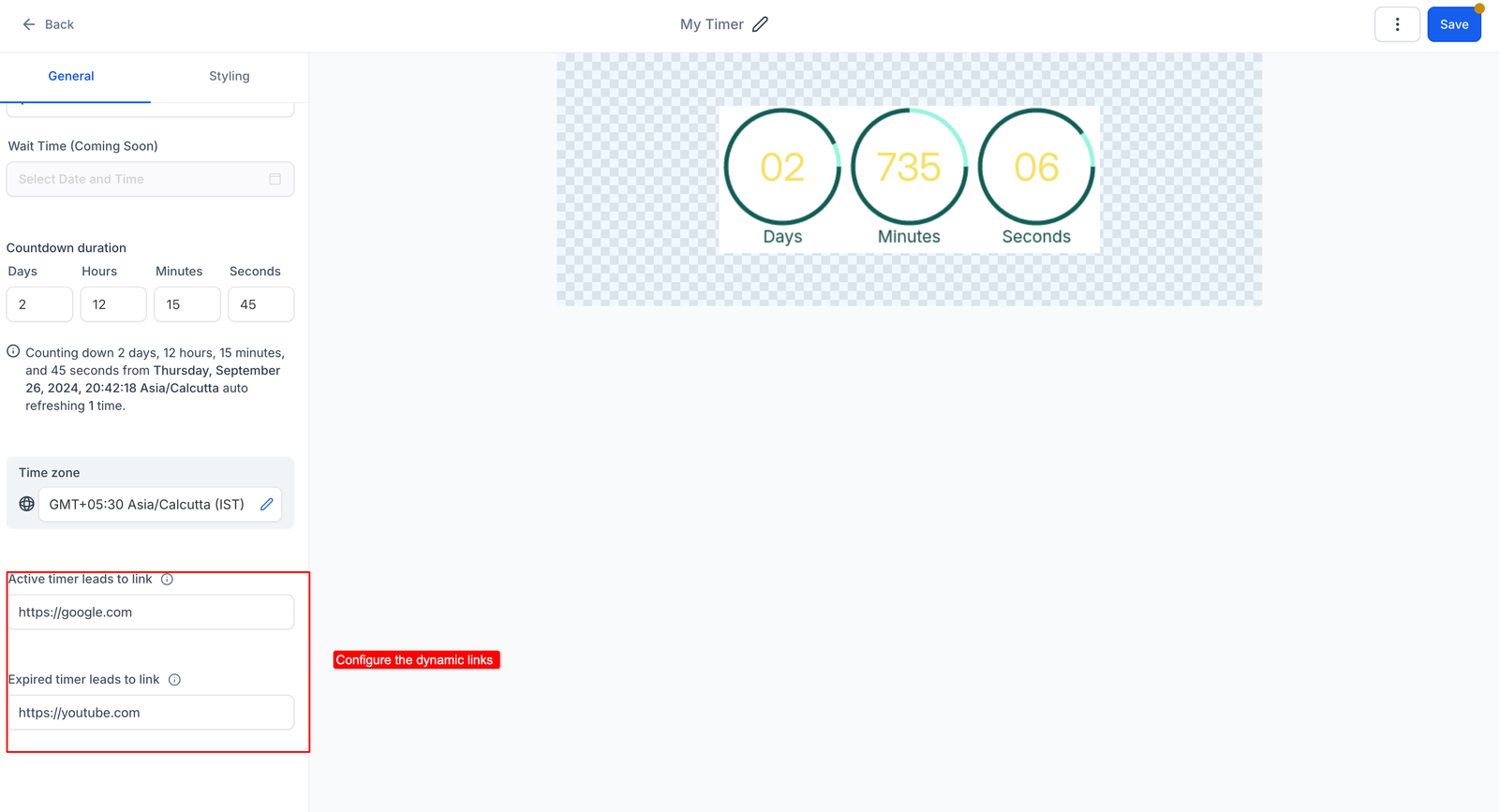
Add Links:
-
Active Link: Specify the URL users will be directed to while the timer is active.
-
Expired Link: Specify the URL users will land on after the timer expires.
-
-
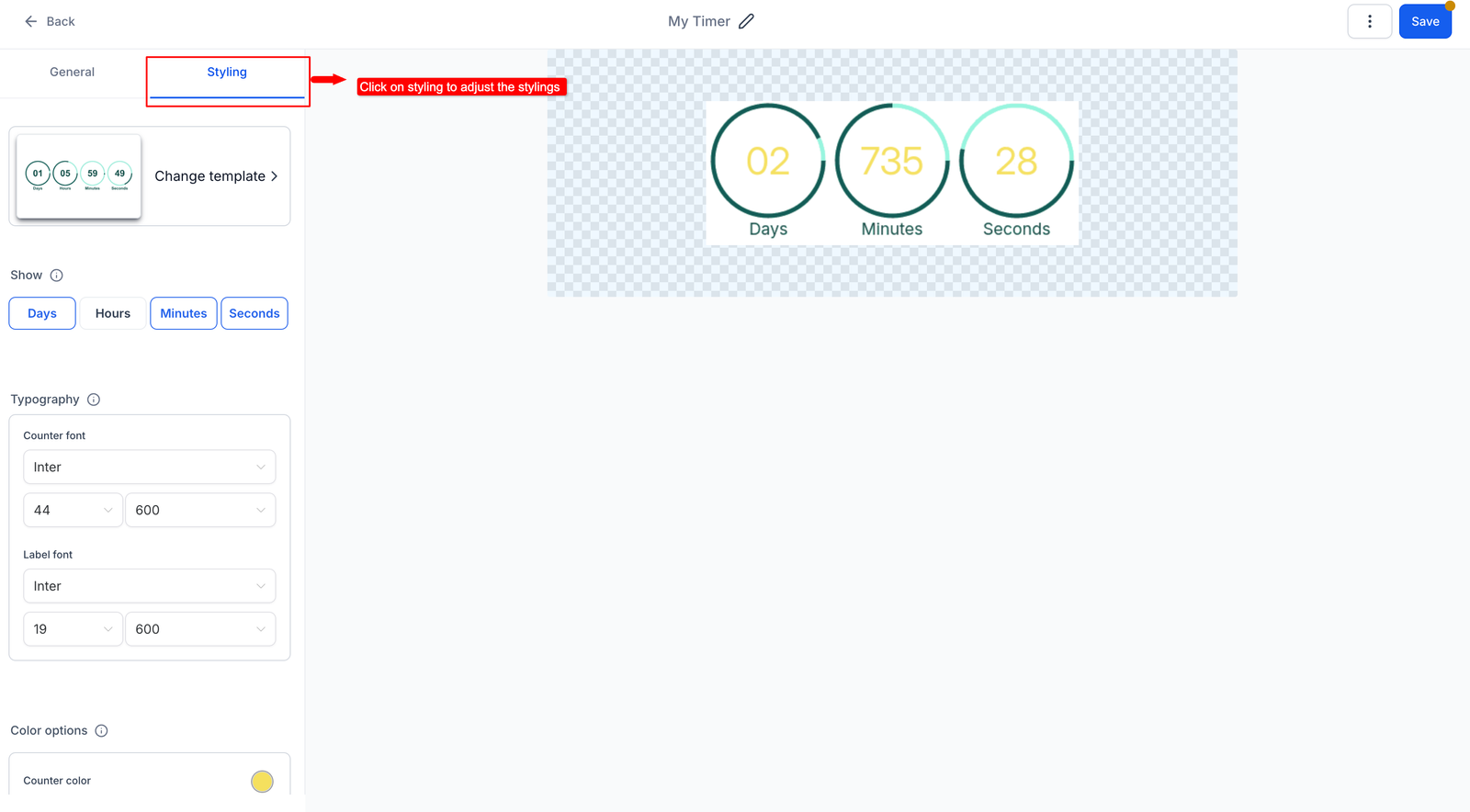
Customize Styling: Adjust the timer’s appearance, including colors, fonts, expiry image, and time display format.
-
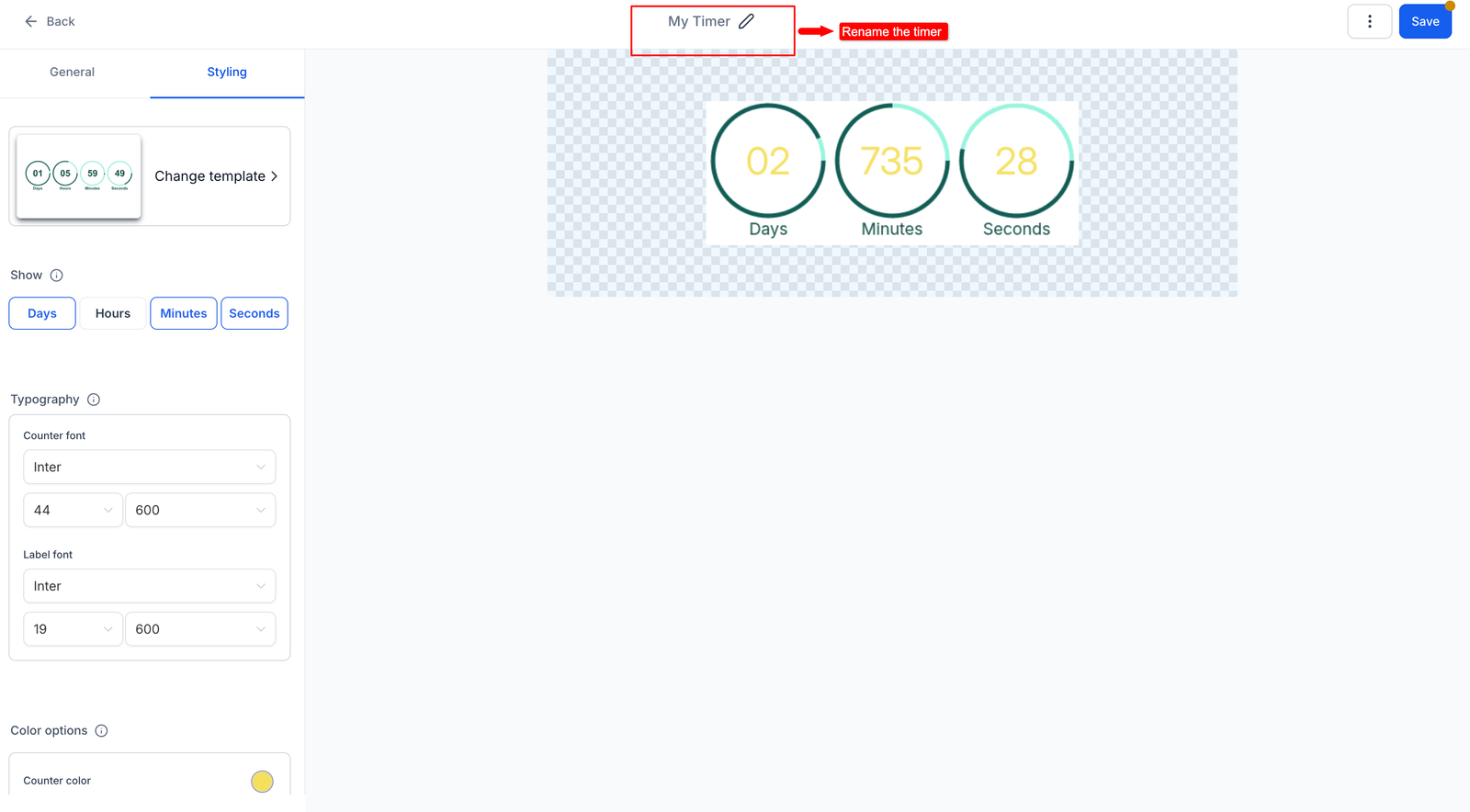
Rename Timer: Give your timer a descriptive name.
-
Save: Click “Save” to finalize and activate your countdown timer.
Quick Links:
1. How to use Countdown Timer in Emails
2. Syn your Countdown Timer in Websites and Funnels
3. How to copy code of a timer?
4. How to use a timer in Funnels


