
Table of Contents
Pipedrive to HighLevel (Migration Guide)
Preparation for Migration
Step 1: Review Current Pipedrive Setup
- Identify Key Assets: Document all sales pipelines, deals, contacts, and automation sequences currently in use within Pipedrive.
- Assess Data Volume: Evaluate the size and complexity of the data (e.g., number of contacts, deals, custom fields) that need to be migrated.
Step 2: Define Migration Objectives
- Set Clear Goals: Determine the primary reasons for migrating to HighLevel, such as advanced automation, integrated CRM, or cost efficiency.
- Prioritize Features: Focus on migrating critical components like CRM data, sales pipelines, and essential automations first.
Step 3: Prepare Backup
- Export Data from Pipedrive: Ensure that all CRM data (contacts, deals, custom fields, etc.) is exported from Pipedrive as CSV or Excel files.
- Backup Documentation: Securely store all exported data files and relevant documentation before initiating the migration process.
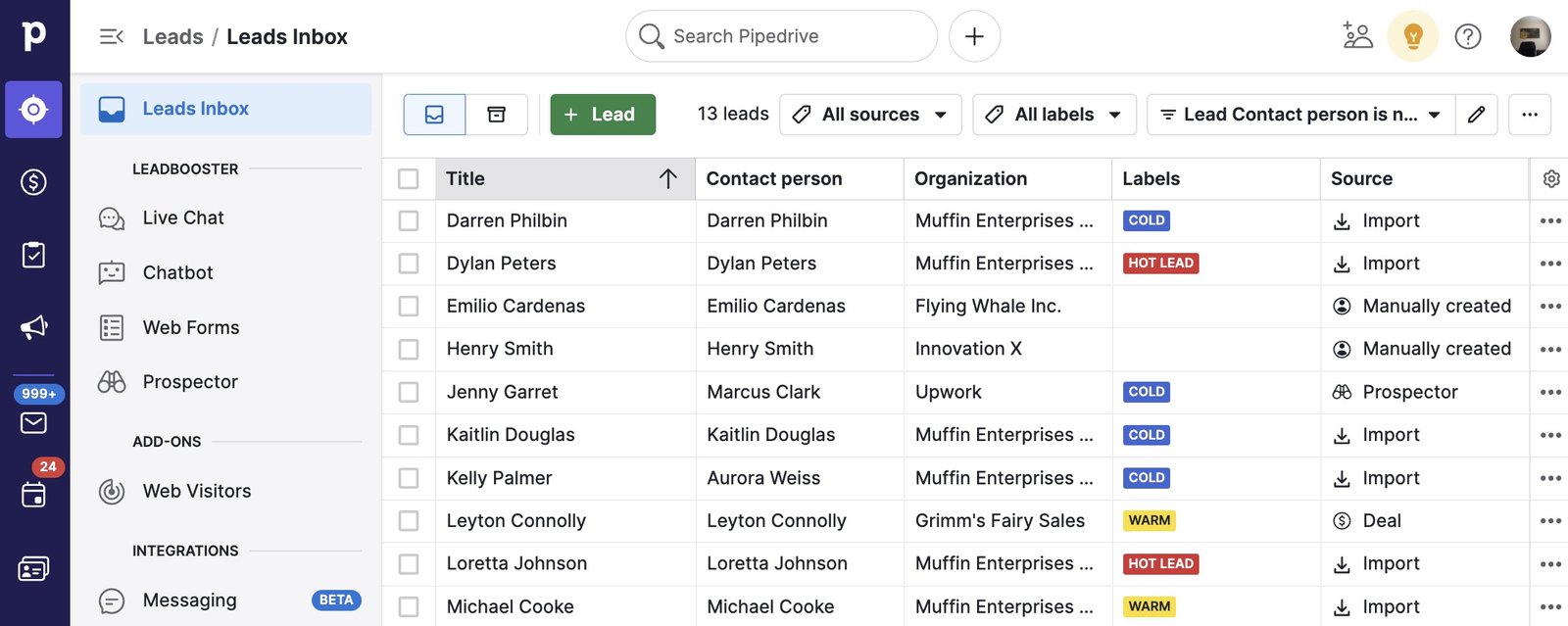
Data Migration
Step 1: Export Data from Pipedrive
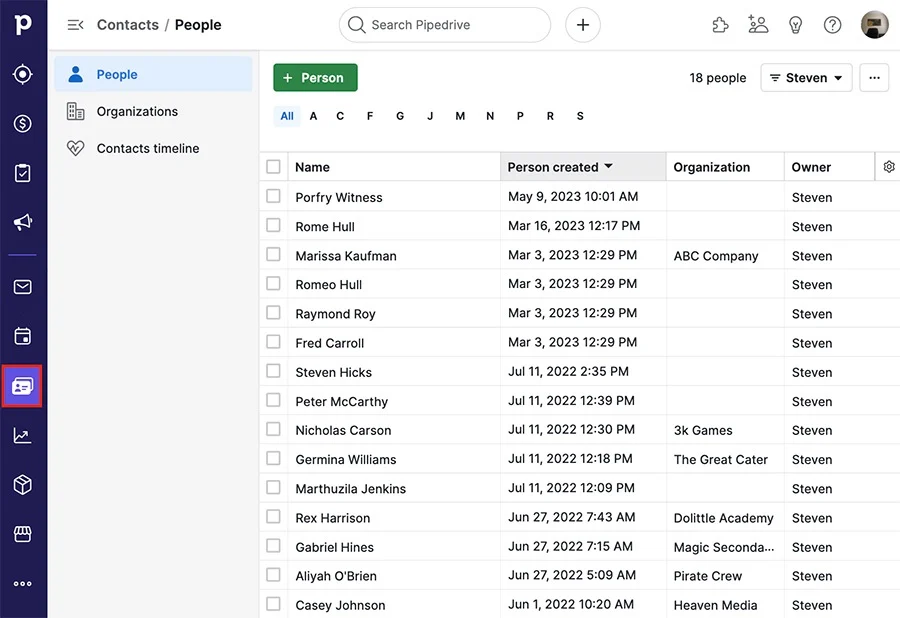
- Export Contacts:
- Navigate to Contacts > People in Pipedrive.
- Use the export function to download contacts as a CSV or Excel file, including all relevant fields such as names, email addresses, phone numbers, and custom fields.
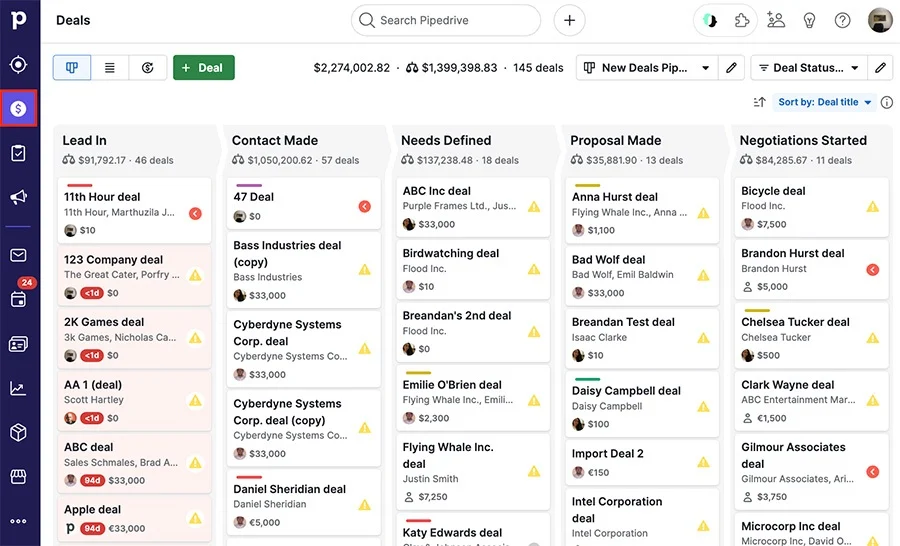
- Export Deals: Go to Deals and export all active and closed deals, ensuring that deal stages, values, and associated contacts are included.
- Export Activities and Notes: Export all scheduled activities, notes, and files associated with contacts and deals.
Step 2: Import Data into HighLevel
- Import Contacts:
- In HighLevel, navigate to Contacts > Import Contacts and upload the CSV file(s) exported from Pipedrive.
- Map the fields appropriately to ensure accurate data import.
- Import Deals (Opportunities):
- Recreate your sales pipelines in HighLevel by going to Opportunities > Pipelines.
- Import deals from the CSV file, mapping deal stages and values to the new pipeline structure.
- Recreate Activities: Manually recreate or import scheduled activities, ensuring that all tasks, meetings, and follow-ups are accurately transferred.
Migrate Sales Pipelines and Automations
Step 1: Recreate Sales Pipelines in HighLevel
- Set Up Pipelines: In HighLevel, create sales pipelines that mirror the stages used in Pipedrive. Ensure all stages are accurately represented.
- Transfer Deals: Assign deals to the appropriate stages within the new HighLevel pipelines, ensuring continuity in sales tracking.
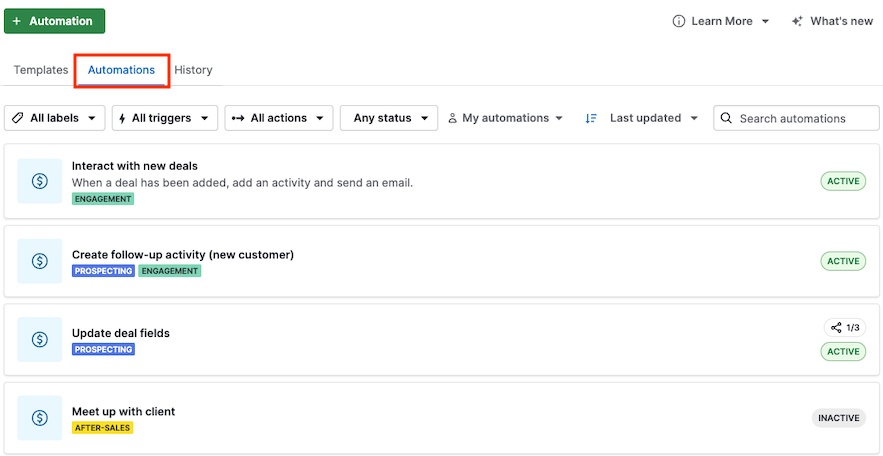
Step 2: Recreate Automations in HighLevel
- Set Up Triggers and Actions:
- Rebuild automation workflows in HighLevel by navigating to Automations > Workflows.
- Recreate triggers (e.g., new deal creation, stage changes) and corresponding actions (e.g., send email, update status) similar to those used in Pipedrive.
- Integrate Communication Channels: Ensure that email and SMS automations are set up correctly within HighLevel, taking advantage of its integrated communication tools.
Migrate Documents and Contracts
Step 1: Transfer Document Templates
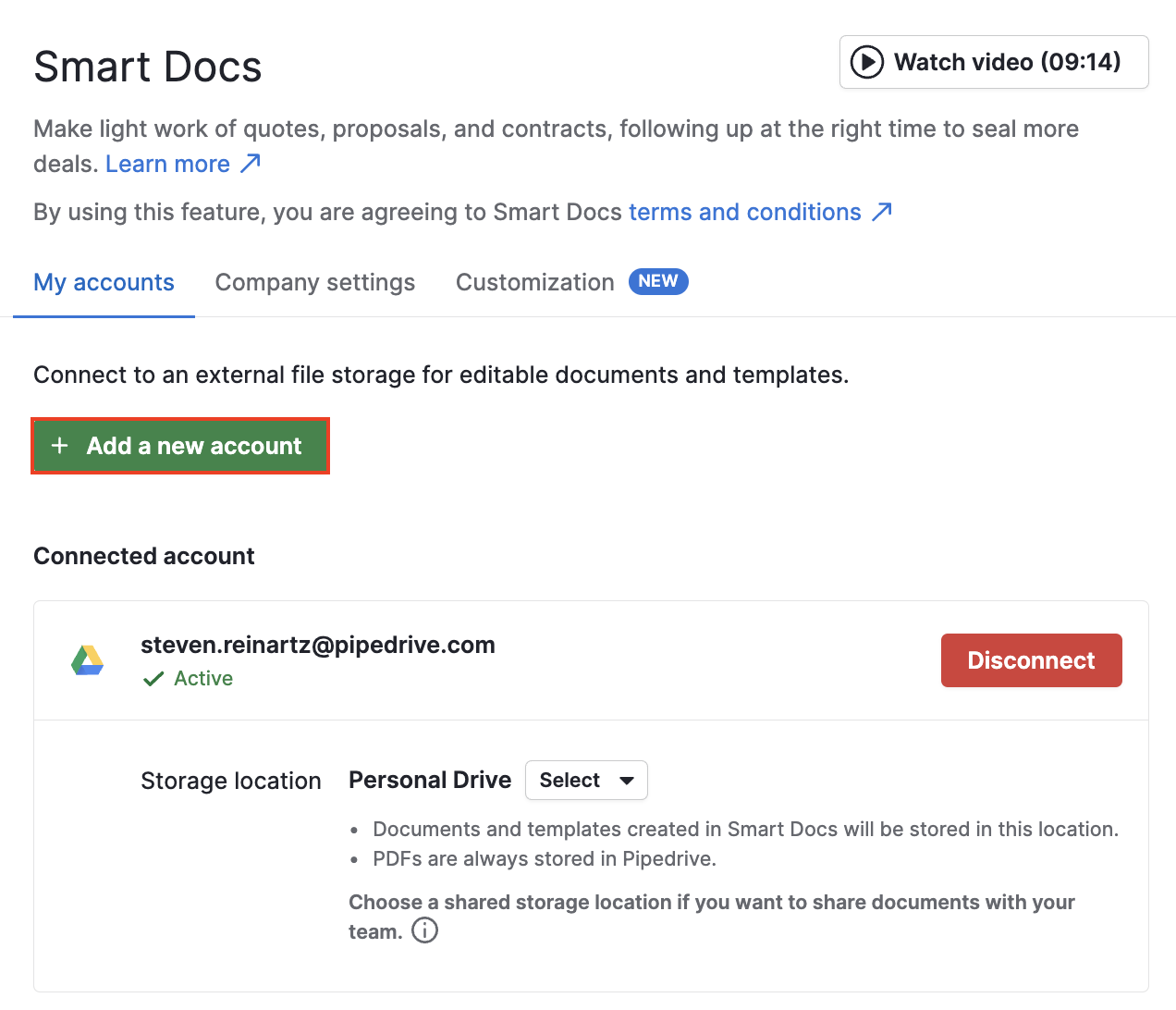
- Export Templates from Pipedrive: Download any document or contract templates used in Pipedrive’s SmartDocs feature.
- Import and Rebuild in HighLevel: Recreate document templates in HighLevel by navigating to Documents and using the template editor to set up contracts, proposals, and quotes.
Step 2: Set Up E-signature and Document Tracking
- Enable E-signature: Configure HighLevel’s document features to include e-signature capabilities for contracts and agreements.
- Track Document Engagement: Set up tracking features to monitor when documents are opened, viewed, or signed, similar to the SmartDocs feature in Pipedrive.
Testing and Validation
Step 1: Test Sales Pipelines
- Perform End-to-End Testing: Simulate sales processes in HighLevel by moving deals through the stages to ensure everything functions as expected.
- Validate Data Integrity: Cross-check imported data to ensure contacts, deals, and activities are accurately represented.
Step 2: Validate Automation Workflows
- Run Test Scenarios: Test each automation workflow in HighLevel to confirm triggers and actions are functioning as intended.
- Verify Communication Channels: Ensure that emails, SMS, and other communication actions are executed correctly within the workflows.
Team Training and Transition
Step 1: Train Team Members
- HighLevel Training: Provide training sessions for team members to familiarize them with HighLevel’s interface and features.
- Provide Documentation: Distribute user guides and SOPs tailored to HighLevel’s functionalities to support team members during the transition.
Step 2: Monitor and Optimize
- Monitor System Performance: Regularly check the performance of sales pipelines and automations post-migration.
- Optimize Workflows: Make necessary adjustments to optimize workflows and improve efficiency based on team feedback.
Decommissioning Pipedrive
Step 1: Transition Period
- Run Systems in Parallel: Consider running Pipedrive and HighLevel in parallel for a short period to ensure a smooth transition.
- Phase Out Pipedrive: Gradually reduce reliance on Pipedrive as confidence in HighLevel grows.
Step 2: Cancel Pipedrive Subscription
- Final Backup: Ensure all necessary data is backed up before canceling the Pipedrive subscription.
- Official Cancellation: Follow Pipedrive’s process to cancel your subscription and terminate any associated services.
Step 3: Post-Migration Review
- Review Success: Assess the success of the migration, documenting any challenges and how they were resolved.
- Ongoing Monitoring: Continue to monitor HighLevel’s performance, making adjustments as needed.


