
- What are WhatsApp Media Templates?
- WhatsApp Media Template Use cases
- How to create a WhatsApp media template
- How to create Sub-Account WhatsApp Template
- Send WhatsApp media templates from Bulk Action
- Send WhatsApp media templates from Workflows
- Send WhatsApp media templates from the conversation page
- Media limits
- FAQs
- Q: What are the media limits for WhatsApp Media Templates?
- Q: What are WhatsApp Media Templates?
- Q: What happens if I try to use media that doesn't fit the guidelines?
- Q: Do I need approval before using WhatsApp message templates?
- Q: What factors can lead to a template being rejected?
- Q: What does it mean if my template is 'Paused'?
- FAQs
WhatsApp’s latest update introduces support for Media templates, enabling users to send various types of media content, including Images, Videos, Documents, and Location. This support article provides a comprehensive guide on how to leverage this feature to enhance communication with customers and improve marketing efforts.
TABLE OF CONTENTS
- What are WhatsApp Media Templates?
- WhtsApp Media Template Usecases
- How to create a WhatsApp media template
- How to create Location WhatsApp Template
- Send WhatsApp media templates from Bulk Action
- Send WhatsApp media templates from Workflows
- Send WhatsApp media templates from conversation page
- Media limits
- FAQs
- Q: What are the media limits for WhatsApp Media Templates?
- Q: What are WhatsApp Media Templates?
- Q: What happens if I try to use media that doesn’t fit the guidelines?
- Q: Do I need approval before using WhatsApp message templates?
- Q: What factors can lead to a template being rejected?
- Q: What does it mean if my template is ‘Paused’?
What are WhatsApp Media Templates?
WhatsApp Media templates allow users to send rich media content, such as Images, Videos, Documents, and Location data, to their contacts or customers. This feature expands the possibilities of communication on WhatsApp, enabling businesses to create more engaging and visually appealing messages.
WhatsApp Media Template Use cases
Elevate your WhatsApp marketing campaigns to the next level with Media Templates:
- Product Launches: Showcase new products with images and attention-grabbing videos.
- Promotions and Offers: Share discount codes or special offers accompanied by eye-catching visuals.
- Event Announcements: Promote events with location sharing and engaging imagery
- Customer Service: Provide helpful tutorials or guides in document format.
How to create a WhatsApp media template
Step 1: Go Settings > WhatsApp > Templates > Create Template
Step 2: Add template name, category and language > Show header and click on the Media > Upload Media
Step 3: Press Create > Template will be sent for approval to Meta
Check out guide on WhatsApp templates statues and best practice
How to create Sub-Account WhatsApp Template
Step 1: Go Settings > WhatsApp > Templates > Create Template
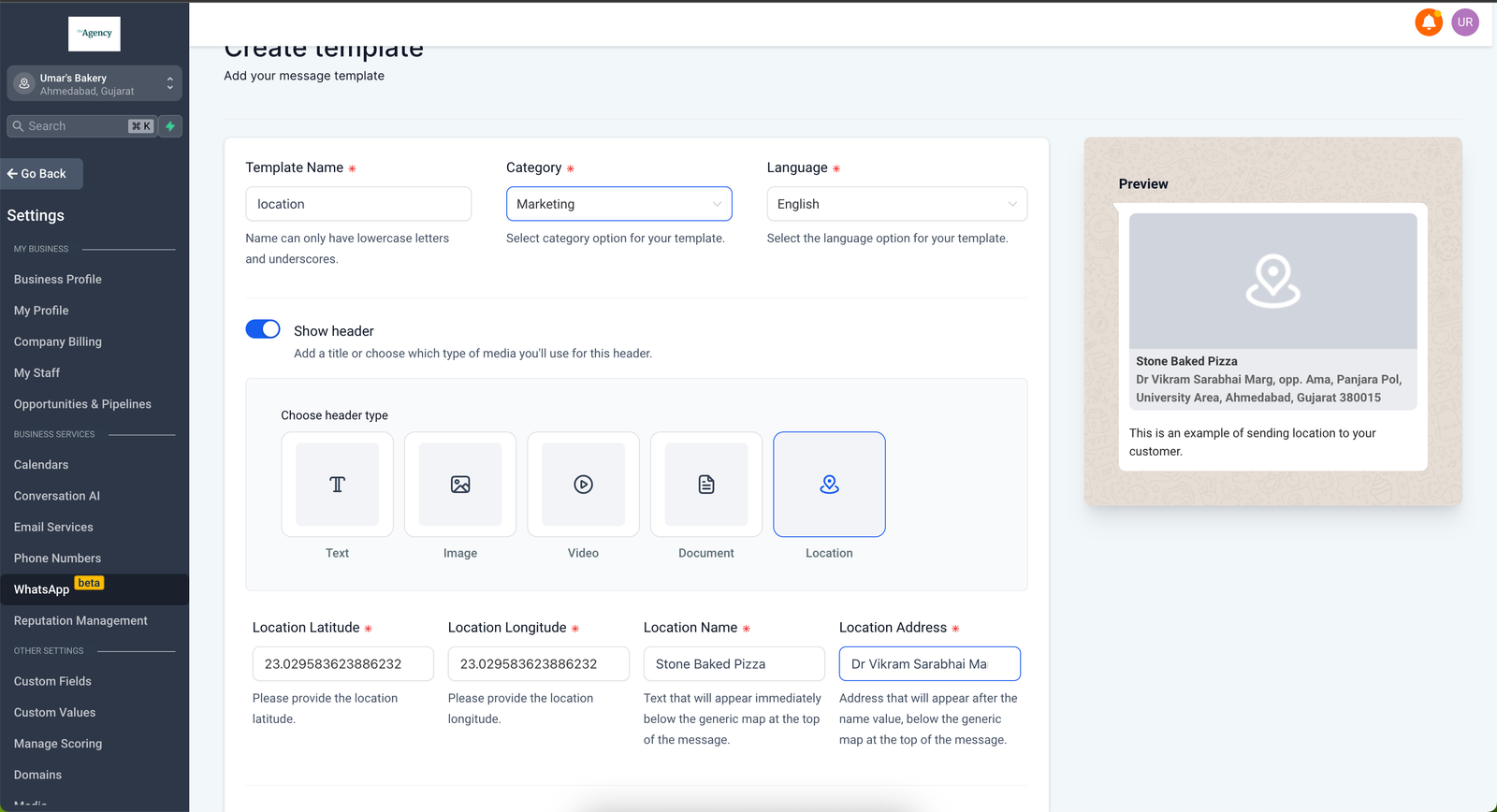
Step 2: Select Location > Add the Location Latitude and Longitude > Add Location Name and Address
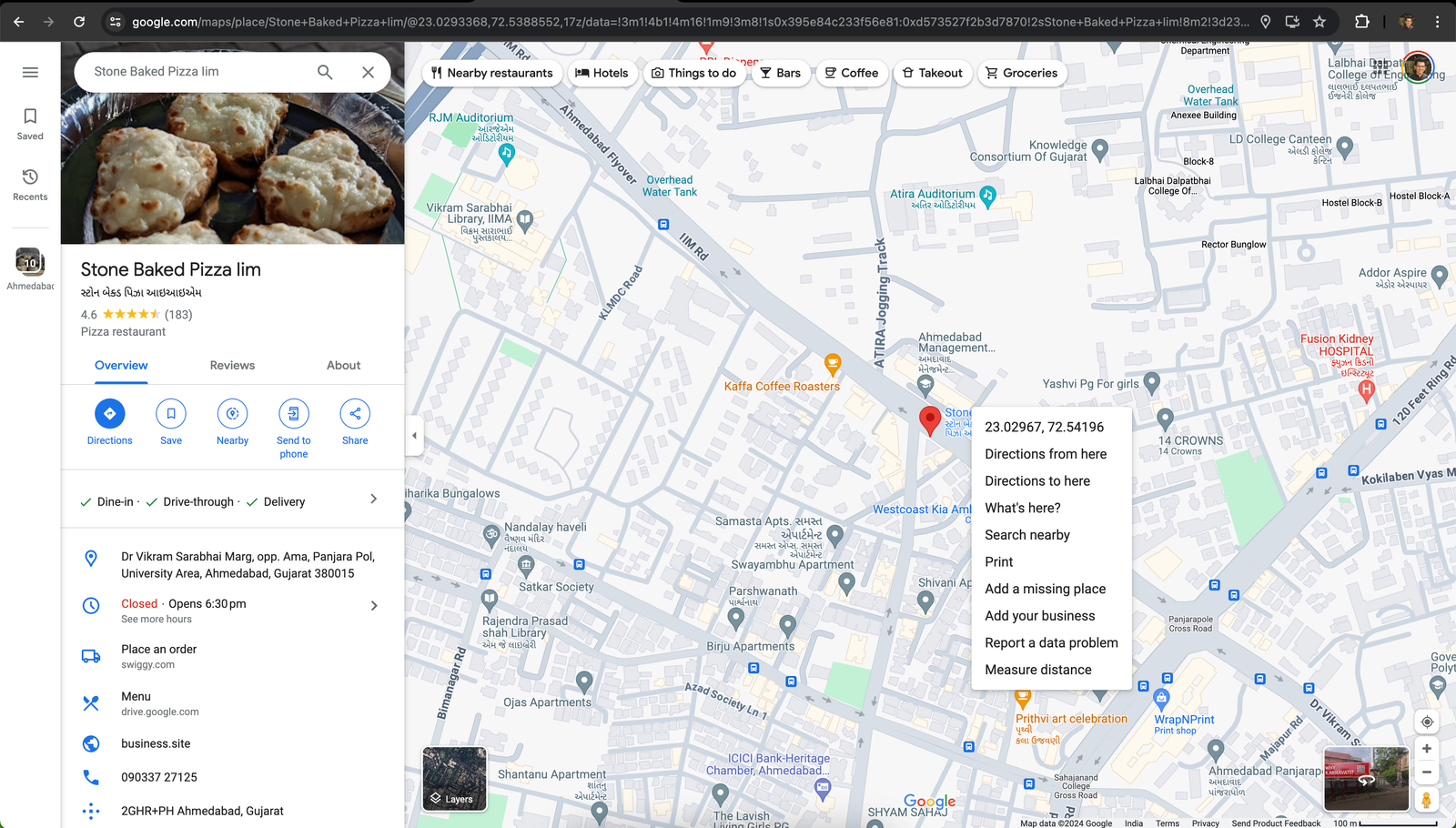
Get the latitude and longitude from Google Maps by right- clicking on the place
or area on the map. Refer to the detailed article here
Send WhatsApp media templates from Bulk Action
Step 1: Go to Contacts > Select the smart list for which you want to send bulk Whatsapp message
Step 2: Select all Contacts > Click on WhatsApp icon > Select template > Add action name
Step 3: Select Show Stats > Click on Processed > View Bulk Action Statistics
Send WhatsApp media templates from Workflows
Step 1: Go to Automations > Create Workflow > Start from Scratch > Select Trigger
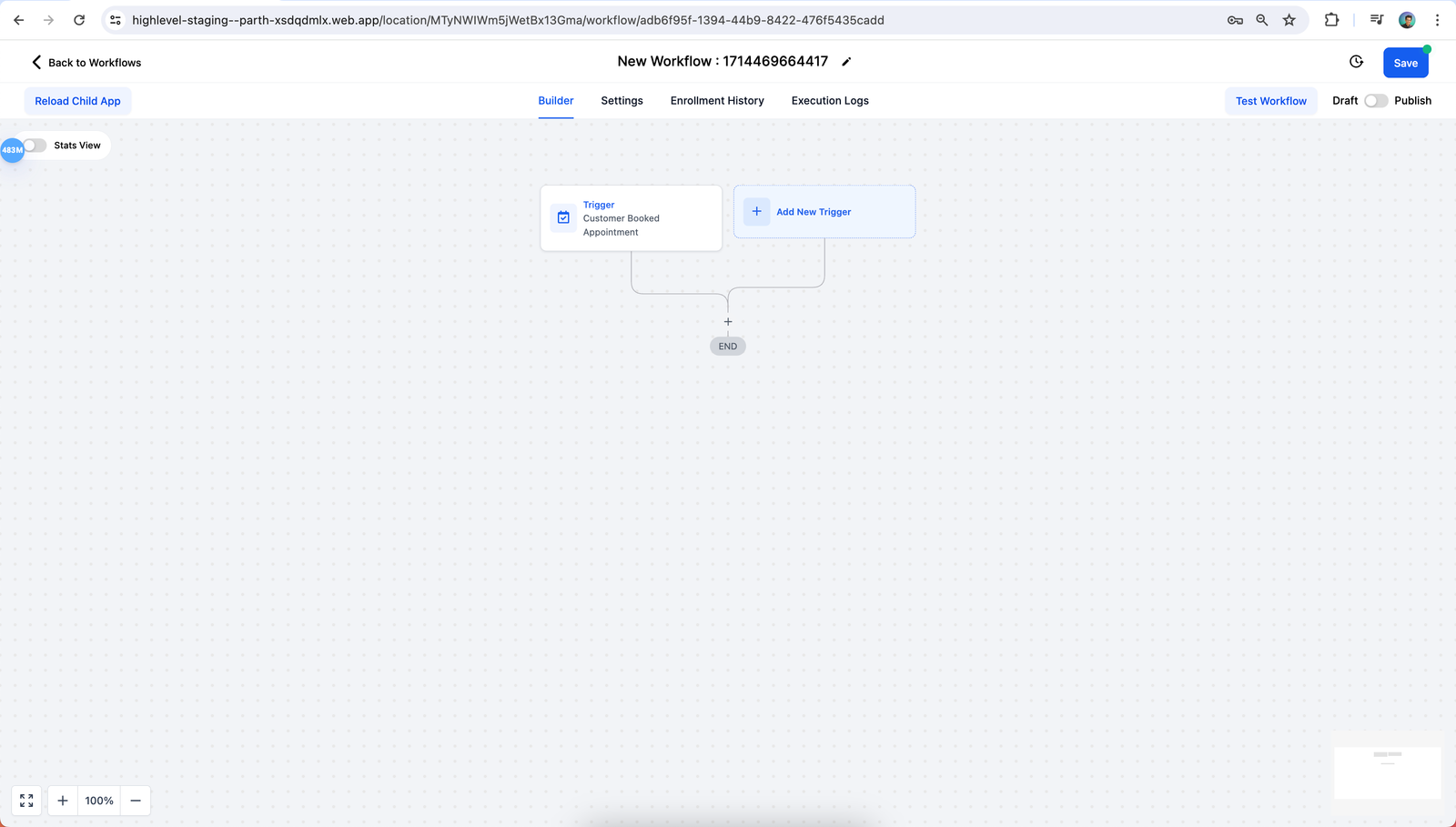
Step 2: Select WhatsApp action
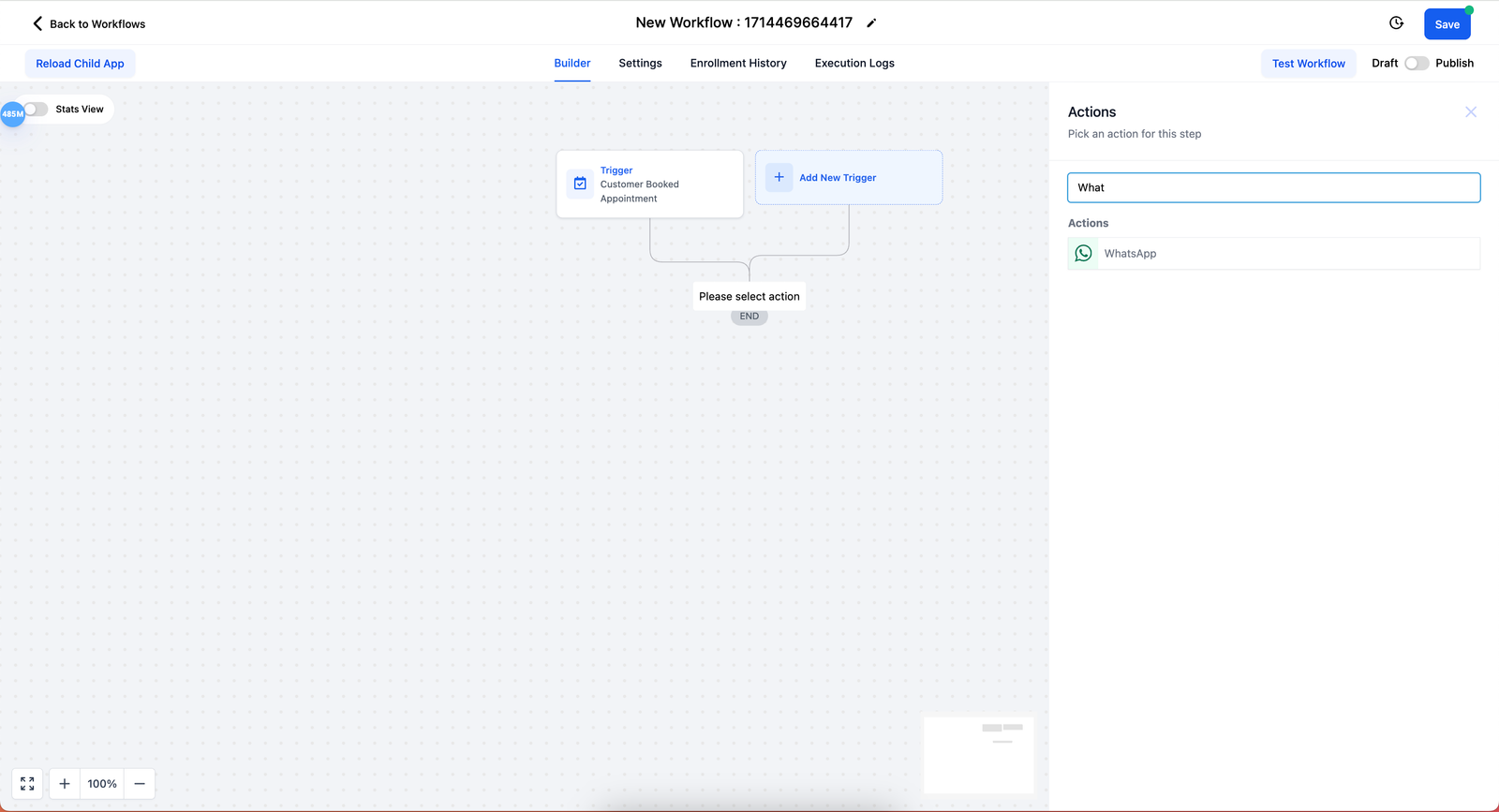
Step 3: Select WhatsApp Template > Save Action > Save workflow
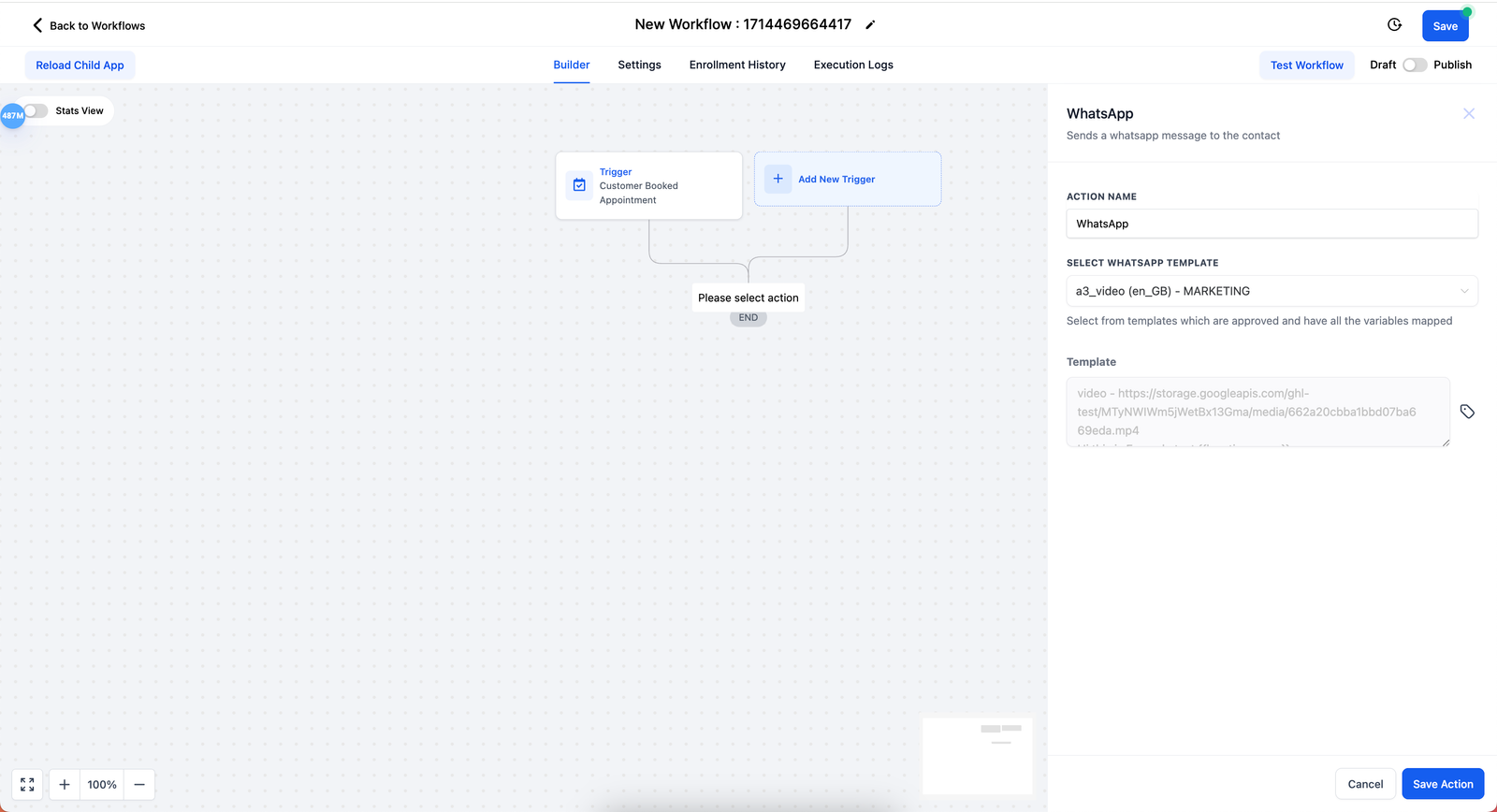
The media url will be shown in the preview under workflow, when the WhatsApp
message is sent the actual media will be rendered
Send WhatsApp media templates from the conversation page
Step 1: Go to Conversations > Select the contact you wish to send WhatsApp media template
Step 2: Click on Please use a template to initiate a chat > Select Media template you wish to send > Click Send
You can change the media by changing the media URL. The url should be a public link and
should contain the same type of media, for example if it is an Image template, then
it will only accept PNG and JPEG files
Users will get the below error when using a media which is not approved,
for example if a user tries to add a video file in an Image template,
the below error will be shown
Media limits
| Media | Supported Types | Size Limit |
|---|---|---|
| document | application/pdf |
100MB |
| image | image/jpeg, image/png
Images must be 8-bit, RGB or RGBA |
5MB |
|
video |
video/mp4 |
16MB |


