Table of Contents
- Imagine having a helper that automatically does important tasks whenever a contact’s information changes. That’s exactly what the “Contact Changed” Workflow Trigger does in your CRM! It keeps track of changes, like new tags being added, updates to custom fields, or when a contact is assigned to someone, and then performs actions based on those changes. Let’s learn why it’s useful and how you can set it up step by step.
- What Is the “Contact Changed” Workflow Trigger?
- The “Contact Changed” Workflow Trigger activates whenever a contact’s details are updated. For example: Tags Changed: If a tag like “Interested Customer” is added, the workflow can send a follow-up email. DND Status Changed: If a contact turns on “Do Not Disturb,” the workflow can stop sending messages. Assigned User Changed: If a contact is assigned to a new sales rep, the workflow can notify them. Custom Fields Updated: If a field like “Preferred Service” is updated, the workflow can send targeted offers. This trigger helps your business respond quickly and keeps everything organized by automating repetitive tasks.
- Why Use the “Contact Changed” Workflow Trigger?
- How to Set Up the “Contact Changed” Workflow Trigger
- Follow these easy steps to set up the workflow trigger:
- Step 1: Start a New Workflow
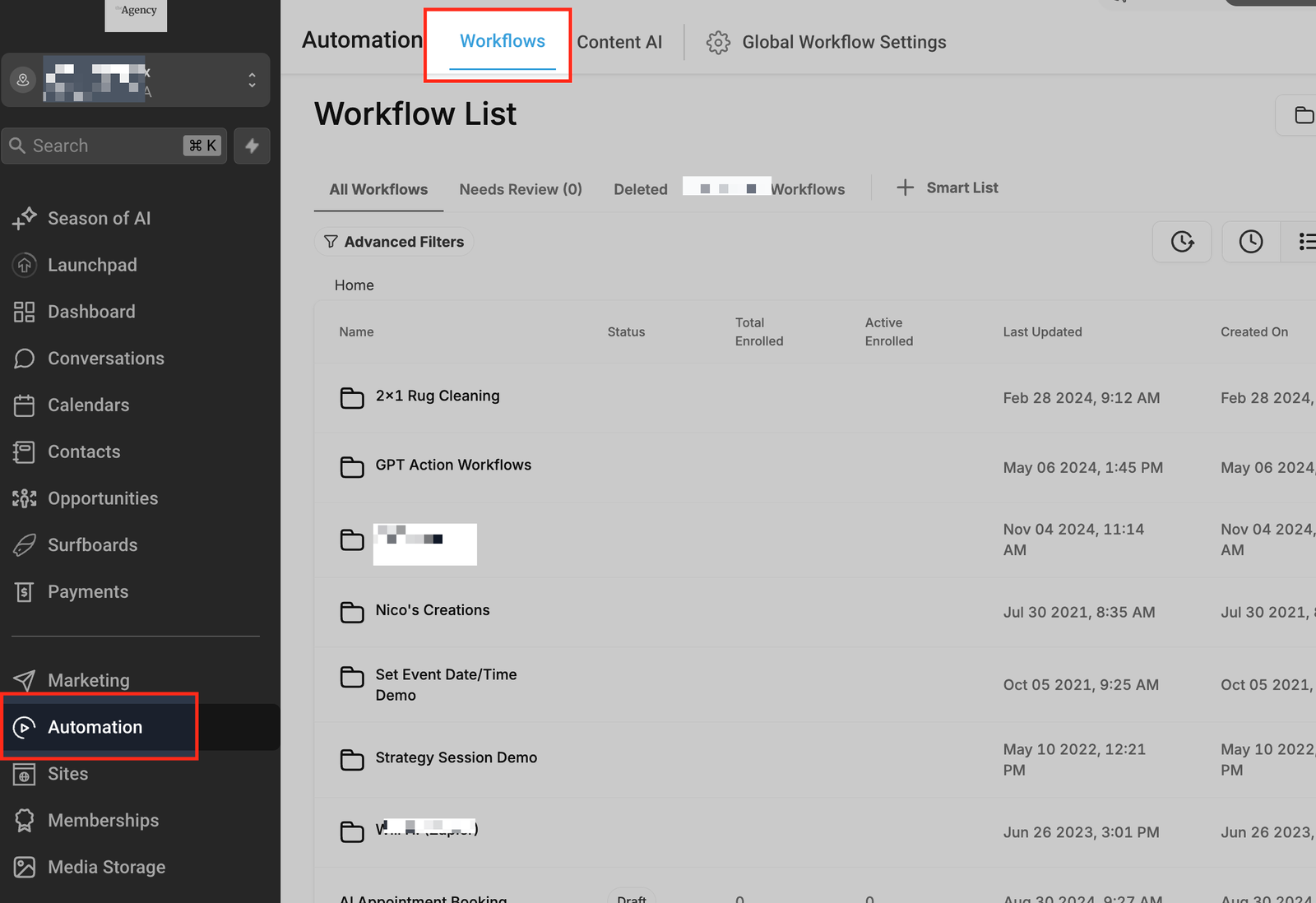
- Go to the Automations section in your CRM. Click Workflows.
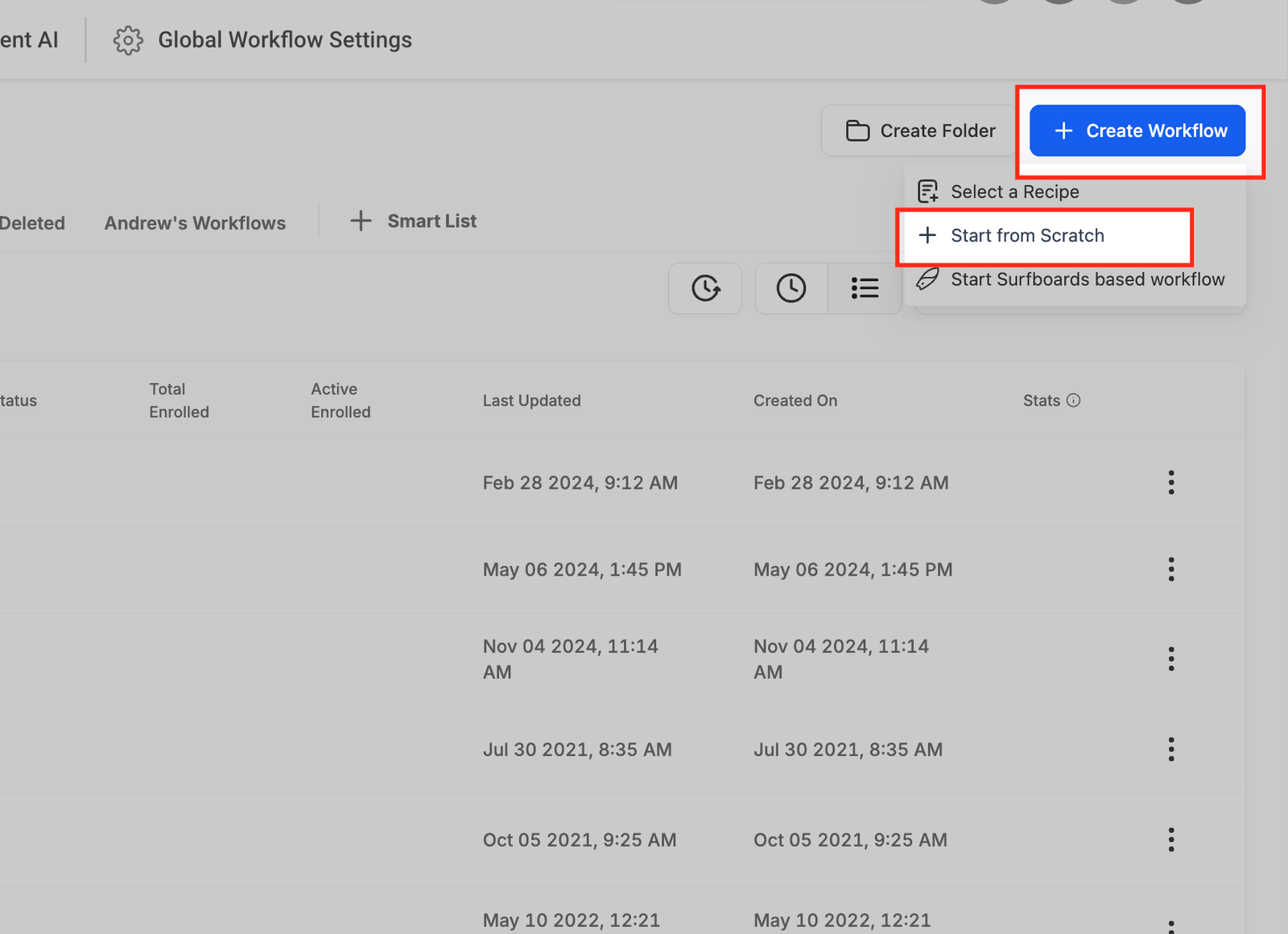
- Click "+ Create Workflow" button at the top right and then " + Start from scratch"
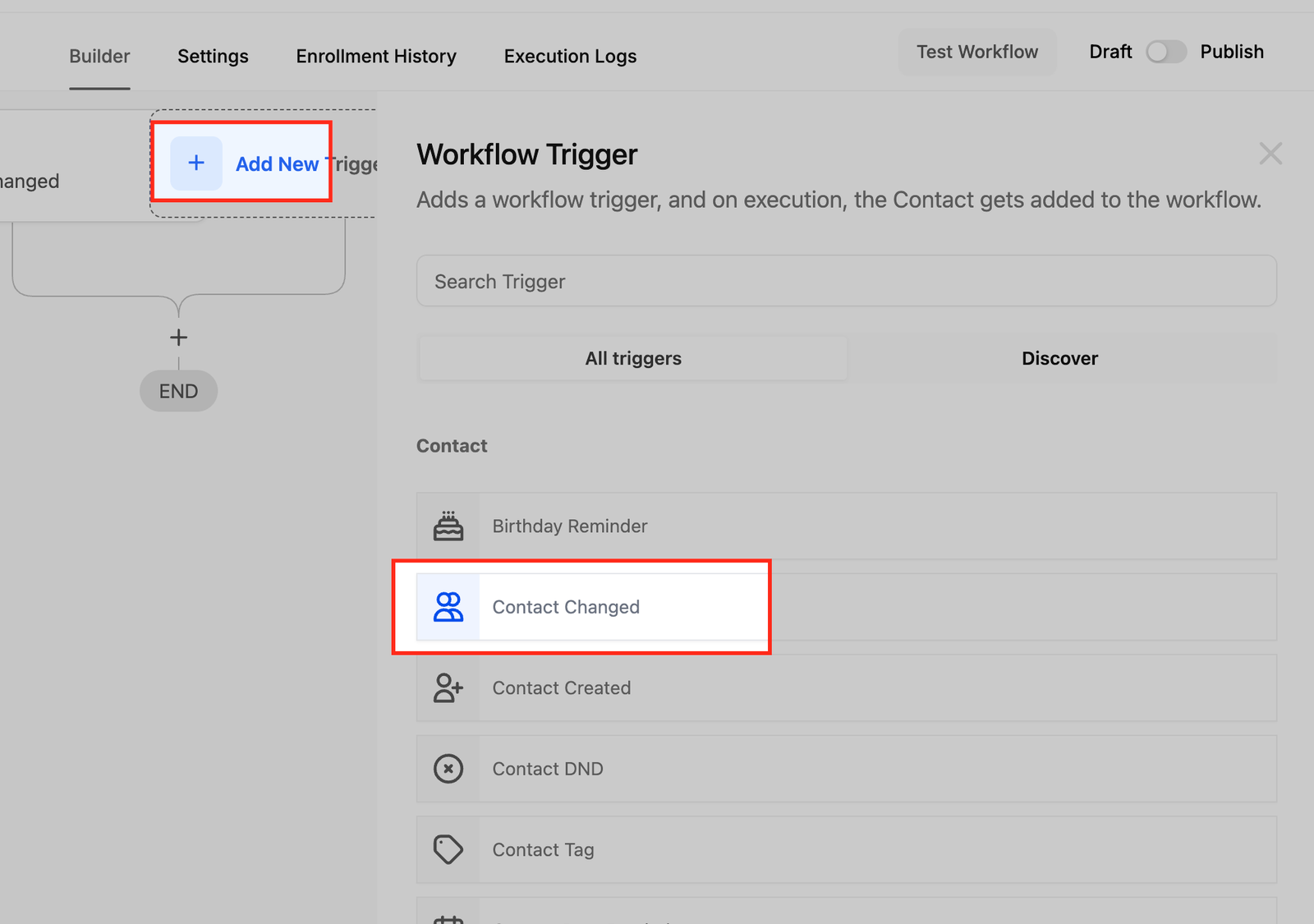
- Click Add New Trigger and search for "Contact Changed."
- Step 2: Configure the Trigger
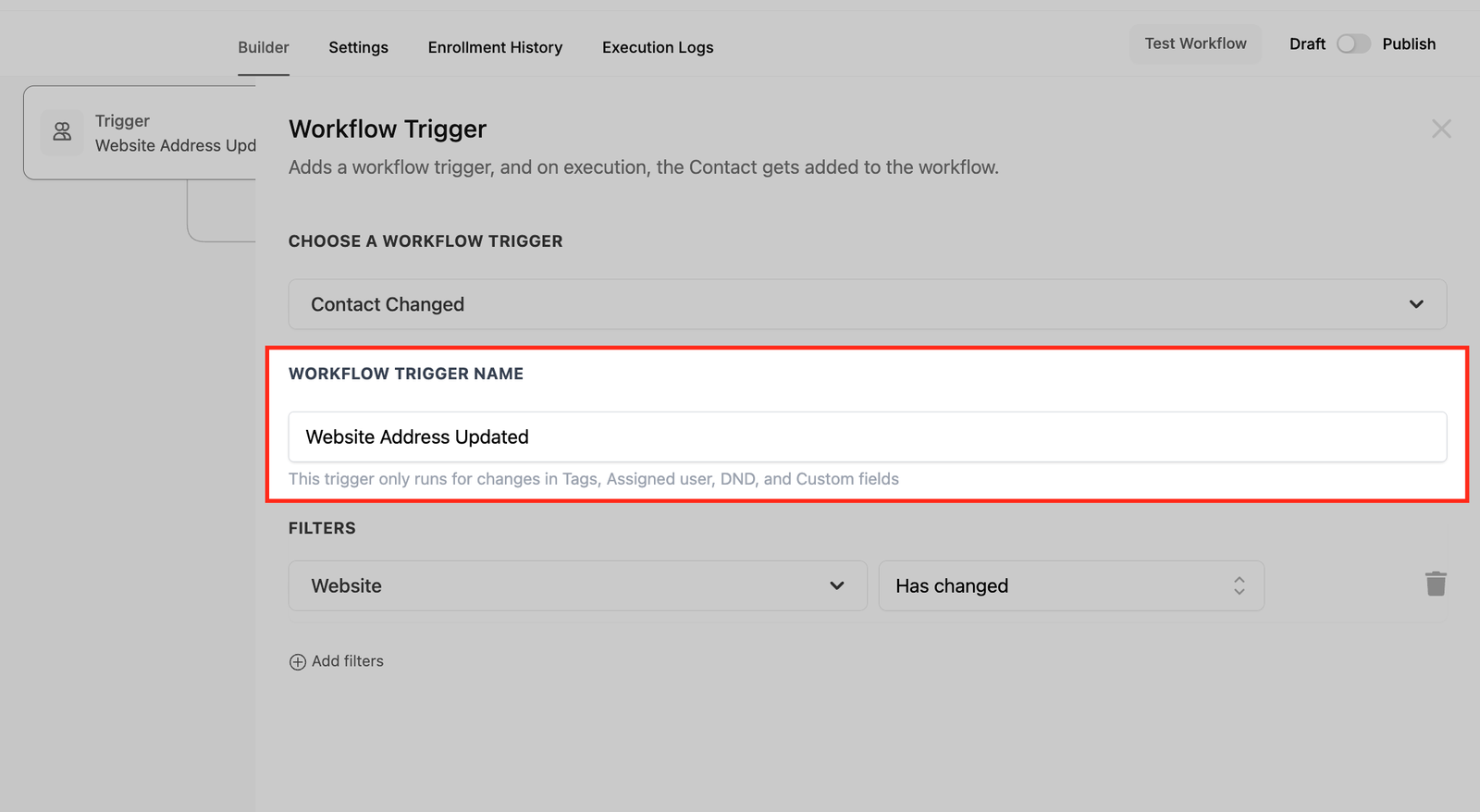
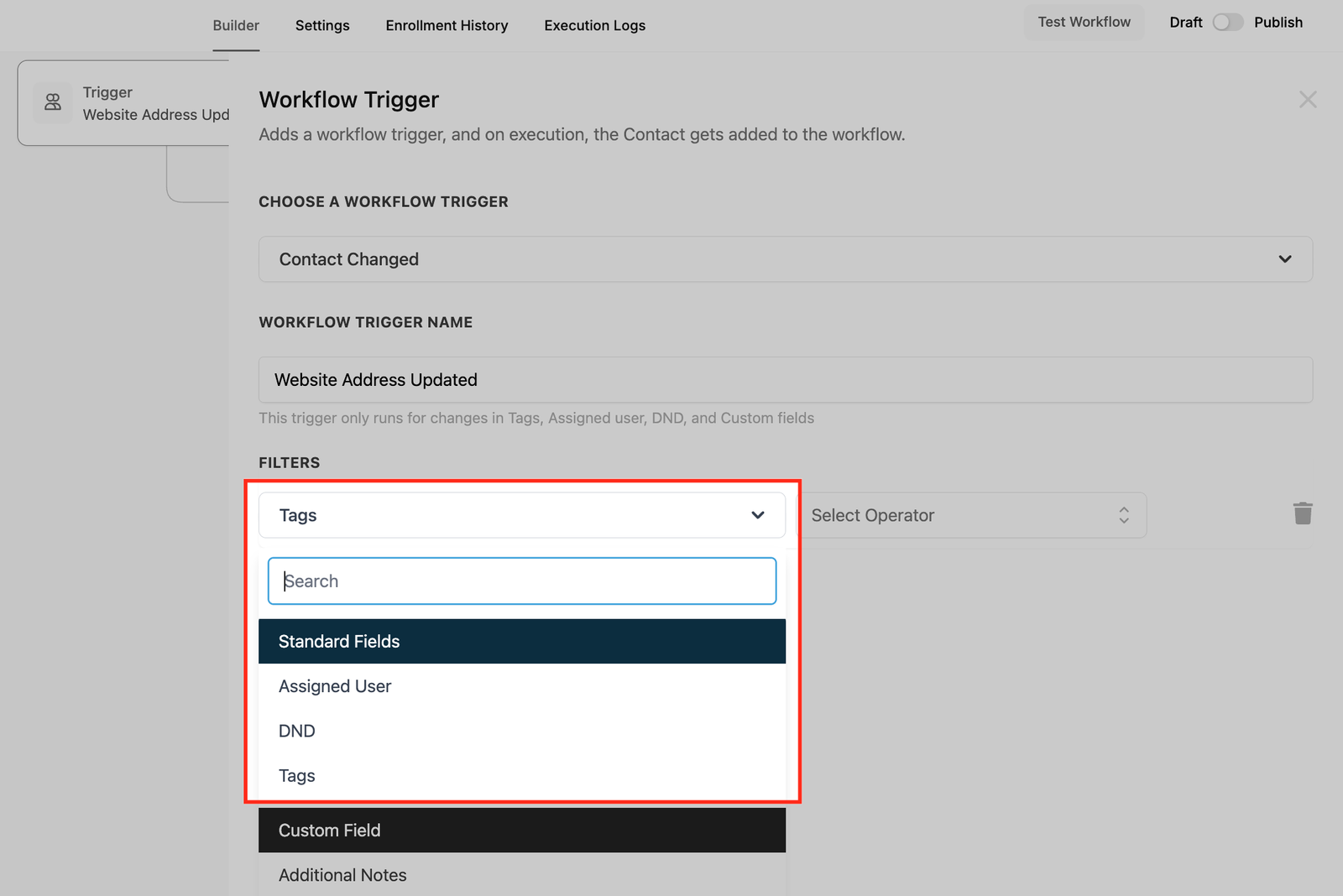
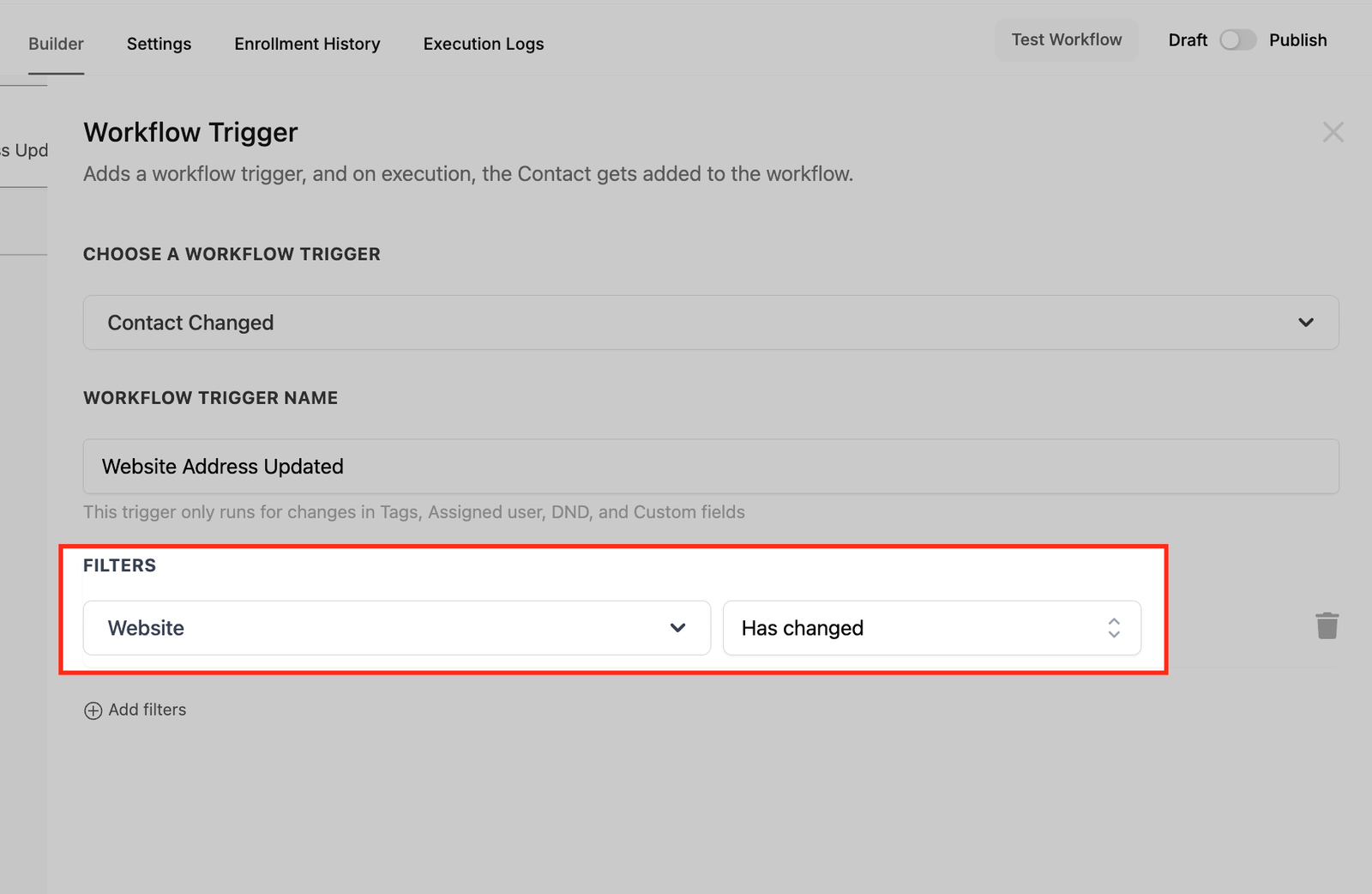
- Name the Trigger: Give it a descriptive name, like “Website Address Updated.” Set Filters:
- Decide what kind of contact changes will activate the trigger. Select Custom Field if you want to track changes in a specific field like “Website.” Choose Tags if you want the workflow to react to added or removed tags. Use DND if the workflow should respond to changes in the “Do Not Disturb” setting.
- Step 3: Add Workflow Actions
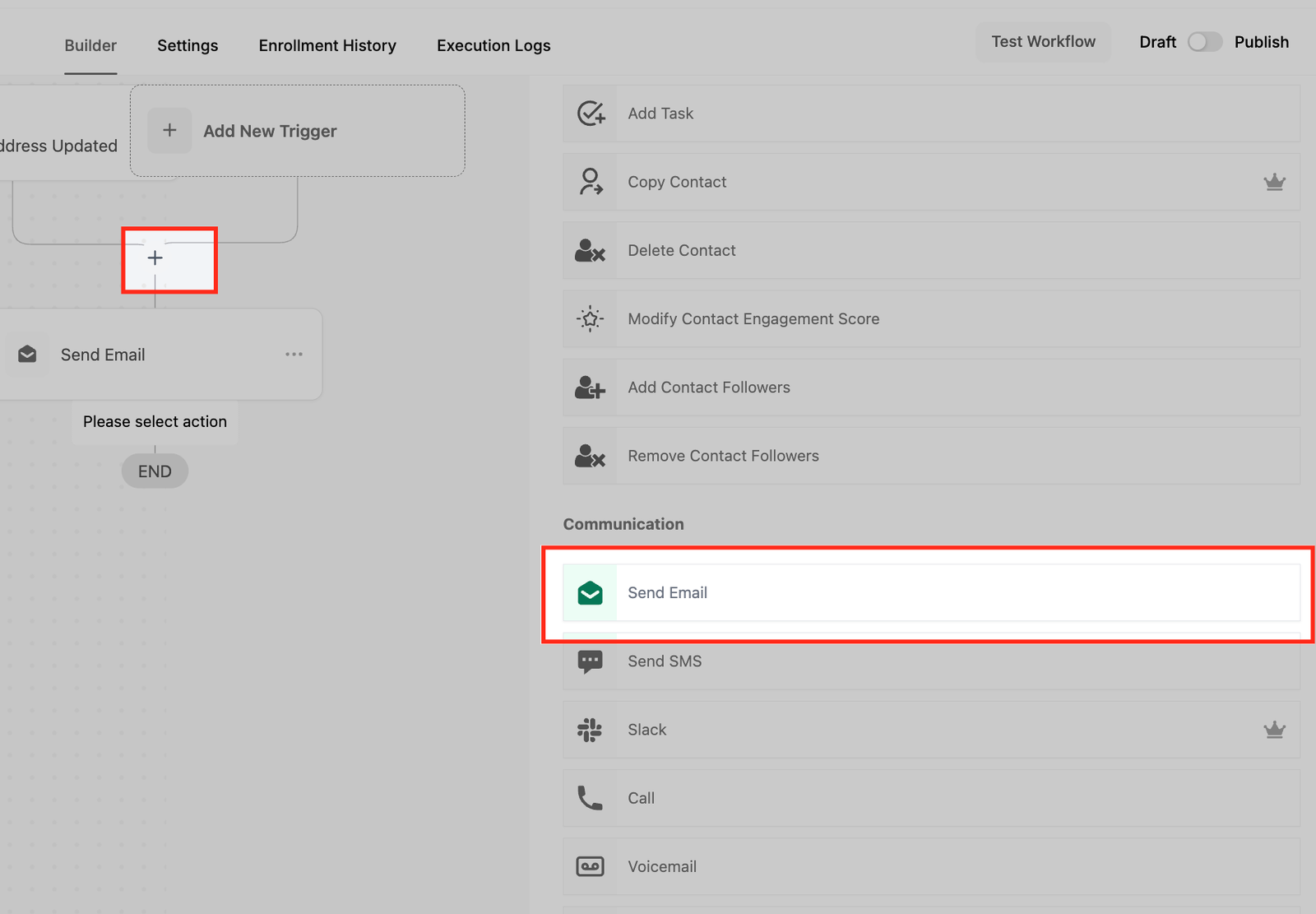
- Once the trigger is set, define what happens next. To set the workflow action, click the "+" icon and scroll down to find "Send Email" action.
- Examples of How to Use the “Contact Changed” Trigger
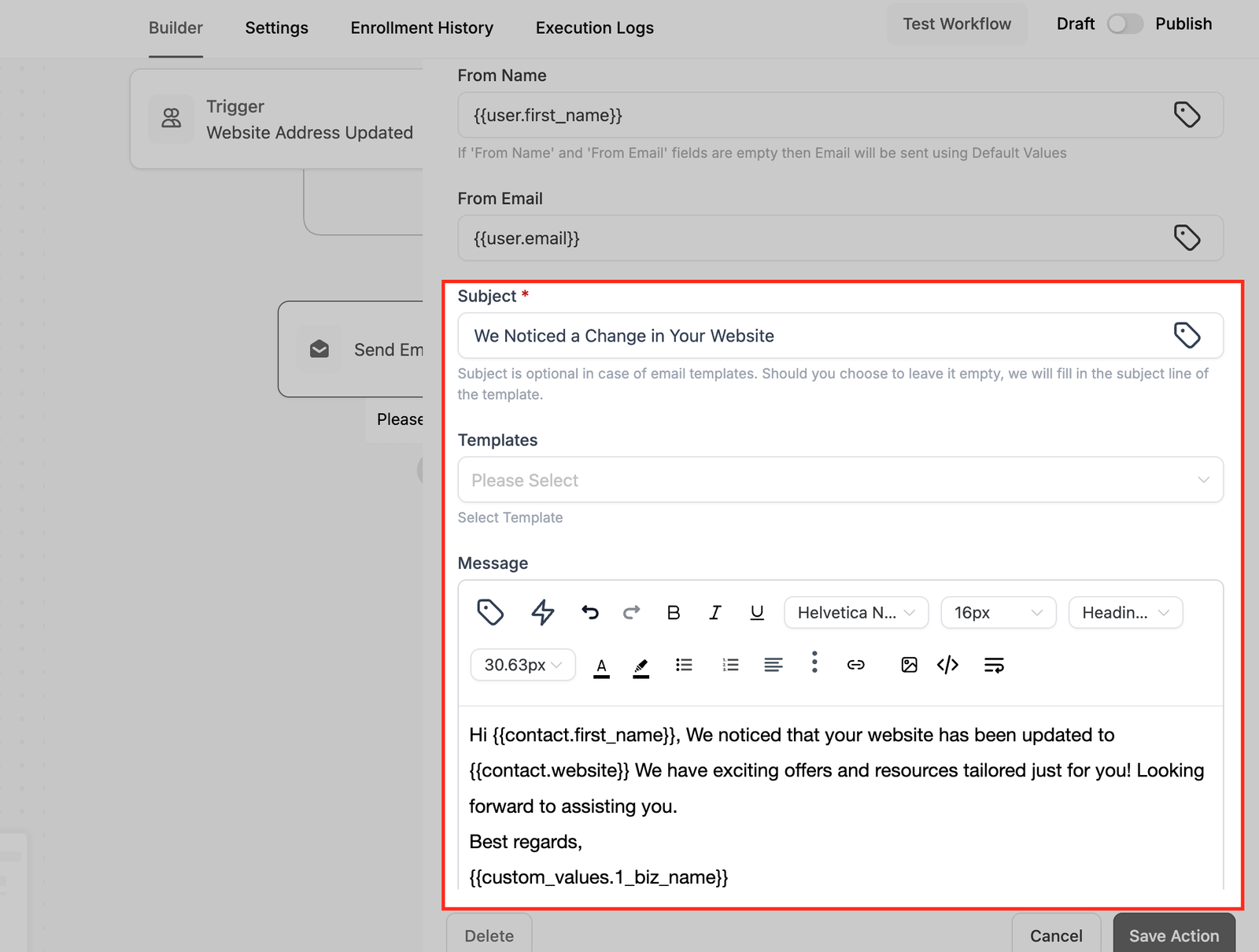
- Example Action: Send a Personalized Email
- Action Type: Send Email. From Name: Your Company. Subject: “We Noticed a Change in Your Website!” Email Body: Hi {{contact.first_name}}, We noticed that your business website has been updated to {{contact.website}}. We have exciting offers and resources tailored just for you! Looking forward to assisting you. Best regards, [Your Company Name]
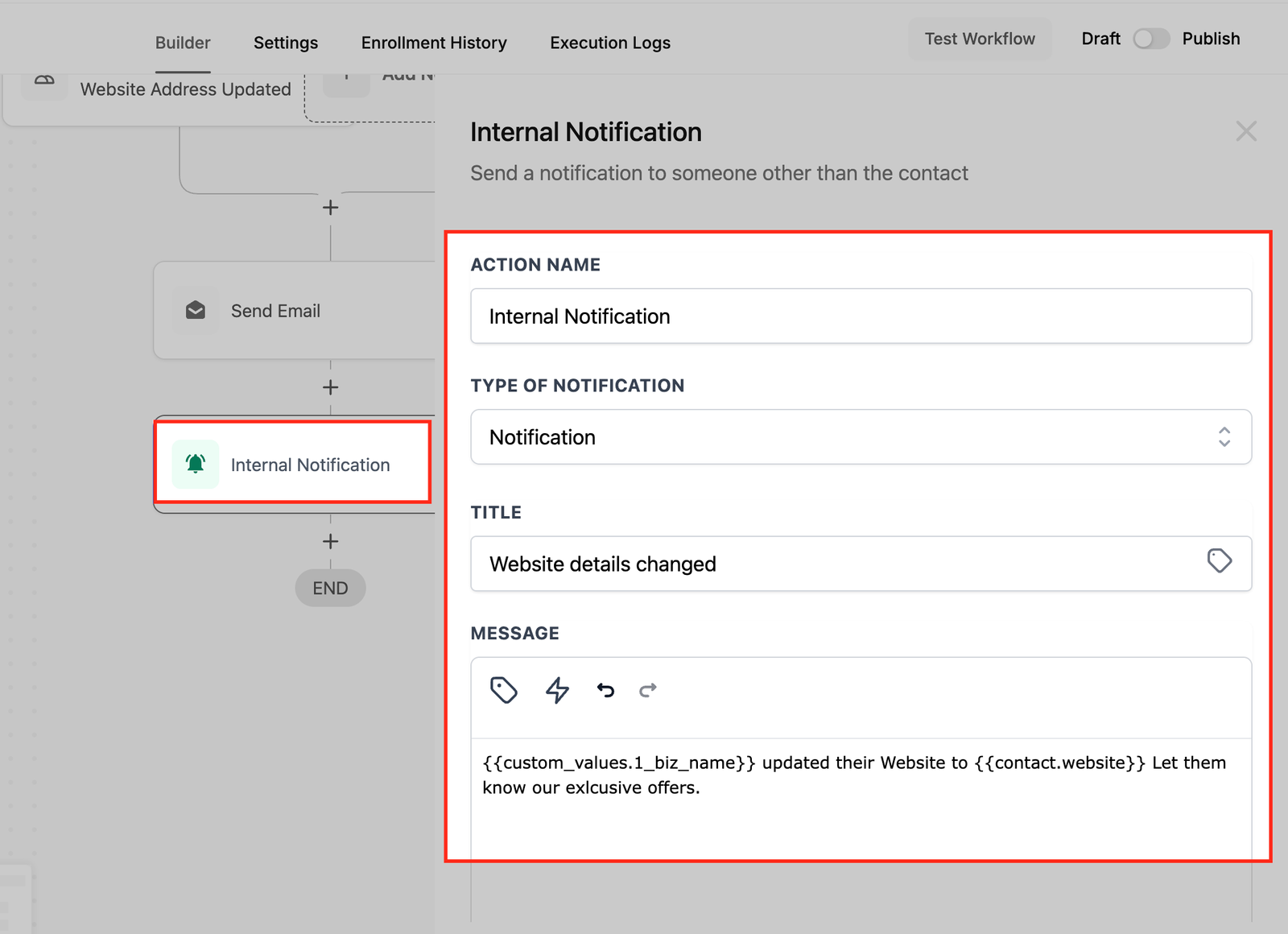
- Example Action: Notify a Team Member : This action is to let the team member or the assigned user of the contact know about the recent changes to the contact. for that, we are using a workflow action named "Internal Notification"
- Action Type: Internal Notification. Message: “Contact {{contact.first_name}} has updated their business website. Follow up soon.”
- More Examples
- Example 1: Responding to a New Business Niche
- Scenario: A contact updates their business niche from “Retail” to “Technology.” Trigger: Custom Field: Business Niche Updated. Action: Send a follow-up email with relevant offers for technology businesses.
- Example 2: Reacting to a Tag Update
- Scenario: A contact gets tagged as “High-Priority Lead.” Trigger: Tag Added: High-Priority Lead. Action: Notify the sales team to follow up immediately.
- Example 3: Stopping Communication for DND
- Scenario: A contact turns on “Do Not Disturb.” Trigger: DND Activated. Action: Pause all scheduled communications to respect their preference.
Imagine having a helper that automatically does important tasks whenever a contact’s information changes. That’s exactly what the “Contact Changed” Workflow Trigger does in your CRM! It keeps track of changes, like new tags being added, updates to custom fields, or when a contact is assigned to someone, and then performs actions based on those changes. Let’s learn why it’s useful and how you can set it up step by step.
TABLE OF CONTENTS
- What Is the “Contact Changed” Workflow Trigger?
- Why Use the “Contact Changed” Workflow Trigger?
- How to Set Up the “Contact Changed” Workflow Trigger
- Examples of How to Use the “Contact Changed” Trigger
- More Examples