
Table of Contents
TABLE OF CONTENTS
Overview
‘Quiz Submitted’ is a dynamic trigger that activates when a user submits a quiz. This flexible tool allows for customised follow-up actions based on quiz results, including overall score, category-specific scores, or other custom fields.
Trigger Name
Quiz Submitted
Trigger Description
This trigger provides a robust response mechanism following a quiz submission, enabling personalized interactions or actions based on the user’s performance and specific answers. You can configure filters to target a specific set of users based on condition.
How to Configure
To integrate the “Quiz Submitted” trigger into your workflow, follow these detailed steps:
1. Create a Workflow:
- Start by creating a new workflow in your system.
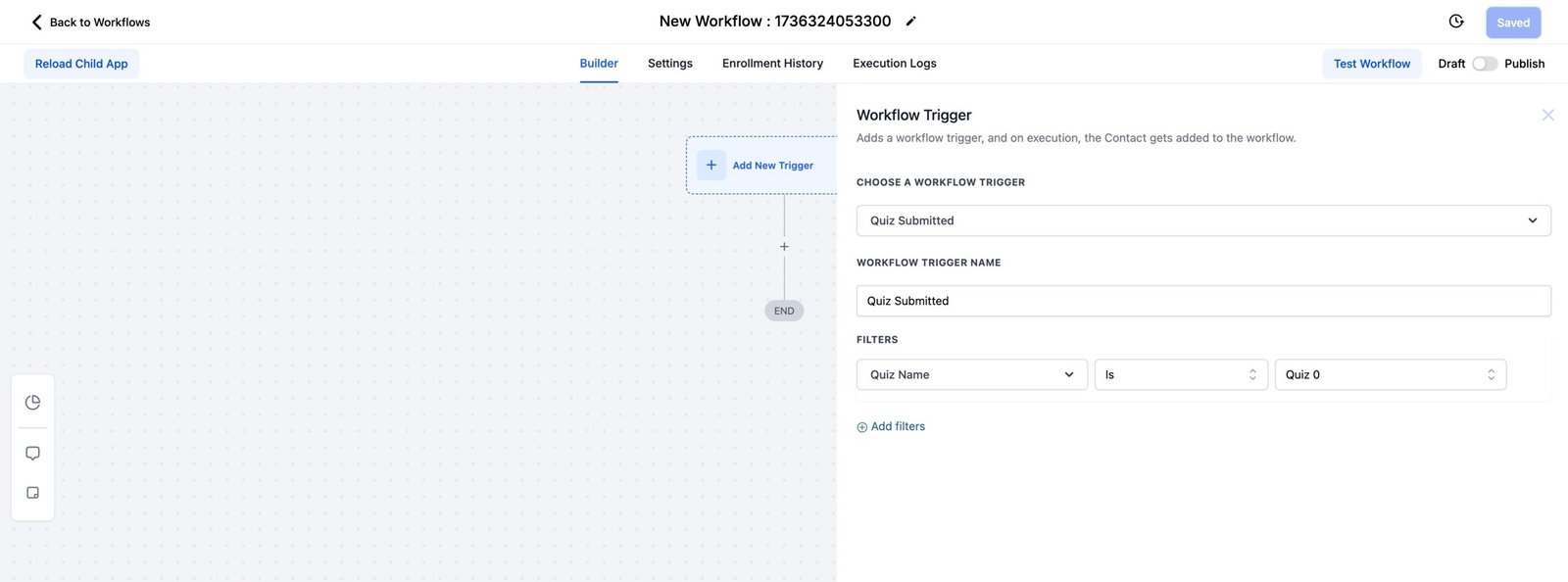
2. Set the ‘Quiz Submitted’ Trigger:
- Navigate to the trigger selection panel in your workflow editor.
- Select the ‘Quiz Submitted’ trigger to activate other workflow steps based on this event.
3. Define the Trigger Conditions:
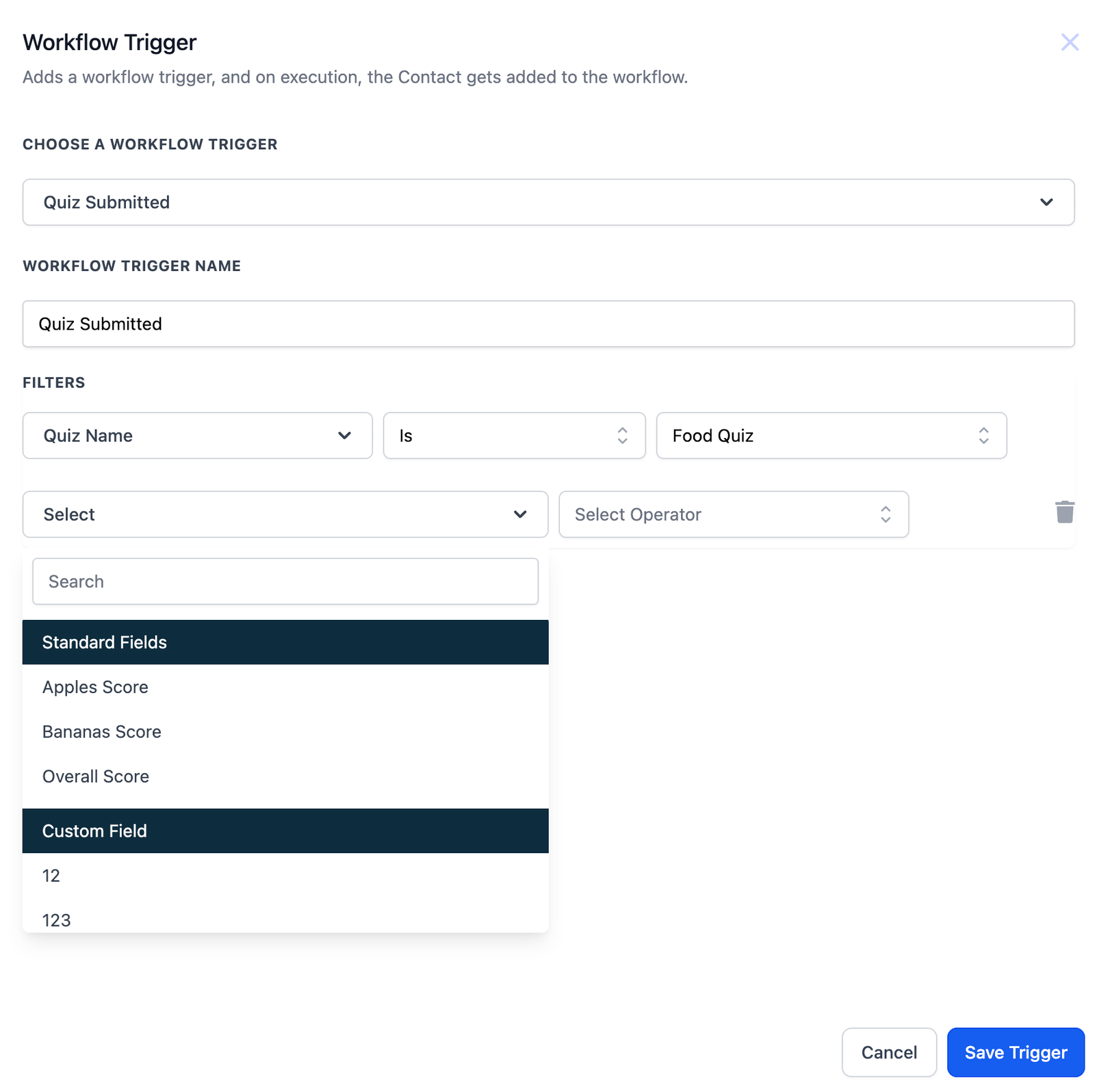
- Specify which quiz submissions activate the trigger by setting filters for quiz names, scores, or custom fields.
4. Add Actions Based on Quiz Results:
- Add actions such as email notifications, sms notifications, or any other follow-up procedures.
- Customize these actions based on the scores or responses provided in the quiz.
5. Test and Optimize the Workflow:
- Run tests to ensure the trigger and subsequent actions perform as expected.
- Make adjustments based on the outcomes of your tests.
Example
Send a congratulatory email to users who score above 80% on a specific quiz.
Trigger:
- Quiz Submitted – Set the trigger and specify the quiz by name.
Condition:
- Score Above 80% – Use conditional logic to check if the score exceeds 80%.
Action:
- Send Email – Configure an email action to send a congratulatory message.
Outcome:
- As soon as a user meets the score condition, they will receive a tailored email celebrating their achievement.


